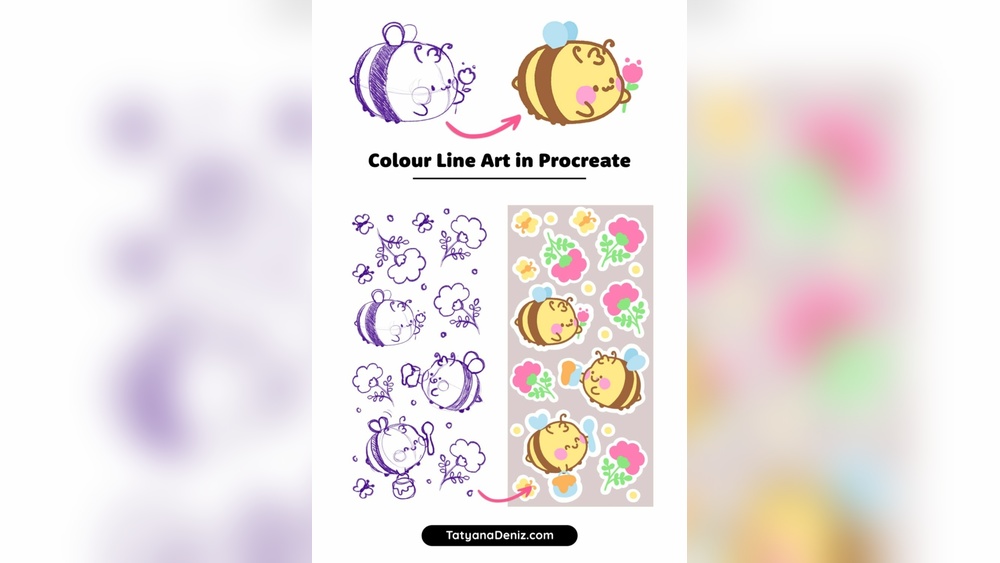
Quick answer: Here is how to color line art in Procreate: put your line art on its own layer, open its layer options and turn on Reference. Create a new layer beneath it, then drag a color from the top-right color circle into each closed area (ColorDrop); it fills based on the reference lines while keeping color on the separate layer. Adjust the fill threshold by holding after the drop and sliding left or right to close small gaps. Add shading on layers set to Clipping Mask, use Alpha Lock to recolor fills, and finish by tinting the line art to match the colors.
Clean line art is only half of a finished illustration. How you color it decides whether it reads as polished or flat, whether colors bleed past the lines, and whether you can change your mind later without repainting everything. Procreate has several features that make this process fast and non-destructive once you know how they fit together.
This guide covers how to color line art in Procreate step by step, from preparing the file to flat colors, shading, highlights and color choices. These layer-based techniques apply in most painting apps, so if you also work on a PC, our guide to Procreate alternatives for Windows users points to programs with similar reference-fill and clipping tools.
Before You Start: Set Up Your Canvas
Best canvas size for digital art in Procreate
Choose canvas size based on where the art will end up. For screen and social media, a long edge of about 2,000–4,000 pixels is usually plenty. For print, aim for roughly 300 pixels per inch at final print size; an 8 x 10 inch print works out to about 2,400 x 3,000 pixels. Larger canvases reduce the number of layers Procreate allows, and coloring uses several layers, so avoid going far bigger than you need.
Prepare the line art
- Keep line art on its own layer. If you scanned or imported a drawing, isolate the lines: set the layer to Multiply, or use Select > Automatic on the white areas and delete, so only the lines remain.
- Close the gaps. ColorDrop fills enclosed areas. Small breaks in lines let color leak. Zoom in and close gaps before coloring.
- Use solid lines. Very textured or soft pencil lines make fills patchy. Smoother, opaque lines fill more cleanly.
Step 1: Turn On Reference for the Line Art Layer
- Open the Layers panel.
- Tap the line art layer to open Layer Options.
- Tap Reference. The layer now shows “Reference” under its name.
Reference tells ColorDrop to use this layer’s lines as boundaries while filling on a different layer. That separation is the key to non-destructive coloring.
Step 2: Create a Flats Layer and Fill Colors
- Tap the plus icon to add a new layer, and drag it beneath the line art.
- Pick a color from the color panel.
- Drag the color circle from the top right of the screen and drop it into an enclosed area of the drawing.
- Without lifting your finger after the drop, slide left or right to adjust the ColorDrop Threshold. Higher threshold fills more; too high floods the whole canvas. Aim for the value that fills right up to the line without leaking.
- Repeat for each area.
After you set the threshold once, Procreate remembers it for later drops until you change it again.
Fixing white halos at line edges
Sometimes a thin gap of unfilled pixels remains between fill and line, especially with antialiased lines. Raise the threshold slightly, or paint over the edge with a hard brush on the flats layer. Since the line art sits on top, painting slightly under the lines is invisible.
Use clearly different flat colors at first
Some artists fill flats with temporary, clearly distinct colors before choosing final ones. Because every area is a separate, easy-to-select color, you can later use Select > Automatic or Recolor to swap each region to its final hue in seconds. This keeps the boring part of flatting fast and leaves the color decisions for when you can see the whole image.
Fill by painting instead
For very detailed or open line art where ColorDrop leaks, paint flats directly with a hard round brush on the layer under the lines. The line art hides small overlaps.
Step 3: Separate Flats for Easier Editing
Many artists put major color groups on separate layers: skin, hair, clothing, background. This allows quick selection and recoloring later. A practical compromise:
- Fill all flats on one layer first for speed.
- If you need a part separate, use the Select tool’s Automatic mode on that color, copy and paste it to a new layer.
Too many layers can become hard to manage, so separate only what you expect to adjust independently.
Step 4: Shade With Clipping Masks
Clipping masks let you paint shading that stays perfectly inside the flat colors below.
- Add a new layer directly above a flats layer.
- Tap the new layer and choose Clipping Mask. A small arrow shows it is clipped.
- Set the blend mode to Multiply by tapping the N on the layer.
- Choose a shadow color. A muted blue, purple or warm brown often looks more natural than gray.
- Paint shadows according to a consistent light source.
- Adjust layer opacity to fine-tune strength.
For cel shading, use a hard brush and crisp shadow shapes. For a softer painted look, use a soft or textured brush and blend edges.
Step 5: Add Highlights and Light
- Add another clipped layer above the shadow layer.
- Set it to Add or Screen for bright highlights, or Overlay for gentle light.
- Paint highlights on surfaces facing the light, such as top of hair, cheekbones, the nose bridge and shiny materials.
- Keep highlights smaller than shadows. Small, well-placed highlights read stronger than big ones.
Step 6: Use Alpha Lock to Adjust Flats
Alpha Lock protects transparent pixels so you can paint only over existing color.
- Swipe right with two fingers on a layer to enable Alpha Lock, or turn it on in Layer Options.
- Paint over the flats to add gradients, texture or recolor parts without spilling outside.
- To swap a color completely, select the color, then on the Alpha Locked layer use Fill Layer from Layer Options.
Alpha Lock modifies pixels directly, whereas clipping masks keep changes on separate layers. Clipping masks are more flexible for experimentation; Alpha Lock is quicker for small edits.
Step 7: Color the Line Art Itself
Black lines everywhere can look heavy. Tinting lines to match their surroundings, sometimes called color holds, gives a softer, more integrated look.
- Turn on Alpha Lock for the line art layer.
- Paint over the lines with darker versions of the adjacent fill colors, such as dark brown lines around skin, deep blue around blue clothing.
- Alternatively, add a clipped layer above the lines and paint the color there.
Step 8: Final Adjustments
- Hue, Saturation, Brightness: Adjustments menu; tweak a layer’s overall color.
- Recolor: Adjustments > Recolor replaces a color by tapping it, useful for quick variations.
- Gradient Map: apply a mood or unify colors across the image on a duplicated or merged layer.
- Overlay or Soft Light layer: paint a warm or cool wash across the whole piece to tie colors together.
For non-destructive edits you can toggle, our guide on using adjustment layers in Procreate explains the workflow in detail.
Choosing a Coloring Style
The same line art can look completely different depending on how you color it. Decide on a style before shading, because it changes which brushes and blend modes you use.
- Flat color: fills only, no shading. Clean and graphic, popular for icons, stickers and minimalist illustration. Color choice and line quality carry the whole image.
- Cel shading: one hard-edged shadow tone per color, sometimes plus a single hard highlight. Common in anime and comics. Use a hard brush or the Selection tool to draw shadow shapes.
- Soft shading: shadows blended with a soft or airbrush tool. Gives a smooth, rounded look, but needs restraint to avoid a plastic finish.
- Painterly: textured brushes over flats, with color picking and visible strokes. The line art may be partly painted over as the image develops.
- Watercolor style: semi-transparent fills on Multiply with textured edges and paper grain. Leave some areas lighter or uneven to mimic real washes.
Mixing styles within a single piece usually looks inconsistent. Choose one for the character and keep the background slightly simpler so the subject stands out.
Color Theory for Art: Choosing Colors for Line Art
Good tools only matter if the colors work together. A few color theory basics make the biggest difference when coloring line art.
Use Procreate’s Color Harmony
In the color panel, the Harmony tab suggests related colors using common schemes:
| Scheme | What it is | Effect |
|---|---|---|
| Complementary | Opposites on the color wheel | High contrast, vibrant |
| Split complementary | One color plus the two beside its opposite | Contrast with less tension |
| Analogous | Neighboring colors | Calm, cohesive |
| Triadic | Three evenly spaced colors | Balanced, lively |
| Tetradic | Two complementary pairs | Rich, needs careful balance |
How to use color theory in art without overthinking
- Pick a dominant color. Let one hue family cover most of the image.
- Add a smaller secondary color. Support the dominant one.
- Use an accent sparingly. A small area of contrasting color draws the eye to the focal point.
- Vary saturation. Not everything should be bright. Muted colors make saturated ones shine.
- Check values. Temporarily desaturate the image to make sure the character reads clearly against the background.
Build and save palettes
Create a palette in the Palettes tab for each project or character. Saving colors ensures consistency across multiple illustrations and saves time hunting for the same skin tone or outfit color.
A Simple Color Theory Art Lesson for Kids and Beginners
If you are teaching younger artists to color line art in Procreate, keep it hands-on:
- Prepare simple line art with fully closed shapes.
- Show them how to drag and drop color to fill.
- Ask them to choose only “warm” colors (reds, oranges, yellows) for one version and “cool” colors (blues, greens, violets) for another.
- Compare the two versions and talk about how the mood changes.
- Introduce one shading layer with Multiply to show how shadows add depth.
Common Mistakes When Coloring Line Art
- Coloring on the line art layer. It makes later changes difficult. Always color on separate layers.
- Leaky fills. Usually caused by gaps in lines or a high threshold. Close gaps and adjust the threshold.
- Gray shadows. Gray Multiply shading dulls colors. Choose a colored shadow tone.
- Inconsistent light direction. Decide on one light source before shading.
- Oversaturating everything. Saturated colors everywhere compete. Mute supporting areas.
- Too many layers. Merge or group once a section is final to keep the file manageable.
FAQs
Why is my ColorDrop filling the whole canvas?
Either the line art has a gap, the threshold is too high, or Reference is not turned on for the line art layer while filling on another layer. Close gaps, lower the threshold and check Reference.
How do I color under line art in Procreate?
Create a new layer below the line art layer and fill or paint on it. Turning on Reference for the line art lets ColorDrop use those lines as boundaries.
What is the difference between Alpha Lock and Clipping Mask?
Alpha Lock restricts painting to existing pixels on the same layer. A Clipping Mask is a separate layer whose content only shows where the layer below has pixels, keeping edits non-destructive.
How do I change the color of my line art?
Turn on Alpha Lock for the line art layer and paint over the lines with a new color, or use Fill Layer to change all lines at once.
What is the best canvas size for digital art in Procreate?
It depends on use. Around 2,000–4,000 pixels on the long edge works for screens. For print, plan about 300 pixels per inch at your intended print size.
How do I get rid of white edges around my fills?
Raise the ColorDrop threshold slightly, or paint the edges in with a hard brush on the flats layer underneath the line art.
Final Thoughts
Coloring line art in Procreate becomes fast and flexible once you combine Reference, ColorDrop, Clipping Masks and Alpha Lock. Fill flats on a separate layer, shade with clipped Multiply layers, add small highlights, tint the lines, and use color theory to keep the palette harmonious.
If you are deciding between Procreate and desktop apps for this kind of work, our guide to the best Procreate alternatives for Windows compares programs with reference fills, clipping layers and similar coloring workflows.