
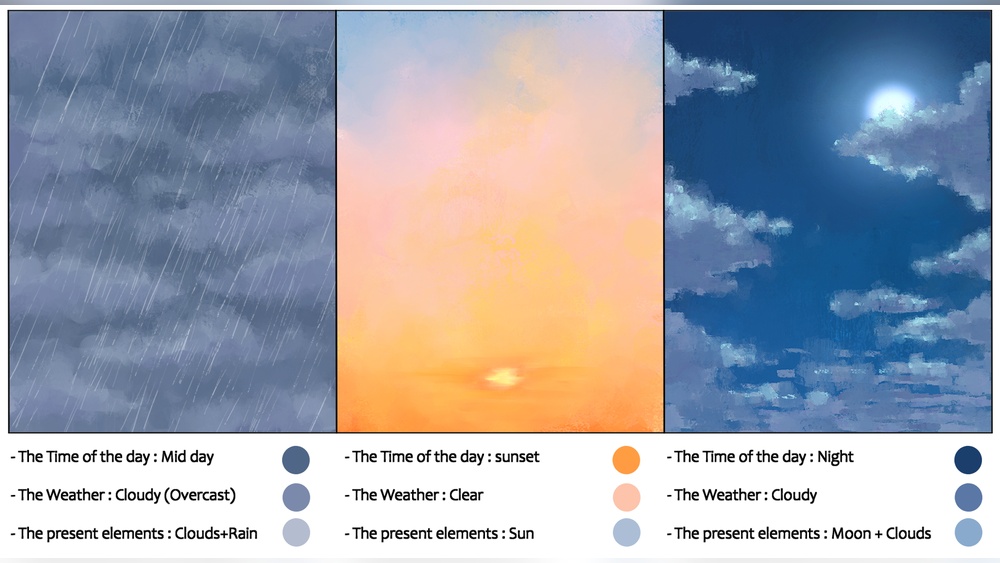
Quick answer: If you want to know how to paint digital sky and atmosphere convincingly, start with a vertical gradient that is darker and more saturated at the top and lighter, warmer and hazier at the horizon. Paint clouds as soft value masses first, give them a lit side, a shadow side and varied edges, and make them smaller and flatter as they approach the horizon. Then add atmospheric perspective to the land: distant forms become lighter, cooler, lower in contrast and closer to the sky color. A sky and its atmosphere should share the same light.
The sky is usually the largest single shape in a landscape, and it sets the light for everything beneath it. Yet it is often the part painted last and fastest, as a flat blue backdrop with a few white clouds stuck on. That is a missed opportunity, because a well-painted sky and the atmosphere around it can carry the whole mood of an image.
This guide covers how to paint digital sky and atmosphere together: gradients, clouds, time-of-day color, haze and atmospheric perspective. The methods work in any layer-based painting app.
How the Sky Actually Looks
A clear daytime sky is not one color. Sunlight scatters in the atmosphere, and shorter blue wavelengths scatter more, which is why the sky looks blue. Looking straight up, you look through less air, so the sky is a deeper blue. Toward the horizon, you look through much more air, which scatters more of all wavelengths and makes the sky paler, often almost white or slightly warm near the horizon.
Three practical consequences for painters:
- Gradient from top to bottom: darkest and most saturated overhead, lightest at the horizon.
- Gradient across the sky: the sky near the sun is brighter and less saturated; the sky opposite the sun is often a deeper blue.
- Haze adds up: the farther away something is, the more air sits between it and the viewer, so it takes on the sky’s color.
These fundamentals of light are covered thoroughly in many structured art books, and if you like learning theory alongside practice, our picks for digital painting books that teach light and color include several that explain atmosphere in depth.
Setting Up Your Sky Layers
A tidy layer structure lets you adjust each element without repainting:
- Sky gradient – the base color transition.
- Distant clouds – small, low-contrast clouds near the horizon.
- Main clouds – larger cloud masses.
- Cloud lighting – clipped to main clouds, for highlights and rim light.
- Atmosphere / haze – soft gradients over the landscape.
- Land layers – background, middle ground, foreground.
Step 1: Paint the Sky Gradient
Use a large soft brush or the gradient tool. Pick a deeper blue for the top and a paler, slightly warmer color for the horizon. Avoid going straight from blue to white; insert a transitional color, often a light cyan or very pale yellow, to avoid a gray band in the middle.
Then add the horizontal shift: brighten and desaturate the side of the sky nearest the sun. Even if the sun is off-canvas, this tells the viewer where the light comes from.
Step 2: Understand Cloud Types
| Cloud type | Look | How to paint it |
|---|---|---|
| Cumulus | Puffy, flat-bottomed, rounded tops | Lit tops, shaded flat bases, crisp edges on the sunny side |
| Stratus | Flat gray layers covering the sky | Soft horizontal bands, subtle value changes |
| Cirrus | Thin, wispy streaks high up | Light, feathery strokes with a dry brush, low opacity |
| Cumulonimbus | Towering storm clouds, anvil top | Strong vertical mass, dark base, bright upper edges |
| Altocumulus | Patches of small rounded clouds | Rows of small puffs that shrink toward the horizon |
Picking one dominant cloud type keeps the sky believable. Mixing many types randomly can look chaotic, though different types do appear together at different heights in real skies.
Step 3: Paint Clouds as Value Masses
Start each cloud as a soft, mid-value shape rather than a white outline. Clouds are three-dimensional, so they have:
- A lit side facing the sun, often bright and slightly warm.
- A shadow side and base, often a soft blue-gray or violet, picking up color from the sky.
- Translucent edges where thin cloud lets light through, sometimes glowing.
Block the cloud mass in a mid-tone, then add light with a textured or soft brush on the sun-facing side. Shadow areas can often stay as the mid-tone you started with.
Edges make the cloud
Edge variety is the biggest difference between flat and convincing clouds. Keep some edges crisp, usually where a bright lit side meets the blue sky, and let others dissolve softly, especially along the base and on the side away from the sun. Smudge tools with texture and erasers with soft or grainy tips help break up edges.
Step 4: Cloud Perspective
Clouds sit on an invisible plane above you, and that plane recedes toward the horizon. As a result:
- Clouds overhead appear larger and show more of their underside.
- Clouds near the horizon appear smaller, flatter and closer together.
- Distant clouds have less contrast and take on more of the horizon color.
Ignoring this makes the sky look like a flat wall. Shrinking and flattening clouds toward the horizon instantly adds depth.
Step 5: Time-of-Day Color
| Time | Sky colors | Cloud colors | Atmosphere |
|---|---|---|---|
| Morning | Soft blues, pale gold near horizon | Peach or pink lit edges | Mist in valleys, cool shadows |
| Midday | Strong blue overhead, pale at horizon | Bright white tops, gray-blue bases | Clear, high contrast; light haze in distance |
| Golden hour | Warm gold and orange near sun, blue opposite | Orange and pink undersides | Warm haze, long shadows |
| Sunset | Orange, red, pink, purple bands | Lit from below, intense color | Silhouetted land |
| Blue hour | Deep, even blue | Dark blue-gray silhouettes | Soft, low contrast |
| Overcast | Uniform light gray | Layered grays, little form | Soft diffused light, weak shadows |
Sunset skies
At sunset, light travels through a lot of atmosphere, so blue light scatters away before it reaches you and warm colors dominate. Paint sunset skies in horizontal bands: warm near the horizon, transitioning through pink or peach to blue or violet overhead. Clouds are lit from below, so their undersides glow and their tops may be darker. Keep the brightest area small and close to where the sun sits.
Step 6: Atmospheric Perspective
Atmosphere is not only in the sky. It fills the space between you and everything in the scene. The farther away an object is, the more it is affected:
- Lighter values (on a typical daytime scene)
- Lower contrast between light and shadow
- Less saturation
- Color shift toward the sky color, usually blue
- Less detail and softer edges
A simple method is to paint each land plane on its own layer, then add a clipped layer filled with the horizon sky color at varying opacity: high opacity on distant mountains, lower on middle hills, none in the foreground.
Haze, fog and mist
Haze is a general softening of the distance. Fog is denser and can hide objects entirely. Mist often lies low in valleys or over water. Paint them with soft brushes at low opacity, building in thin passes. Fog layers between planes create strong depth, because each plane emerges from a lighter veil.
Overcast and Stormy Skies
Clear blue skies are only one option, and often not the most interesting one. Overcast and stormy skies demand a different approach.
Overcast
An overcast sky acts like a huge softbox: light comes from everywhere, so shadows are faint and soft. The sky itself is usually the brightest area in the scene, with subtle variations in gray rather than strong cloud shapes. Paint it with large, soft, slightly warm and slightly cool grays in broad horizontal strokes. On the land, reduce cast shadows to soft darkening under objects, and keep colors muted but not dead; greens and earth tones often look richer under overcast light because they are not bleached by strong sun.
Storm
Storm skies are about contrast and weight. Dark, heavy cloud bases hang low, while gaps may reveal bright sky or a shaft of sunlight. Paint the dark masses first with large, textured strokes, then cut in brighter openings. A single lit patch of land under a dark sky creates instant drama. Rain curtains, the gray veils hanging beneath storm clouds, can be painted with vertical or slightly angled soft strokes at low opacity, fading toward the ground.
Matching the Land to the Sky
A sky only feels real when the land below responds to it. A few checks help:
- Light color: the warm or cool tone of the sunlit sky should appear on lit surfaces of the land.
- Shadow color: on clear days, shadows pick up blue from the sky; under a sunset, they may turn violet.
- Brightness: under heavy cloud, the land should be darker overall than under a clear sky.
- Cloud shadows: large clouds cast patchy shadows across hills and fields, which adds scale and realism.
- Reflections: water reflects the sky directly overhead and beyond, slightly darker than the sky itself.
Painting the sky first and sampling its colors for the land is the easiest way to keep everything consistent.
Step 7: Light Rays and Glow
Crepuscular rays, the shafts of light through clouds or trees, occur when there is enough haze or particles in the air to reveal light. Paint them with a soft brush on an Add or Screen layer, keeping them subtle and aligned to radiate from the light source. Overdone rays look like a lens filter; a few soft shafts are usually enough.
A soft glow around the sun, painted with a large airbrush on an Add layer, adds brightness without hard edges.
Common Sky and Atmosphere Mistakes
Flat blue skies. Use a gradient from deep to pale, and vary it across the sky.
White cotton-ball clouds. Clouds need light, shadow and color. Shadow sides are rarely white.
Uniform cloud edges. Mix crisp and soft edges.
Clouds the same size everywhere. Apply perspective: smaller and flatter near the horizon.
Sky and land lit differently. If the sky shows a warm sunset, the land must also show warm light and long shadows.
Too much atmospheric effect. Heavy haze everywhere can make the image look washed out. Keep the foreground clear and strong.
Speed Approaches for Skies
Skies are ideal for fast studies, because they rely on big shapes and color more than detail. Try painting a sky in ten minutes from a photo reference, focusing only on the gradient and the main cloud masses. The digital speed painting techniques guide has a time-boxed workflow that suits sky and atmosphere studies well. Repeating this daily builds a mental library of sky colors and cloud forms faster than long, slow paintings.
Tips by Skill Level
Beginners
Paint clear-sky gradients and simple cumulus clouds. Focus on the gradient and on giving each cloud a lit side and a shadow side.
Intermediate
Paint full landscapes with matching sky and land lighting. Practice atmospheric perspective with three or four receding planes.
Advanced
Tackle dramatic skies: storms, sunsets with complex cloud lighting and fog-filled valleys. Study real skies daily and keep color notes.
FAQs
How do you paint a realistic sky digitally?
Start with a gradient that is deeper blue at the top and paler near the horizon, brighten the side nearest the sun, then paint clouds as soft value masses with lit sides, shaded bases and varied edges. Make clouds smaller toward the horizon.
What brush is best for painting clouds?
A soft round for blocking, a textured or cloud brush for lit edges, and a soft or grainy eraser for breaking up edges. Smudge with a textured tip helps blend without losing form.
What is atmospheric perspective in digital painting?
It is the effect of air between the viewer and distant objects: far objects appear lighter, lower in contrast, less saturated and closer to the sky color. Painters use it to create depth.
How do I paint a sunset sky?
Paint horizontal bands of warm colors near the horizon, transitioning to pink, violet or blue overhead. Light clouds from below so their undersides glow, keep the brightest area near the sun and silhouette the land.
Why do my clouds look flat?
Often because they are white with no shadow side, or because every edge is equally soft or equally hard. Add shaded bases, light from one direction and a mix of crisp and soft edges.
How do I paint fog in digital art?
Use a large soft brush at low opacity on separate layers between landscape planes, building thin passes. Fog lightens and lowers contrast in everything behind it.
Next Step
Skies and atmosphere reward a solid understanding of light, color and scattering. Practice builds the eye, and good reference material accelerates it. For guided learning, see our list of recommended digital painting books, chosen to help beginners understand light and color step by step.



2 Comments