PaintingProGuide is reader-supported. When you buy through links on this page we may earn an affiliate commission at no extra cost to you.
“Best brands for digital painting” covers three layers of a setup: the hardware you draw on, the software you paint in, and the learning resources that get you good at it. No single brand wins all three, and the right combination depends mostly on which device you already own. An iPad owner will live in a very different brand ecosystem from someone painting on a Windows desktop with a pen tablet.
This guide maps the brands that dominate each layer, what each is known for and who it suits, then recommends a starter pen tablet, a glove and four well-regarded digital painting books on Amazon. We have avoided quoting prices or specs that change often; check current details on each maker’s site before buying.
Quick answer: For pen tablets and pen displays, Wacom is the long-established professional standard, while Huion, XP-Pen and UGEE are the popular value brands; a UGEE M708 (10 x 6 inch active area, battery-free pen with 16,384 pressure levels) is an affordable way to start on a computer. On iPad, Apple Pencil plus Procreate is the most common pairing. For desktop software, Adobe Photoshop, Clip Studio Paint by Celsys, Corel Painter and the free, open-source Krita are the main names. For learning, 3dtotal Publishing is one of the best-known publishers of digital painting books.
Hardware Brands: What You Draw On
| Brand | Known for | Best for |
|---|---|---|
| Wacom | Long-running pen tablets (Intuos) and pen displays (Cintiq); widely used in studios | Professionals and anyone wanting the industry-standard option |
| Huion | Value-focused pen tablets (Inspiroy) and pen displays | Beginners and budget-conscious artists |
| XP-Pen | Value pen tablets and pen displays across many sizes | Beginners to intermediates comparing features for the money |
| UGEE | Affordable pen tablets and displays | First tablets on a tight budget |
| Apple | iPad with Apple Pencil | Portable painting, especially with Procreate |
| Samsung | Galaxy Tab S tablets with S Pen (EMR) | Android painters |
| Microsoft and other Windows makers | Pen-enabled laptops and 2-in-1s | Artists who want one device for work and painting |
Pen tablet or pen display?
A pen tablet (screenless) sits on your desk while you look at your monitor. It is cheaper and ergonomic once you adjust to the hand-eye split. A pen display lets you draw directly on the screen, which feels more natural but costs more and takes more desk space. Tablets like the iPad combine a screen and computer in one.
Software Brands: What You Paint In
| Software (maker) | Platforms | Known for |
|---|---|---|
| Procreate (Savage Interactive) | iPad | Intuitive interface, popular with illustrators; one-time purchase |
| Adobe Photoshop | Windows, macOS, iPad | Industry standard for image editing and painting; subscription |
| Clip Studio Paint (Celsys) | Windows, macOS, iPad, Android and more | Strong for illustration, comics and line art |
| Krita (KDE community) | Windows, macOS, Linux | Free, open-source, painting-focused |
| Corel Painter | Windows, macOS | Natural-media brush simulation |
| Adobe Fresco | iPad, Windows | Live watercolor and oil brushes |
Pricing models change, so confirm current terms on each developer’s site. The best software is the one that runs well on your device and that you will keep using; all of these are capable of professional work.
Example Brand Combinations by Situation
Brands make more sense as complete setups. These combinations are common starting points; each is capable of finished, professional-looking work.
| Situation | Hardware | Software | Why it works |
|---|---|---|---|
| You own a Windows PC or Mac, tight budget | Value pen tablet (UGEE, Huion, XP-Pen) | Krita | Lowest total cost; no subscription |
| You want to work in illustration or comics | Pen tablet or pen display | Clip Studio Paint | Strong line art, panel and coloring tools |
| You need industry-standard file workflows | Wacom or value pen display | Photoshop | Common in studios and client work |
| You own an iPad and paint on the go | iPad with Apple Pencil | Procreate | Portable, intuitive, widely taught |
| You use Android | Samsung Galaxy Tab S with S Pen | Clip Studio Paint or other Android apps | EMR pen with no charging |
If you are unsure, start with the cheapest combination that runs well on what you already own. Paint with it for a few months, then upgrade the part that actually limits you, whether that is screen size, pen feel or software features.
Learning Brands: Who Teaches Digital Painting Well
Among publishers, 3dtotal Publishing has built a large catalog of digital painting books, from app-specific beginner guides to collections of professional techniques. Software makers also publish their own manuals and tips, and many working artists teach through courses and videos. Whichever source you choose, look for tutorials that teach fundamentals as well as tools.
Our Top Picks at a Glance
- UGEE M708 Drawing Tablet (10 x 6 in) — Best budget pen tablet for computers
- OTraki Artist Drawing Gloves (4 pack) — Best accessory for smooth hand glide
- Drawing Digital by Lisa Bardot — Best iPad learning book for beginners
- A Guide to Digital Painting in Procreate: Landscapes & Plein Air — Best Procreate landscape guide
- Bold Visions: A Digital Painting Bible (Gary Tonge) — Best for fantasy and sci-fi artists
- Digital Painting Techniques, Vol. 3 — Best professional technique collection
| Product | Best For | Key Spec | Key Strength | Price Tier |
|---|---|---|---|---|
| UGEE M708 | Starting on Windows or Mac | 10 x 6 in; 16,384 levels; 8 express keys | Large active area for the tier | $$$ |
| OTraki Gloves | Reducing friction and smudges | 4-pack drawing gloves | Palm glides over tablet or paper | $ |
| Drawing Digital (Lisa Bardot) | iPad beginners | Paperback; draw and paint on iPad | Complete beginner guide | $ |
| Procreate: Landscapes & Plein Air | Landscape painters | Paperback; 3dtotal Publishing | Subject-specific Procreate lessons | $$ |
| Bold Visions (Gary Tonge) | Fantasy and sci-fi | Paperback; digital painting bible | Genre-focused approach | $$ |
| Digital Painting Techniques Vol. 3 | Intermediate to advanced | Paperback; multiple artists | Professional techniques | $$$ |
How We Chose
Brand overviews reflect widely known information about each company’s products and platforms. The specific products were selected from Amazon listing details and specifications checked in October 2026, based on how well each fits a beginner or intermediate digital painting setup, and on how widely each is reviewed by Amazon buyers. We have not used these products ourselves.
- Ecosystem fit — hardware and software that work together.
- Value for beginners — capable tools at accessible tiers.
- Clear specifications — stated pressure levels, sizes and compatibility.
- Learning depth — books that teach transferable skills.
Recommended Products From Leading Digital Painting Brands
1. UGEE M708 Drawing Tablet (10 x 6 in) — Best for a budget pen tablet for computers
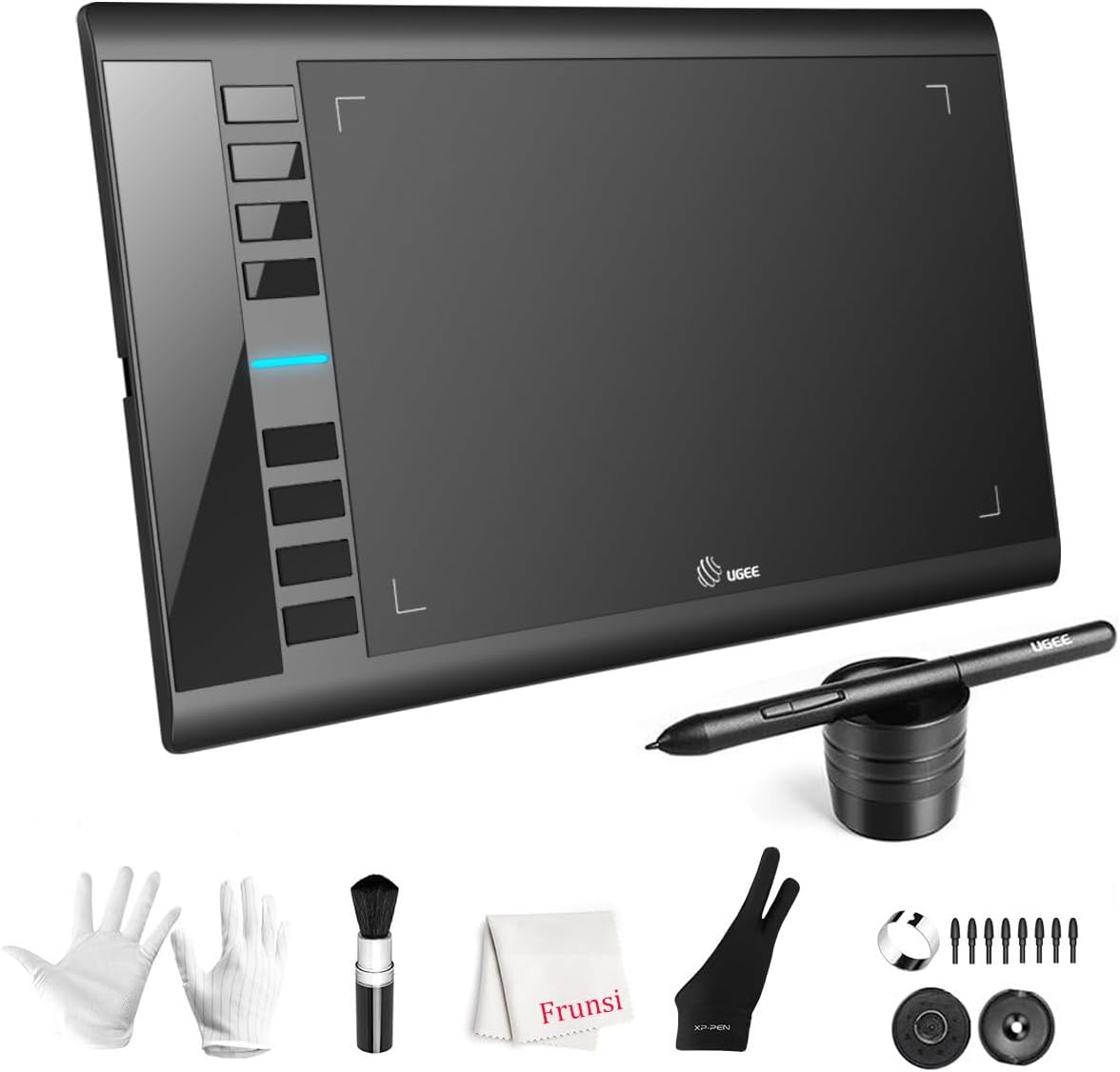
UGEE’s M708 V3 offers a 10 x 6 inch active drawing area with a paper-like textured surface, which is generous for an entry-level pen tablet. The battery-free pen provides 16,384 levels of pressure sensitivity according to the listing, so you never charge it.
Eight customizable express keys on the side can be set to shortcuts like eraser, zoom, scroll and undo. The listing lists compatibility with Windows 11/10/8/7, macOS 10.10 or later and Android 10.0 or later, with USB to USB-C connectivity and adapters included. The design suits left- and right-handed users.
As a screenless tablet, it requires getting used to drawing while looking at your monitor, which usually takes a few days of practice.
Best suited for: Beginners painting on a Windows or Mac computer who want a large, affordable tablet.
Key features:
- 10 x 6 inch active area with paper-like surface
- Battery-free pen with 16,384 pressure levels
- Eight customizable express keys
- Windows, macOS and Android compatibility
Pros:
- Large drawing area for the tier
- No pen charging
- Shortcut keys speed up workflow
Cons and limitations:
- No screen; hand-eye coordination takes practice
- Mid tier
- Pen and nibs are specific to UGEE
Buying consideration: Map the tablet area to one monitor only if you use two screens; it keeps proportions natural.
2. OTraki Artist Drawing Gloves (4 Pack) — Best for smoother hand glide

OTraki’s pack includes four artist drawing gloves for digital tablets and paper sketching, according to the listing title. Detailed specifications are not provided in the listing, so check the size chart on the product page.
Drawing gloves, usually covering the pinky and ring finger, reduce friction as your hand slides across a tablet or screen and prevent skin from triggering touch input on devices without full palm rejection. They also stop oils from smudging a screen or a pencil drawing.
A four-pack lets you rotate gloves while others are in the wash.
Best suited for: Anyone using a pen tablet, pen display or iPad for long sessions.
Key features:
- Four drawing gloves
- For digital tablets and paper sketching
- Two-finger style per typical artist gloves
- Low tier
Pros:
- Reduces friction and smudges
- Helps prevent accidental touches
- Inexpensive
Cons and limitations:
- Limited specification details in the listing
- Fit varies by hand size
- Needs occasional washing
Buying consideration: Wear the glove on your drawing hand so the side of your palm and last two fingers are covered.
3. Drawing Digital by Lisa Bardot — Best for iPad beginners

Lisa Bardot’s Drawing Digital is subtitled The complete guide for learning to draw and paint on your iPad. A complete beginner’s guide covers both the tools and the fundamentals of making art on a tablet.
It is a good first book for anyone in the Apple Pencil and iPad ecosystem.
It is also one of the lower-priced books here.
Best suited for: New iPad artists who want one complete guide.
Key features:
- Paperback
- Drawing and painting on iPad
- Beginner level
- Complete guide format
Pros:
- Low tier
- iPad-focused
- Covers drawing and painting
Cons and limitations:
- iPad only
- Beginner level
- App interfaces may change over time
Buying consideration: Read it alongside your app’s official handbook for the latest interface details.
4. A Guide to Digital Painting in Procreate: Landscapes & Plein Air — Best for Procreate landscape painting

From 3dtotal Publishing, this guide focuses specifically on landscapes and plein air painting in Procreate. Painting outdoors on an iPad has become popular because the device replaces paint, water and drying time.
Subject-specific guides help once you know the basic tools and want to improve in one area.
It pairs naturally with the iPad and Apple Pencil ecosystem.
Best suited for: Procreate users who love landscapes and outdoor painting.
Key features:
- Paperback
- Procreate landscapes and plein air
- 3dtotal Publishing
- Intermediate-friendly
Pros:
- Focused subject
- Encourages painting from life
- Trusted publisher
Cons and limitations:
- Procreate only
- Assumes basic app knowledge
- Mid tier
Buying consideration: Take your iPad outdoors and paint small, quick studies; ten-minute sketches teach more than one long painting.
5. Bold Visions: A Digital Painting Bible by Gary Tonge — Best for fantasy and sci-fi artists

Gary Tonge’s Bold Visions is subtitled A Digital Painting Bible: For Fantasy and Science Fiction Artists. Genre artists often need guidance on scale, mood and invented worlds that general books do not cover.
It is a good fit for artists aiming at book covers, game art or personal world-building.
Its genre focus makes it a complement to fundamentals books rather than a replacement.
Best suited for: Fantasy and sci-fi illustrators.
Key features:
- Paperback
- Fantasy and science fiction focus
- Digital painting reference
- Author: Gary Tonge
Pros:
- Genre-specific guidance
- Inspiring subject matter
- Low tier
Cons and limitations:
- Older title; software references may be dated
- Genre focus
- Not app-specific
Buying consideration: Focus on the composition and lighting lessons, which do not date the way software screenshots do.
6. Digital Painting Techniques, Vol. 3 — Best for professional technique collection

Volume 3 of the Digital Painting Techniques series features contributions from artists including Robh Ruppel and Ignacio Bazan Lazcano. Collections like this show how working professionals approach subjects and problems.
It is the highest-priced book here, so it suits artists who already enjoy the series format.
Use it as a technique reference rather than a beginner course.
Best suited for: Intermediate and advanced digital painters.
Key features:
- Paperback
- Multiple professional contributors
- Technique-focused chapters
- Part of a long-running series
Pros:
- Professional insight
- Broad range of subjects
- Long-term reference
Cons and limitations:
- Highest tier here
- Not for complete beginners
- Older software versions
Buying consideration: Check whether a newer volume covers your preferred subjects before buying.
Buying Guide: Choosing Brands for Your Setup
Start with the device you own
If you have an iPad, start with Apple Pencil and Procreate or another iPad app. If you have a computer, a pen tablet from Wacom, Huion, XP-Pen or UGEE plus desktop software is the most affordable path.
Match hardware and software
Check that your chosen software supports your tablet’s pressure and tilt on your operating system.
Decide on screen or screenless
Screenless tablets are cheaper and ergonomic; pen displays and tablets feel more natural for many artists.
Consider total cost
Include software subscriptions, extra nibs, a glove and a screen protector when comparing brands.
Plan for growth
Many artists start with a value brand and later upgrade. Skills transfer, so a starter setup is never wasted.
Look at support
Driver updates, warranty and replacement parts matter for hardware over time.
Start Painting
Whatever brands you choose, practice with our tutorials on painting digital waves and ocean and digital night scenes, or see how to do digital painting without a tablet if you are still deciding on hardware.
Common Mistakes to Avoid
- Buying hardware that does not match your software. Check compatibility first.
- Overspending on a first tablet. Value brands are capable for learning.
- Assuming the most expensive app is best. Free software like Krita is fully capable.
- Ignoring ergonomics. Desk height, screen angle and a glove matter.
- Collecting brushes and apps instead of practicing. Pick one setup and stick with it.
- Skipping driver updates. Outdated drivers cause pressure problems.
FAQs
What is the best brand for digital painting tablets?
Wacom is the long-standing professional standard. Huion, XP-Pen and UGEE offer strong value for beginners and many professionals. On iPad, Apple Pencil is the main option.
Is Procreate or Photoshop better?
Procreate is iPad-only and known for an intuitive interface. Photoshop runs on desktop and iPad and is an industry standard. Choose based on your device and goals.
Is there free digital painting software?
Yes. Krita is free and open-source on Windows, macOS and Linux, and is focused on painting.
Do I need a pen display or is a pen tablet enough?
A pen tablet is enough to learn and to work professionally. Pen displays feel more natural but cost more.
Are drawing gloves necessary?
Not necessary, but helpful. They reduce friction and smudges and help prevent accidental touches.
Which books are best for learning digital painting?
Publishers like 3dtotal Publishing offer beginner guides and professional technique collections. Choose one that matches your app and goals.
Final Recommendation
Build your setup around the device you already own. On a computer, start with a value pen tablet like the UGEE M708 and free or established software such as Krita, Clip Studio Paint or Photoshop; on iPad, use Apple Pencil with Procreate. Add OTraki drawing gloves for comfort, then learn with Drawing Digital for iPad basics, the Procreate Landscapes & Plein Air guide for outdoor painting, Bold Visions for fantasy and sci-fi, and Digital Painting Techniques Vol. 3 as a professional reference.