
PaintingProGuide is reader-supported. When you buy through links on this page we may earn an affiliate commission at no extra cost to you.
A digital art sketchbook app should feel like opening a paper sketchbook: fast to launch, a pencil that responds to pressure, a blank page ready immediately, and no menus between you and the first line. The best digital art sketchbook app for you depends mostly on your device. iPad owners have the widest choice; Android, Windows and Chromebook users have strong free options; and phone sketchers need an app built for a small screen.
Below we compare the most widely used sketching apps by platform and strength, explain what features actually matter for sketching (as opposed to finished painting), and suggest a few pieces of gear and books that make digital sketching easier. Because app pricing and subscription terms change frequently, we describe each app’s strengths and platforms and recommend checking the current price in your app store.
Quick answer: On iPad, Procreate is the best digital art sketchbook app for most people: fast, pressure-sensitive and focused on drawing. On Windows, Mac, Android and Chromebook, the free, open-source Krita is the strongest no-cost option, while Sketchbook offers the cleanest, most paper-like interface across desktop and mobile. On phones, Ibis Paint X is built for small screens. If you prefer real paper, a smart notebook like the XPPen Note Plus syncs pen strokes on paper to your phone.
Our Top Picks at a Glance
- Procreate (iPad) — Best digital art sketchbook app for iPad
- Sketchbook (desktop and mobile) — Best clean, paper-like sketching interface
- Krita (Windows, Mac, Linux, Android) — Best free, open-source sketching and painting app
- Ibis Paint X (phones and tablets) — Best for sketching on a phone
- Clip Studio Paint (all major platforms) — Best for comics, manga and inking
- XPPen Note Plus smart notebook — Best for sketching on paper with digital sync
- Drawing Digital by Lisa Bardot (book) — Best guide for learning to sketch on iPad
Digital Sketchbook Apps Compared
| App | Platforms | Best for | Sketching strength |
|---|---|---|---|
| Procreate | iPad (Procreate Pocket on iPhone) | iPad sketching and painting | Fast, responsive brushes; minimal interface |
| Sketchbook | Windows, Mac, iOS, Android | Paper-like sketching | Clean canvas, predictive stroke and rulers |
| Krita | Windows, Mac, Linux, Android/ChromeOS | Free full-featured art | Brush engines, stabilizers, open source |
| Ibis Paint X | iOS, Android | Phone sketching | Designed for small screens, large brush library |
| Clip Studio Paint | Windows, Mac, iPad, iPhone, Android, Chromebook | Comics and inking | Excellent line stabilization and vector layers |
| MediBang Paint | Windows, Mac, iOS, Android | Free comic sketching | Lightweight, comic panel tools |
| Adobe Fresco | iPad, iPhone, Windows | Adobe users | Live watercolor and oil brushes |
How We Chose
Our app recommendations are based on well-established platform availability and feature sets of widely used drawing apps, weighed against what matters most for sketching: launch speed, pressure response, stroke stabilization, layers and export. We do not quote app prices because they change often. The physical products and books come from Amazon listings checked in October 2026, judged on how well they support digital sketching and how widely they are reviewed by Amazon buyers; the books are described only from their titles and formats.
- Speed to first stroke: a sketchbook app should open straight to a canvas.
- Pressure and tilt support: line weight that responds to your stylus.
- Stroke stabilization: smoothing for clean lines, especially on glass screens.
- Layers and selection: enough to clean up sketches without becoming a full painting suite.
- Platform fit: the app must run well on your device.
The Best Digital Art Sketchbook Apps
1. Procreate — Best for iPad
Procreate is the default sketching app for many iPad artists because it gets out of the way. The interface is minimal, brushes respond quickly to Apple Pencil pressure and tilt, and gestures for undo, redo and zoom keep your hand on the canvas. It handles both quick sketches and finished paintings, with layers, selection tools, reference windows and time-lapse recording. It is iPad-only, with a separate Procreate Pocket for iPhone.
Best suited for: iPad owners who want one app for sketching and painting.
2. Sketchbook — Best paper-like interface
Sketchbook is designed to feel like a sketchbook rather than a studio. Its canvas is uncluttered, with tools tucked into a compact toolbar and puck, and it includes useful sketching aids such as rulers, ellipse guides, perspective guides and predictive stroke for smoothing lines. It runs on desktop and mobile, so it suits people who sketch across several devices. Our guide on how to use the Sketchbook app walks through setup and the most useful tools.
Best suited for: designers, illustrators and hobbyists who want a fast, distraction-free sketching space.
3. Krita — Best free option
Krita is a free, open-source painting program for Windows, Mac and Linux, with Android and ChromeOS versions. It has powerful brush engines, several stroke stabilizers, a wrap-around mode for textures and a strong animation timeline. For sketching it is more than enough, though the interface is busier than dedicated sketch apps.
Best suited for: desktop and Android users who want professional-level tools without paying.
4. Ibis Paint X — Best on a phone
Ibis Paint X was built for phones and tablets. Its interface works on a small screen, it includes a very large brush library and stabilization, and it can record your drawing process. Many artists use it for quick sketches on the go. See our Clip Studio manga guide if you later want to move into more structured comic work.
Best suited for: phone sketchers and Android tablet owners.
5. Clip Studio Paint — Best for comics and inking
Clip Studio Paint is known for line quality: excellent stabilization, vector layers you can adjust after drawing, and comic-specific tools such as panels and speech balloons. For sketching and inking in particular it is one of the strongest options across nearly every platform.
Best suited for: comic, manga and line-art sketchers.
Also worth a look
MediBang Paint is a lightweight free option with comic tools across desktop and mobile, and Adobe Fresco suits artists in the Adobe ecosystem, with live brushes that imitate watercolor and oil.
Gear That Makes Digital Sketching Easier
Not every digital sketchbook starts on a screen. Smart notebooks capture pen strokes on real paper and sync them to your phone, and a cheap paper sketchbook is still the fastest way to plan ideas. These picks support whichever app you choose.
| Product | Best For | Key Spec | Key Strength | Price Tier |
|---|---|---|---|---|
| XPPen Note Plus | Paper sketching with sync | A5 paper, 8192 pressure levels, Bluetooth 5.3 | Swappable A5 notebook core | $$$ |
| Yuan Smart Pen and Notebook | Private offline sync | Digital pen, 3 A4 reusable notebooks | No server backups | $$$ |
| Drawing Digital (Lisa Bardot) | Learning iPad sketching | Paperback guide | Beginner-focused | $ |
| Digital Painting Techniques | Advanced reference | Paperback, Digital Art Masters | Professional techniques | Varies |
| Sketchbook, 100 Pages | Thumbnails and planning | 100 blank pages, 8 x 11.5 in | Acid-free paper | $ |
| Sketch Book, 110 Pages | Daily doodles | 110 pages, 8.5 x 11 in | Large pages | $ |
1. XPPen Note Plus Digital Notebook with Pen — Best for sketching on paper with digital sync

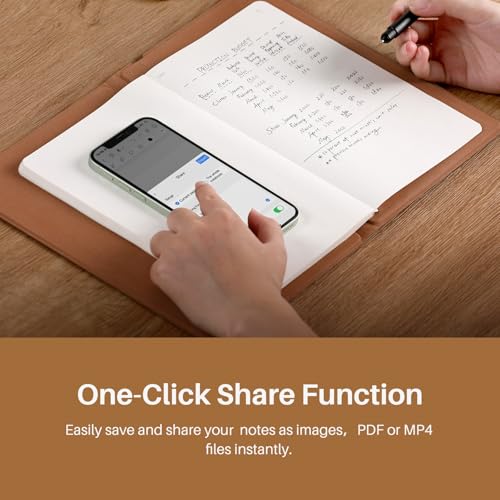
The XPPen Note Plus lets you sketch on real A5 paper with its dedicated ink pen while every stroke syncs to your phone over Bluetooth 5.3. It has no screen; instead it uses EMR technology with 8192 levels of pressure sensitivity to capture lines, so pressure-varied sketches arrive on your phone with line weight intact.
Any A5 notebook core up to 8 mm thick fits, so you are not locked into proprietary refills. The companion app adds brushes, highlighters, colors, page management, tagging, search and Google Cloud backup.
Best suited for: Artists who love paper but want sketches available digitally for refining in an app.
Key features:
- Real A5 paper with dedicated ink pen
- Bluetooth 5.3 sync to phone
- 8192 pressure levels, EMR
- Swappable A5 notebook cores up to 8 mm
- App editing tools and cloud backup
Pros:
- Paper feel with digital capture
- Pressure-sensitive strokes
- Standard A5 refills
Cons and limitations:
- Higher price tier
- Must use the matching pen
- Not a drawing display
Buying consideration: Sketch roughs on paper, sync them, then import into Procreate or Krita to ink and color.
2. Yuan Sync Smart Pen and Notebook Set — Best for private, offline sync

The Yuan set includes a digital pen, three reusable A4 notebooks and a free app for iOS and Android. Strokes are captured as vector lines and transferred to your device in real time, and the listing emphasizes privacy: it operates without server backups.
A4 pages give more room than A5 for larger sketches and layouts, and pages can be shared as images or PDFs.
Best suited for: Sketchers who want larger pages and prefer local storage over cloud services.
Key features:
- Digital pen
- 3 reusable A4 notebooks
- Vector line capture
- iOS and Android app
- No server backups
Pros:
- Larger A4 page
- Privacy-focused
- Reusable notebooks
Cons and limitations:
- Higher price tier
- Pressure levels not stated
- Aimed mainly at note-taking
Buying consideration: Use vector export for clean line art that scales without blurring.
3. Drawing Digital by Lisa Bardot — Best for learning to sketch on iPad

Lisa Bardot’s Drawing Digital is subtitled as the complete guide for learning to draw and paint on your iPad. It is a natural companion for anyone choosing Procreate as their sketchbook app.
A printed guide is useful beside the iPad because you do not have to switch apps to read instructions.
Best suited for: New iPad sketchers using Procreate or similar apps.
Key features:
- Paperback
- iPad drawing and painting
- Beginner level
- By Lisa Bardot
- Companion to app learning
Pros:
- Beginner-friendly
- iPad focus
- Low price tier
Cons and limitations:
- iPad only
- Listing detail minimal
- Not advanced
Buying consideration: Work through it with your stylus in hand, trying each technique as you read.
4. Sketchbook for Drawing and Sketching, 100 Pages — Best for thumbnails and planning

Even digital artists benefit from a cheap paper sketchbook for thumbnails and quick ideas. This paperback offers 100 blank pages of acid-free paper at 8 x 11.5 inches, aimed at kids and adults.
Thumbnailing on paper before opening an app keeps you focused on composition, not tools.
Best suited for: Digital artists who plan compositions on paper first.
Key features:
- 100 blank pages
- Acid-free paper
- 8 x 11.5 in
- Paperback
- Kids and adults
Pros:
- Very cheap
- Large page
- Great for thumbnails
Cons and limitations:
- Paper weight not stated
- Not for wet media
- Paperback binding
Buying consideration: Fill a page with tiny thumbnails before starting a digital piece; choose the best one to develop.
5. Sketch Book, 110 Pages, 8.5 x 11 in — Best for daily doodles

A second low-cost paper option, this sketchbook has 110 white blank pages at a large 8.5 x 11 inch size, marketed for drawing, painting, writing, sketching and doodling for kids, teens and adults.
Keep one by your desk for warm-up doodles before digital sessions.
Best suited for: Anyone who wants a big, cheap page for daily practice.
Key features:
- 110 blank pages
- 8.5 x 11 in
- White paper
- Paperback
- All ages
Pros:
- Large page size
- Very cheap
- More pages
Cons and limitations:
- Paper weight not stated
- Basic binding
- Not for heavy media
Buying consideration: Do a five-minute gesture warm-up on paper; it loosens your hand for digital work.
6. Digital Painting Techniques (Digital Art Masters) — Best for advanced reference

Digital Painting Techniques from 3dtotal’s Digital Art Masters series is subtitled as practical techniques of digital art masters. It suits sketchers ready to turn sketches into finished digital paintings.
Use it once you are comfortable with your app and want to study professional workflows.
Best suited for: Intermediate artists moving from sketches to finished pieces.
Key features:
- Paperback
- Digital Art Masters series
- 3dtotal
- Professional techniques
- Price varied on our check date
Pros:
- Professional insight
- Broad techniques
- Respected series
Cons and limitations:
- Not for beginners
- Listing detail minimal
- Not app specific
Buying consideration: Pick one technique per week and try it on your own sketches.
Buying Guide: How to Choose a Digital Art Sketchbook App
Start with your device
iPad: Procreate, Sketchbook, Clip Studio, Fresco and Ibis Paint all run well. Android tablets and phones: Ibis Paint, Krita, Sketchbook, Clip Studio and MediBang. Windows and Mac: Krita, Sketchbook, Clip Studio and MediBang. Chromebook: Clip Studio and Krita via Android.
Sketching versus painting features
For sketching you need fast launch, responsive pressure, stabilization and a few layers. Complex brush engines and filters matter more for finished paintings.
Stylus support
Pressure and tilt support depend on both the app and your stylus. Check that your stylus is supported before committing to an app.
Free versus paid
Krita and MediBang are free; Ibis Paint has a free tier; others are paid or subscription. Check current pricing in your app store, and try free tiers first.
Export and file compatibility
Most apps export PSD files with layers, letting you move a sketch into another app for painting.
Practice prompts
An app is only as useful as your habit. Use our sketchbook art ideas for daily prompts, and when you are ready for bigger scenes, try our digital environment art tips.
Common Mistakes to Avoid
- Switching apps constantly. Pick one and learn it well.
- Turning stabilization up too high. Lines become laggy; use a moderate setting.
- Sketching at maximum zoom. Zoom out to keep proportions right.
- Ignoring layers. Keep rough sketches on a separate layer from clean lines.
- No screen protector or matte film on glass. A textured film can make drawing feel more like paper.
- Never backing up. Export or sync sketches regularly.
FAQs
What is the best digital art sketchbook app?
On iPad, Procreate is the most popular choice. On Windows, Mac and Android, Krita is the best free option and Sketchbook offers the most paper-like interface.
Is there a free digital sketchbook app?
Yes. Krita and MediBang Paint are free, and Ibis Paint X has a free tier. Check your app store for current terms of other apps.
Which sketchbook app is best for Android?
Ibis Paint X, Krita, Sketchbook, Clip Studio Paint and MediBang all run on Android. Ibis Paint is especially good on phones.
Can I sketch digitally without a tablet?
You can use a phone with a finger or capacitive stylus, or a smart notebook like the XPPen Note Plus that syncs paper sketches to your phone.
Is Procreate good for sketching?
Yes. It opens quickly, has responsive pencil brushes and gesture controls, and handles both sketches and finished paintings.
Should I keep a paper sketchbook too?
Many digital artists do, for thumbnails and quick ideas. A cheap 100-page sketchbook is ideal for that.
Final Recommendation
If you have an iPad, start with Procreate. On Windows, Mac, Linux or Android, download Krita for free and try Sketchbook if you want a cleaner, more paper-like experience. Sketch on your phone with Ibis Paint X, and choose Clip Studio Paint if comics and inking are your focus.
If you prefer paper, the XPPen Note Plus or Yuan smart notebook brings your sketches into an app automatically. Add a cheap paper sketchbook for thumbnails and Drawing Digital if you are learning on iPad.


One Comment