PaintingProGuide is reader-supported. When you buy through links on this page we may earn an affiliate commission at no extra cost to you.
Choosing a digital art tablet for students starts with one practical question: does the student already have a computer they can draw on? If yes, a pen tablet or a pen display that plugs into that computer gives the most drawing power for the money and runs the same software used in art and design classes. If not, a standalone drawing tablet with its own operating system is the simpler answer, because it works out of the box with no laptop, drivers or cables.
Students also have constraints that professionals do not: backpacks, shared desks, school Chromebooks, tight budgets and a need to use the same device for notes and homework. We have chosen seven tablets that address those needs, from a compact Wacom pen tablet that plugs into a Chromebook to 8, 10 and 12 inch standalone Android drawing tablets.
Quick answer: For students with a laptop or Chromebook, the Wacom Intuos Small is the best digital art tablet: a battery-free EMR pen with 4,096 pressure levels, plug-and-play Chromebook support and Wacom’s included software and training. For students without a computer, the Simbans PicassoTab A10 is the best standalone choice: a 10 inch laminated screen, a 4,096-level pen, Android 14 and lifetime upgrades to the Concepts drawing app and Artixo tutorials. For drawing directly on a screen connected to a laptop, the GAOMON PD1161 pen display has an 11.6 inch Full HD screen with tilt support.
Our Top Picks at a Glance
- Wacom Intuos Small Pen Tablet — Best digital art tablet for students with a computer
- Simbans PicassoTab A10 — Best standalone tablet for students
- GAOMON PD1161 Pen Display, 11.6 in — Best screen tablet for laptop users
- Frunsi RubensTab T12, 12 in — Best large standalone screen
- Frunsi RubensTab T11 Pro, 10.1 in — Best mid-size standalone with stand case
- Frunsi T8 Standalone, 8 in — Best compact tablet for long battery life
- Callsky-Tab 12 Drawing Tablet — Best for drawing plus schoolwork
| Product | Best For | Key Spec | Key Strength | Price Tier |
|---|---|---|---|---|
| Wacom Intuos Small | Students with a computer | 4,096 levels, battery-free pen, USB-A | Chromebook plug-and-play, software | $$ |
| Simbans PicassoTab A10 | Standalone beginners | 10 in laminated, 4,096 levels, Android 14 | Lifetime Concepts PRO and Artixo VIP | $$$ |
| GAOMON PD1161 | Draw-on-screen with laptop | 11.6 in FHD, 8,192 levels, tilt | Matte film, 8 keys | $$$ |
| Frunsi RubensTab T12 | Large standalone | 12 in FHD laminated, 4,096 levels | Krita, Sketchbook, FlipaClip preloaded | $$$ |
| Frunsi RubensTab T11 Pro | Mid-size standalone | 10.1 in FHD, Android 12 | Stand case included | $$$ |
| Frunsi T8 | Compact, long sessions | 8 in, 2,048 levels, Android 13 | Up to 20 hours drawing per listing | $$$ |
| Callsky-Tab 12 | Art plus schoolwork | 12 in 2K, Android 15, 4,096 levels | Large storage, flip case | $$$ |
How We Chose
We chose these tablets from the Amazon listing details and specifications checked in October 2026, judging how well each suits students in terms of setup, portability, software, durability features and value, and how widely each is reviewed by Amazon buyers. We have not drawn on these tablets; specifications are quoted from the listings.
- Setup: does it need a computer, and does it work with school devices like Chromebooks?
- Drawing feel: pressure levels, tilt support and laminated or matte screens.
- Software: pre-installed or included apps and tutorials.
- Portability: size, weight and included cases for backpacks.
- Versatility: whether the same device handles notes and homework.
Best Digital Art Tablets for Students Reviewed
1. Wacom Intuos Small Pen Tablet — Best for students with a computer
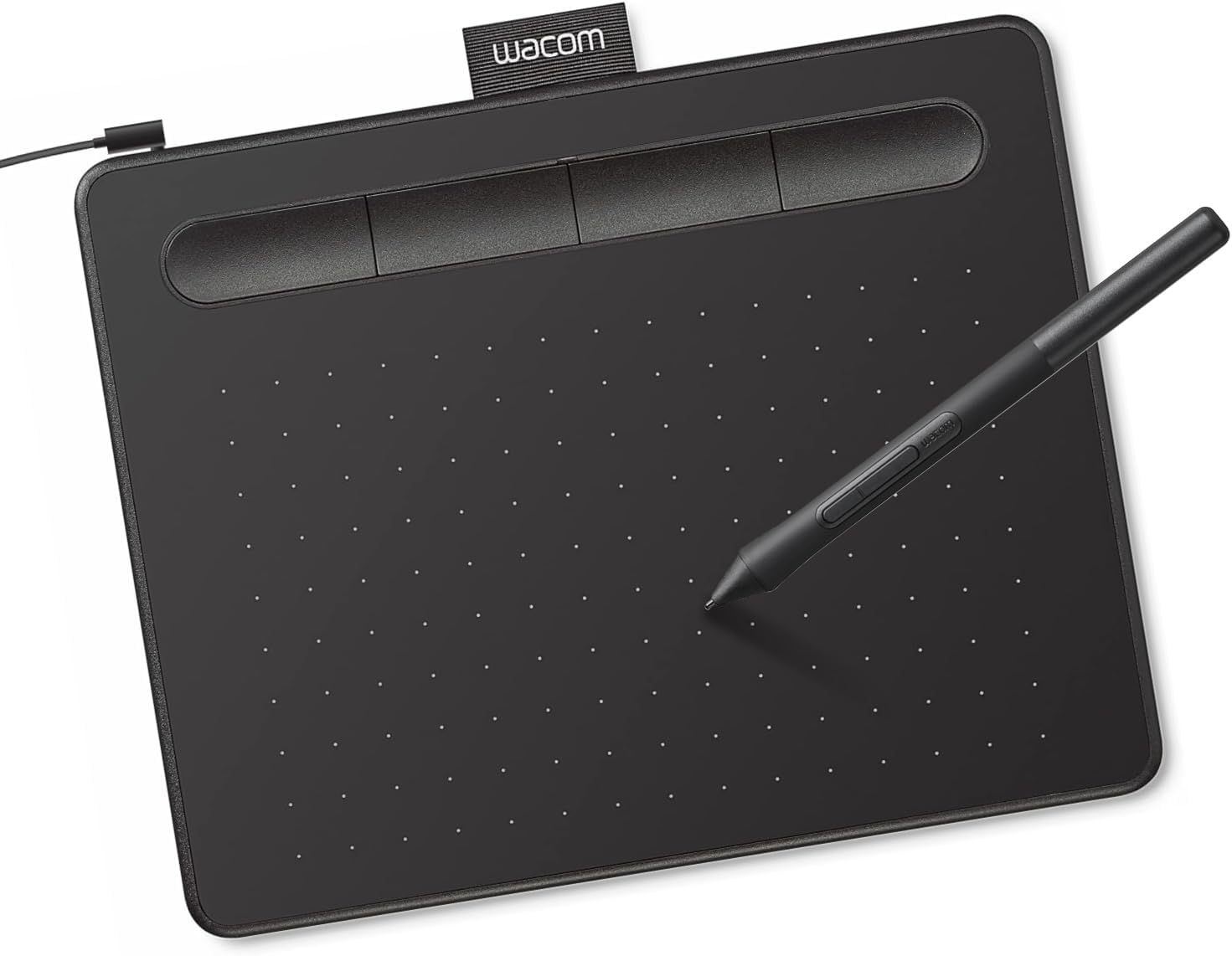
The Wacom Intuos Small is the safest first tablet for any student who already has a laptop, desktop or Chromebook. It uses Wacom’s battery-free EMR pen with 4,096 pressure levels, connects by USB-A, works with Windows, Mac OS and Android, and is plug-and-play with Chromebook, which makes it practical for school-issued devices.
Wacom includes creative software and online training when you register the tablet, according to the listing. Because it is a pen tablet rather than a screen, it is light, tough and easy to toss in a backpack, though it takes a short adjustment period to draw while looking at the monitor.
Best suited for: Students with any computer, especially Chromebook users and art or design students who need standard desktop software.
Key features:
- Battery-free EMR pen
- 4,096 pressure levels
- USB-A wired
- Windows, Mac OS, Android; Chromebook plug-and-play
- Software and training with registration
Pros:
- Works with school Chromebooks
- Durable and portable
- Trusted drivers and support
Cons and limitations:
- No screen; hand-eye adjustment needed
- Small active area
- Needs a computer
Buying consideration: Use Krita or another free desktop app at first; you can learn on professional-grade software without paying.
2. Simbans PicassoTab A10 Standalone Drawing Tablet — Best for standalone beginners

The PicassoTab A10 is a 10 inch standalone Android 14 tablet built around drawing. It comes preloaded with five creative apps and two lifetime upgrades: a PRO upgrade for the Concepts drawing app and a VIP upgrade for the Artixo tutorials app, which offers step-by-step lessons and guided practice. The Xplore app adds drawing guides.
The laminated screen reduces glare and parallax, and the 4,096-level pressure-sensitive pen supports sketching and illustration. An octa-core processor with 6GB RAM and 64GB storage (expandable to 1TB) handles drawing apps and schoolwork. A tablet case, drawing glove, power adapter and pre-installed screen protector are included.
Best suited for: Students without a computer, younger artists and beginners who want built-in tutorials.
Key features:
- 10 in laminated screen
- 4,096-level active pen
- Android 14, octa-core, 6GB RAM, 64GB storage
- Lifetime Concepts PRO and Artixo VIP upgrades
- Case, glove, adapter, screen protector
Pros:
- Works without a computer
- Tutorial app included
- Useful accessories in the box
Cons and limitations:
- Active pen may need charging
- Upper price tier
- Android apps, not desktop software
Buying consideration: Work through the Artixo lessons in order during the first month; structured practice matters more than the hardware.
3. GAOMON PD1161 Pen Display, 11.6 in — Best for drawing on screen with a laptop
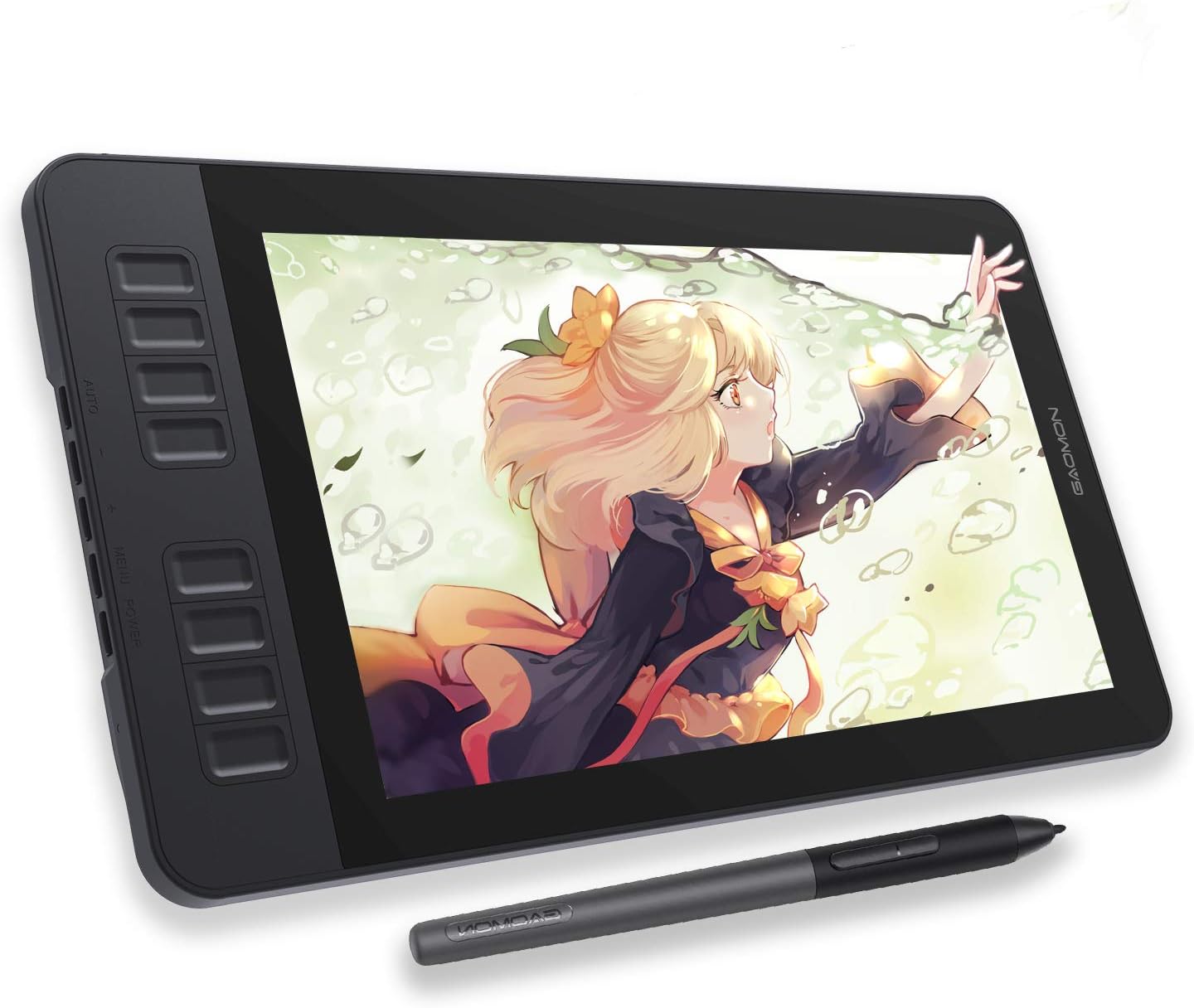
The GAOMON PD1161 is a pen display: an 11.6 inch Full HD IPS screen you draw on directly, connected to a laptop or computer by HDMI and USB. The listing is clear that it is not a standalone tablet. A pre-installed matte film gives a paper-like feel and reduces glare, and the screen covers 72% NTSC (100% sRGB) color gamut per the listing.
The battery-free AP50 pen offers 8,192 pressure levels with tilt, and eight programmable keys plus two pen buttons speed up work. It supports Windows 7 or later and macOS 10.12 or later.
Best suited for: Art and design students with a Windows or Mac laptop who want to see lines under the pen.
Key features:
- 11.6 in Full HD IPS
- 8,192 levels, tilt, battery-free pen
- Matte anti-glare film
- 8 programmable keys
- HDMI and USB; Windows and macOS
Pros:
- Draw directly on screen
- Works with desktop software
- Good color coverage per listing
Cons and limitations:
- Needs a computer
- Not listed for Chromebook
- More cables than a pen tablet
Buying consideration: Calibrate the pen in the driver after setup; it reduces the offset between the pen tip and cursor.
4. Frunsi RubensTab T12 Standalone Drawing Tablet, 12 in — Best for a large standalone screen

The RubensTab T12 offers a 12 inch Full HD fully laminated display, which reduces parallax so the line appears right under the pen. It comes loaded with drawing and animation apps including Sketchbook, Krita, Infinite Painter and FlipaClip, and its active pen supports 4,096 pressure levels with 60-degree tilt according to the details.
With 6GB RAM, 128GB storage and an octa-core CPU, it has room for art files and schoolwork. Bonus items include a case, drawing glove, power adapter and pre-applied screen protector.
Best suited for: Students who want the biggest standalone canvas and preloaded pro-style apps.
Key features:
- 12 in Full HD laminated display
- 4,096 levels, tilt
- Sketchbook, Krita, Infinite Painter, FlipaClip preloaded
- 6GB RAM, 128GB storage
- Case, glove, adapter, screen protector
Pros:
- Large screen
- Good preloaded apps
- Plenty of storage
Cons and limitations:
- Higher price tier
- Larger to carry
- Pen may need charging
Buying consideration: FlipaClip is preloaded, so try simple frame-by-frame animation; it is a great way to practice gesture drawing.
5. Frunsi RubensTab T11 Pro, 10.1 in — Best for a mid-size standalone

The T11 Pro is a 10.1 inch Full HD IPS (1920 x 1200) standalone tablet running Android 12, with a 5,800 mAh battery the listing rates at up to five hours of continuous use. It includes a battery-free pressure-sensitive pen, pre-installed drawing apps and an adjustable stand case.
The battery-free pen is a plus for students who forget to charge things. The details list 1,024 pressure levels, fewer than the other standalone tablets here.
Best suited for: Students who want a no-computer setup with a battery-free pen and a stand.
Key features:
- 10.1 in Full HD IPS
- Android 12
- Battery-free pen, 1,024 levels per details
- 5,800 mAh battery
- Stand case and pre-installed apps
Pros:
- No pen charging
- Stand case included
- Standalone
Cons and limitations:
- Lower pressure levels
- Older Android version
- Shorter battery life than T8
Buying consideration: Pair with a matte screen protector if you want more grip on the glass.
6. Frunsi T8 Standalone Drawing Tablet, 8 in — Best for compact, long sessions
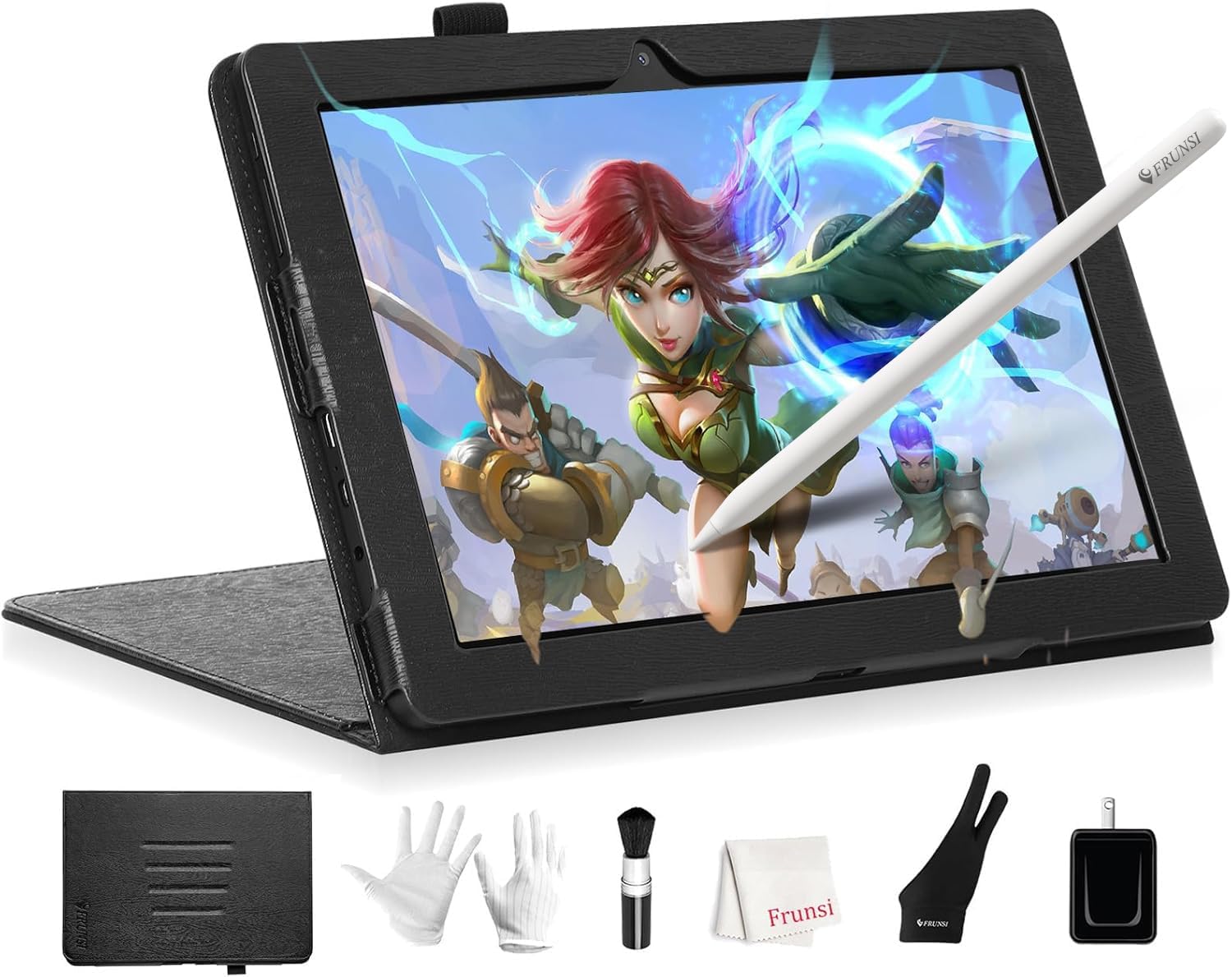
The Frunsi T8 is the most portable standalone option: an 8 inch display at 1200 x 800 running Android 13, with an MTK quad-core CPU, 4GB RAM and 64GB storage (expandable to 256GB). The listing says the 4,000 mAh battery delivers up to 20 hours of drawing.
You can install apps like Sketchbook, ArtFlow and Ibis Paint X. The details list 2,048 pressure levels. The smaller, lower-resolution screen is a trade-off for size and battery life.
Best suited for: Younger students and anyone who wants a small tablet for sketching on the go.
Key features:
- 8 in, 1200 x 800
- Android 13
- 2,048 pressure levels
- Up to 20 hours drawing per listing
- 4GB RAM, 64GB storage, expandable
Pros:
- Very portable
- Long battery life claim
- Installs popular drawing apps
Cons and limitations:
- Small, lower-resolution screen
- Quad-core, less power
- Fewer pressure levels than 4,096 models
Buying consideration: Use it for sketching and thumbnails, and move to a larger screen for finished pieces later.
7. Callsky-Tab 12 Drawing Tablet with Stylus and Flip Case — Best for drawing plus schoolwork

Callsky-Tab’s 12 inch tablet is a general Android 15 tablet with a strong drawing pen: a rechargeable stylus with 4,096 pressure levels and tilt support that attaches magnetically. It has a 2K-class IPS display (1200 x 2000 per details), a T616 octa-core processor, 256GB storage expandable to 2TB and an 8,000 mAh battery.
The listing quotes 16GB RAM, and the flip case offers three viewing angles. It is the most “do everything” tablet here, suited to students who want one device for art, video lessons, Zoom classes and notes.
Best suited for: Students who want a single tablet for drawing, classes and entertainment.
Key features:
- 12 in IPS, 1200 x 2000
- Android 15, T616 octa-core
- 4,096 levels, tilt, rechargeable pen
- 256GB storage, expandable
- 8,000 mAh battery, flip case
Pros:
- Large storage
- Newest Android version here
- Useful for schoolwork too
Cons and limitations:
- Highest price tier here
- Not drawing-specialized
- Pen needs charging
Buying consideration: Install a dedicated drawing app like Ibis Paint X or Krita on day one; general tablets ship with few art tools.
Buying Guide: How to Choose a Digital Art Tablet for Students
Pen tablet, pen display or standalone
A pen tablet (like Wacom Intuos Small) is cheapest and most durable but needs a computer. A pen display (like GAOMON PD1161) lets you draw on screen but also needs a computer. A standalone tablet (like PicassoTab, RubensTab, Frunsi T8 or Callsky-Tab) works on its own.
School device compatibility
Many students use school-issued Chromebooks. The Wacom Intuos Small lists Chromebook plug-and-play. Pen displays usually need Windows or macOS.
Software
Desktop users can use free programs like Krita. Standalone tablets rely on Android apps; check what is preloaded and what tutorials are included.
Screen size and portability
Eight inches is pocketable but cramped for detailed work. Ten to twelve inches is the sweet spot for most students. Larger screens weigh more in a backpack.
Pressure and tilt
Any of these tablets supports pressure. Tilt helps with shading but is not essential for beginners. A laminated screen reduces parallax for more accurate lines.
Durability and accessories
Cases, screen protectors and battery-free pens reduce wear and hassle for students. Several standalone tablets here include them.
Which Tablet Fits Which Student?
| Student situation | Recommended pick |
|---|---|
| Has a Chromebook from school | Wacom Intuos Small |
| Has a Windows or Mac laptop and wants to draw on screen | GAOMON PD1161 |
| No computer, wants lessons built in | Simbans PicassoTab A10 |
| No computer, wants a big screen | Frunsi RubensTab T12 |
| Younger student, needs portability | Frunsi T8 |
| Wants one device for art and classes | Callsky-Tab 12 |
Learning Resources
If a tablet is not in the budget yet, start with our guide to digital painting without a tablet. Once you have one, try digital environment art tips for landscapes, or explore digital manga art in Clip Studio.
Common Mistakes to Avoid
- Buying a pen display without a compatible computer. Check the connection and OS requirements.
- Ignoring Chromebook limitations. Confirm support before buying for a school device.
- Choosing the biggest screen for a small backpack. Portability matters for students.
- Skipping tutorials. Hardware does not teach drawing; structured practice does.
- Forgetting to charge active pens. Battery-free pens avoid this.
- Not protecting the screen. Use the included cases and protectors.
FAQs
What is the best digital art tablet for students?
For students with a computer or Chromebook, the Wacom Intuos Small. For students without a computer, the Simbans PicassoTab A10 standalone tablet.
Do students need a tablet with a screen?
Not necessarily. Pen tablets without screens are cheaper and very durable. Screen tablets feel more natural but cost more.
Can I use a drawing tablet with a school Chromebook?
The Wacom Intuos Small lists Chromebook plug-and-play support. Check your school’s device settings, since some managed Chromebooks restrict accessories.
Are standalone drawing tablets good for learning?
Yes. Tablets like the PicassoTab A10 include tutorial apps, and RubensTab models come with popular drawing apps preinstalled.
How many pressure levels do students need?
Any of these tablets is sufficient. Even 2,048 levels give natural line weight for learning; screen size and software matter more.
Can a drawing tablet be used for schoolwork?
Standalone Android tablets like the Callsky-Tab 12 handle notes, video classes and apps as well as drawing.
Final Recommendation
If the student has a laptop or Chromebook, buy the Wacom Intuos Small; it is affordable, durable and widely compatible. If they want to draw on screen with a Windows or Mac laptop, the GAOMON PD1161 is the step up.
Without a computer, the Simbans PicassoTab A10 is the best standalone choice thanks to its tutorial apps and accessories. Choose the Frunsi RubensTab T12 for a bigger screen, the T11 Pro for a battery-free pen and stand, the Frunsi T8 for portability, and the Callsky-Tab 12 for a tablet that handles schoolwork too.