PaintingProGuide is reader-supported. When you buy through links on this page we may earn an affiliate commission at no extra cost to you.
Digital painters lose more work to bad color than to bad brushwork. A portrait that looks perfectly warm on your screen prints with sickly green shadows; a landscape posted online looks oversaturated on every phone but yours. The cause is usually a monitor that shows colors inaccurately, either because its gamut is wrong for the job or because it was never calibrated. The best digital painting monitors for color accuracy combine three things: full coverage of the color space you deliver in, factory calibration to a low Delta E, and an IPS panel with even brightness across the screen.
We compared six monitors on Amazon from ASUS ProArt, ViewSonic ColorPro, LG and Dell. Before the reviews, a short primer explains sRGB versus DCI-P3, what Delta E under 2 means, and why uniformity matters for painters. After them, you will find recommended settings, a calibration routine and a troubleshooting table for prints that do not match the screen.
Quick answer: For most digital painters working for web and print, the ASUS ProArt PA278QV2 is the best balance: 27-inch QHD IPS, 100% sRGB and 95% DCI-P3, Calman Verified with Delta E under 2, and 120Hz. For a large 4K canvas with Pantone validation and uniformity correction, the ViewSonic VP3256A-4K is the premium pick. For a laptop-based setup, the ViewSonic VP2766-2K adds 90W USB-C with factory calibration.
Our Top Picks at a Glance
- ASUS ProArt PA278QV2 27 Inch — Best overall for color-accurate painting
- ViewSonic VP3256A-4K 32 Inch ColorPro — Best large 4K color-critical monitor
- ViewSonic VP2766-2K 27 Inch ColorPro — Best for laptop users with USB-C
- ASUS ProArt 27 Inch WQHD (100% sRGB / Rec. 709) — Best value sRGB-focused ProArt
- LG 27US500-W UltraFine 4K — Best budget 4K with wide gamut
- Dell 27 S2725QC 4K — Best 4K all-rounder for painting and everyday use
| Product | Best For | Key Spec | Key Strength | Price Tier |
|---|---|---|---|---|
| ASUS ProArt PA278QV2 | Web and print painting | 27 in QHD IPS, 100% sRGB, 95% DCI-P3, dE<2 | Calman Verified, 120Hz | $$$ |
| ViewSonic VP3256A-4K | Large 4K canvas | 32 in 4K IPS, 100% sRGB/Rec 709, dE<2 | Pantone Validated, uniformity | $$$ |
| ViewSonic VP2766-2K | Laptop setups | 27 in QHD IPS 120Hz, 100% sRGB | 90W USB-C, Pantone Validated | $$$ |
| ASUS ProArt 27 WQHD | sRGB work on a budget | 27 in WQHD IPS, 100% sRGB/Rec 709, dE<2 | Calman Verified, ergonomic stand | $$$ |
| LG 27US500-W | Affordable 4K | 27 in 4K IPS, 90% DCI-P3, HDR10 | 4K sharpness | $$$ |
| Dell S2725QC | General 4K use | 27 in 4K IPS, 99% sRGB, 120Hz | 65W USB-C | $$$ |
How We Chose
We did not measure these monitors with a colorimeter. Picks are based on the Amazon listing details and specifications checked in October 2026, how well each monitor’s stated gamut coverage, factory calibration, Delta E, panel type and uniformity features fit color-critical digital painting, and how widely each product is reviewed by Amazon buyers.
- Gamut coverage: 100% sRGB minimum; DCI-P3 for wide-gamut work.
- Factory calibration: stated Delta E under 2 and calibration verification.
- Panel type: IPS for consistent color at angles.
- Uniformity: even brightness and color across the screen.
- Resolution and size: QHD or 4K at 27 to 32 inches.
Color Accuracy Explained for Painters
sRGB, Rec. 709 and DCI-P3
sRGB is the standard color space for the web, most phones and most consumer printing workflows. Rec. 709 is essentially the same gamut for video. DCI-P3 is wider, with more saturated reds and greens, used in cinema and on many modern phones and tablets. For most digital painters, 100% sRGB coverage with an accurate sRGB mode is the foundation; DCI-P3 is a bonus if you paint for wide-gamut displays.
What Delta E under 2 means
Delta E is a measure of how far a displayed color is from the target color. Values under 2 are generally considered difficult to tell apart by eye for most viewers. A monitor with factory calibration to Delta E under 2 starts much closer to accurate than an uncalibrated consumer screen.
Uniformity
Some screens are brighter in the center than at the edges, or show a slight tint in one corner. Painters notice this when a flat background looks uneven. Uniformity compensation, which the ViewSonic VP3256A-4K lists, evens this out.
| Spec | Minimum for Color-Accurate Painting | Ideal |
|---|---|---|
| sRGB coverage | 99-100% | 100% with accurate sRGB mode |
| Wide gamut | Not required | 90%+ DCI-P3 if delivering to wide-gamut screens |
| Delta E | Under 3 | Under 2, factory calibrated |
| Panel | IPS | IPS with uniformity compensation |
| Resolution at 27 in | QHD (2560 x 1440) | 4K for fine detail |
Best Digital Painting Monitors for Color Accuracy Reviewed
1. ASUS ProArt Display PA278QV2 27 Inch Professional Monitor — Best for color-accurate painting

The ProArt PA278QV2 is a 27-inch IPS monitor at 2560 x 1440 with 178-degree viewing angles. It covers 100% sRGB and 95% DCI-P3, and is factory calibrated and Calman Verified with Delta E under 2. It adds a 120Hz variable refresh rate and DisplayPort, HDMI and a USB hub.
That combination covers almost every digital painter’s needs: accurate sRGB for web and print, wide gamut for modern screens, and smooth 120Hz brush response when panning and zooming large canvases.
Best suited for: Illustrators and concept artists delivering for web, print and modern devices.
Key features:
- 27 in QHD IPS
- 100% sRGB, 95% DCI-P3
- Calman Verified, Delta E under 2
- 120Hz VRR, DP, HDMI, USB hub
Pros:
- Strong gamut and calibration at a moderate tier
- Smooth 120Hz
- Matte screen surface
Cons and limitations:
- QHD rather than 4K
- No USB-C power delivery listed
- Listing resolution details are inconsistent
Buying consideration: Switch to the sRGB preset when preparing web or print work, and use the wide-gamut mode only when you know your output supports it.
2. ViewSonic VP3256A-4K 32 Inch 4K UHD ColorPro Monitor — Best for a large 4K color-critical canvas

The VP3256A-4K is a 32-inch 4K IPS monitor with 100% sRGB and Rec. 709 coverage, factory calibrated to Delta E under 2, with integrated uniformity functions. It is Pantone Validated and offers a single USB-C cable for video, audio, data and up to 100W of power delivery, plus a fully adjustable stand with tilt, swivel, rotate and height.
At 32 inches and 4K, you can keep the full canvas and your tool panels visible without constant zooming, and uniformity correction makes flat color fields look even.
Best suited for: Professional illustrators and painters who want a large, uniform 4K canvas.
Key features:
- 32 in 4K IPS
- 100% sRGB and Rec. 709, Delta E under 2
- Pantone Validated, uniformity correction
- 100W USB-C, full ergonomic stand
Pros:
- Large 4K workspace
- Uniformity compensation
- Single-cable laptop setup
Cons and limitations:
- Highest price tier here
- No DCI-P3 figure listed
- Large footprint
Buying consideration: Use 125 to 150 percent scaling in your OS so interface text stays readable at 4K on 32 inches.
3. ViewSonic VP2766-2K 27 Inch ColorPro QHD Monitor — Best for laptop users with USB-C

The VP2766-2K is a 27-inch QHD IPS monitor at 120Hz with a 5ms response time. Every unit ships factory hardware calibrated with 100% sRGB coverage and Pantone Validated certification. A single USB-C cable carries video, data and up to 90W power delivery, enough for most USB-C laptops per the listing.
The stand tilts, swivels, pivots 90 degrees to portrait and offers 130mm of height adjustment. Portrait mode is surprisingly useful for character and full-figure illustration.
Best suited for: Painters working from a laptop who want one-cable docking and calibrated sRGB.
Key features:
- 27 in QHD IPS, 120Hz
- 100% sRGB, factory calibrated
- Pantone Validated
- 90W USB-C, portrait pivot
Pros:
- One-cable laptop setup
- Portrait mode
- Calibrated out of the box
Cons and limitations:
- sRGB focus, no wide-gamut figure
- QHD rather than 4K
- Built-in speakers are basic
Buying consideration: Rotate to portrait for full-length figure painting and back to landscape for environments.
4. ASUS ProArt 27 Inch WQHD Monitor (100% sRGB / Rec. 709) — Best for sRGB work on a budget

This ProArt is a 27-inch WQHD IPS panel with 100% sRGB and Rec. 709 coverage, factory calibrated and Calman Verified with Delta E under 2. It has flicker-free and low blue light technologies, DisplayPort, HDMI, DVI and a USB hub, and a fully ergonomic stand with tilt, swivel, pivot and height adjustment.
If your work is mostly for web and standard print, sRGB accuracy is what matters, and this model delivers it with a verified calibration at a lower tier than wide-gamut models.
Best suited for: Web illustrators, comic artists and students who need accurate sRGB.
Key features:
- 27 in WQHD IPS
- 100% sRGB and Rec. 709
- Calman Verified, Delta E under 2
- Ergonomic stand, eye care features
Pros:
- Accurate sRGB at a moderate tier
- Many connection options
- Portrait pivot
Cons and limitations:
- No wide gamut
- Standard refresh rate not highlighted
- QHD only
Buying consideration: Pair it with a hardware calibrator every few months to keep it on target as the backlight ages.
5. LG 27US500-W UltraFine 4K Monitor — Best for affordable 4K with wide gamut
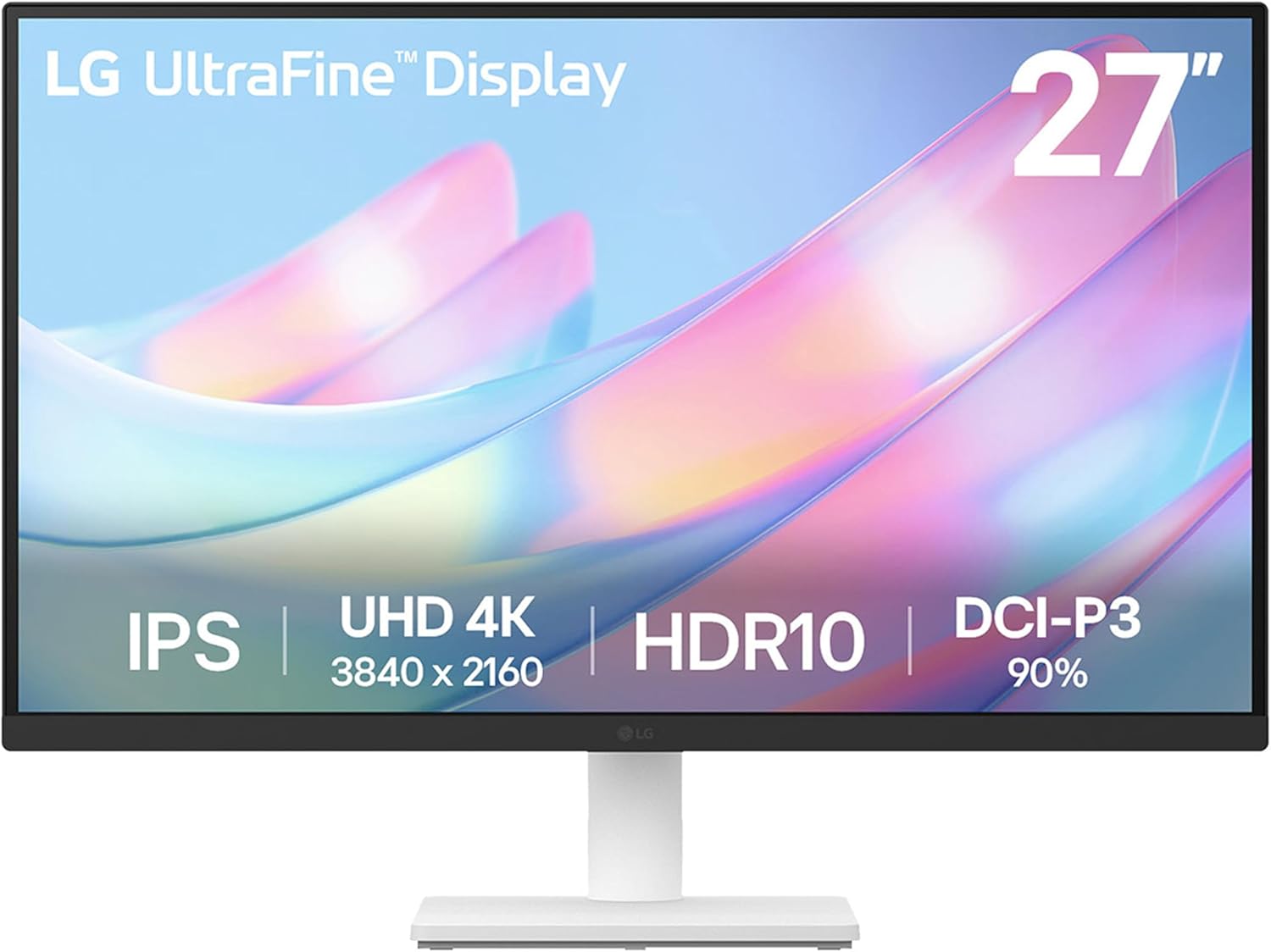
LG’s UltraFine 27US500-W is a 27-inch 4K IPS monitor with HDR10, up to 90% DCI-P3 color gamut and a 1000:1 contrast ratio. It includes onscreen control software and an ergonomic tilt stand.
It does not list factory calibration or a Delta E figure, so treat it as a sharp, wide-gamut 4K monitor that benefits from a hardware calibrator if color accuracy is critical.
Best suited for: Hobbyist painters who want 4K sharpness at a lower tier.
Key features:
- 27 in 4K IPS
- Up to 90% DCI-P3
- HDR10, 1000:1 contrast
- Tilt stand, HDMI and DisplayPort
Pros:
- 4K at a lower tier
- Wide-gamut capable
- Clean white design
Cons and limitations:
- No factory calibration listed
- Tilt-only stand
- Gamut figures lower than ProArt
Buying consideration: Calibrate with a colorimeter and save an sRGB profile; uncalibrated wide-gamut screens can look oversaturated.
6. Dell 27 Monitor S2725QC, 4K UHD IPS, 120Hz — Best for a 4K all-rounder

Dell’s S2725QC is a 27-inch 4K IPS monitor with 99% sRGB, a 1500:1 contrast ratio, HDR readiness, a 120Hz refresh rate with AMD FreeSync Premium, and ComfortView Plus low blue light. A single USB-C cable delivers up to 65W.
It is a consumer monitor rather than a calibrated professional display, but 99% sRGB on IPS is a good starting point for painters who also use the screen for everyday work and games.
Best suited for: Painters who want one 4K monitor for art, work and play.
Key features:
- 27 in 4K IPS, 120Hz
- 99% sRGB
- 65W USB-C
- ComfortView Plus low blue light
Pros:
- 4K and 120Hz together
- USB-C convenience
- Built-in speakers
Cons and limitations:
- No factory calibration listed
- Low blue light shifts color if left on
- Consumer-grade uniformity
Buying consideration: Turn off blue light reduction while judging color; it warms the image and skews your palette.
Buying Guide: How to Choose Digital Painting Monitors for Color Accuracy
Match gamut to your output
If you deliver for web and standard print, 100% sRGB with an accurate sRGB mode matters most. For wide-gamut phones, tablets or video, look for high DCI-P3 coverage too.
Look for verified calibration
Factory calibration with a stated Delta E under 2, and a verification such as Calman, gives a reliable starting point.
Even calibrated monitors drift; plan periodic recalibration.
Choose IPS
IPS panels keep color consistent when viewed from slightly off-center, important when you lean into the screen.
Resolution and size
QHD at 27 inches is sharp and easy to drive; 4K at 27 to 32 inches gives finer detail and more room for panels.
Ergonomics
Height, tilt and pivot reduce strain over long sessions. Portrait pivot suits figure work.
Connectivity
USB-C with power delivery simplifies laptop setups. Check that your computer supports the monitor’s resolution and refresh rate.
Recommended Settings for Painting
| Setting | Suggested Starting Point | Why |
|---|---|---|
| Color mode | sRGB preset | Matches web and most print workflows |
| White point | D65 (about 6500K) | Standard for sRGB |
| Brightness | About 100-140 cd/m2 for print matching | Too bright makes prints look dark |
| Gamma | 2.2 | Standard for most workflows |
| Blue light filter | Off while painting | Filters shift color temperature |
| Dynamic contrast | Off | Prevents shifting values |
Calibration Routine
- Let the monitor warm up for 30 minutes.
- Set the monitor to its sRGB or standard mode and reset picture settings.
- Use a hardware colorimeter and its software to target D65, gamma 2.2 and your chosen brightness.
- Save the profile and set it as the system default.
- In your painting software, enable color management and choose the matching working space, usually sRGB.
- Recalibrate every one to three months.
Troubleshooting Color Problems
| Problem | Likely Cause | Fix |
|---|---|---|
| Prints look darker than screen | Screen brightness too high | Lower brightness and calibrate to print-friendly levels |
| Colors look oversaturated | Wide-gamut mode with unmanaged software | Use sRGB mode or enable color management |
| Work looks different on phones | Phones use different gamuts and brightness | Paint in sRGB; preview on a phone before posting |
| Uneven background tones | Poor uniformity | Use uniformity mode if available; check in the center |
| Warm or yellow cast | Blue light filter on | Turn it off while painting |
Put Your Accurate Screen to Work
Color-critical scenes are the best test of a calibrated monitor. Try our tutorials on painting digital waves and ocean and digital night scenes, where subtle blues and dark values reveal any color problems. If you are still choosing a pen setup, read about digital painting without a tablet.
Common Mistakes to Avoid
- Running wide-gamut mode for sRGB work. Colors look punchier on your screen than anywhere else.
- Painting at maximum brightness. Prints come out dark.
- Never calibrating. All screens drift.
- Leaving blue light filters on. They distort color.
- Ignoring software color management. Set working spaces correctly.
- Judging color under strong colored room lighting. Use neutral ambient light.
FAQs
What monitor specs matter most for color-accurate digital painting?
100% sRGB coverage, factory calibration to Delta E under 2, an IPS panel and good uniformity. Wide DCI-P3 coverage helps for wide-gamut output.
Is sRGB or DCI-P3 better for digital painting?
sRGB is the standard for web and most printing, so it matters most. DCI-P3 is useful if you deliver to wide-gamut devices.
Do I need to calibrate a factory-calibrated monitor?
It starts accurate, but displays drift over time. A hardware calibrator every few months keeps colors on target.
Is 4K necessary for digital painting?
No. QHD at 27 inches works well. 4K gives finer detail and more room for tools, especially at 32 inches.
Why do my paintings look different on my phone?
Phones use different gamuts, brightness and processing. Paint in sRGB on a calibrated monitor and preview on a phone before posting.
What brightness should I use for painting?
Around 100 to 140 cd/m2 is a common starting point when matching prints; adjust to your room lighting.
Final Recommendation
For most digital painters, the ASUS ProArt PA278QV2 offers the best mix of sRGB and DCI-P3 coverage, verified calibration and 120Hz smoothness. Choose the ViewSonic VP3256A-4K for a large, uniform 4K canvas, the ViewSonic VP2766-2K for calibrated QHD with 90W USB-C, and the 100% sRGB ASUS ProArt WQHD for accurate web work at a lower tier. The LG 27US500-W and Dell S2725QC are good 4K options if you add a hardware calibrator.