
PaintingProGuide is reader-supported. When you buy through links on this page we may earn an affiliate commission at no extra cost to you.
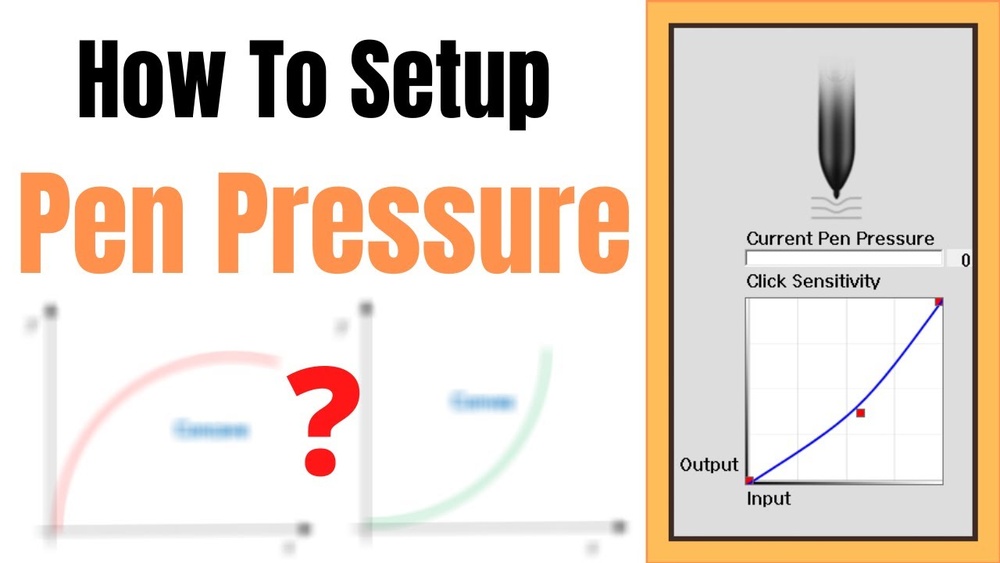
There is no single “correct” number for pen pressure, but there is a best process. The best pen pressure settings for a drawing tablet are the ones that let your lightest natural stroke register as a faint line and your firmest comfortable stroke reach full size or opacity, without you having to strain. For most artists that means a slightly soft curve in the tablet driver, a minimum size of around 10 to 20 percent in the painting app, and opacity tied to pressure only for brushes where it helps.
This guide explains how pressure curves work, gives starting values for sketching, inking and painting, walks through setup in the driver and in popular apps, and covers the hardware problems that look like settings problems. At the end there is a short section on replacement pens, because a worn or wrong pen is a surprisingly common cause of pressure trouble.
Quick answer: Start with a slightly soft pressure curve in your tablet driver (drag the middle of the curve a little upward, or move the “feel” slider one or two steps toward soft). In your painting app, set minimum brush size to 10 to 20 percent for inking and opacity by pressure for shading brushes. Then test with light, medium and heavy strokes and adjust in small steps. If pressure suddenly stops working, check your driver and pen before changing settings.
Our Top Picks at a Glance
- Soft curve, low activation — Best for sketching and light-handed artists
- Linear curve — Best for painters who want predictable, even response
- Firm curve with high minimum size — Best for heavy-handed inkers
- Opacity-only pressure — Best for soft shading and airbrush work
- Size and opacity combined — Best for natural media brushes
- Wacom Art Pen 2 — Best pen upgrade for rotation-aware brushes on supported Wacom devices
| Setting Profile | Best For | Key Setting | Key Strength | Cost |
|---|---|---|---|---|
| Soft curve | Sketching, light hands | Curve bowed upward | Light strokes register easily | Free |
| Linear curve | General painting | Straight diagonal | Predictable response | Free |
| Firm curve | Inking, heavy hands | Curve bowed downward | More control over thick lines | Free |
| Opacity-only | Shading, glazing | Size fixed, opacity by pressure | Smooth gradients | Free |
| Size + opacity | Natural media | Both linked to pressure | Expressive marks | Free |
| Replacement pen | Worn or lost pens | Model-matched stylus | Restores full pressure range | $$ to $$$ |
How We Chose
The setting recommendations come from how pressure curves and brush dynamics work across mainstream tablet drivers and painting software, not from any one device. For the replacement pens at the end, we used the Amazon listing details and specifications checked in October 2026, how clearly each listing states compatibility, and how widely each pen is reviewed by Amazon buyers. We left out a generic touchscreen stylus that has no pressure sensitivity and a listing whose compatibility details contradicted each other.
Our criteria for good pressure settings:
- Comfort: full range reachable without pressing hard.
- Control: small changes in force give small, predictable changes in the mark.
- Consistency: the same stroke looks the same each time.
- Task fit: different brush types use pressure differently.
How Pen Pressure Works
Your pen reports a pressure value many times per second, from zero (barely touching) to its maximum level, such as 8,192 or 16,384. The driver maps that raw value through a pressure curve, then the painting app maps the result to brush properties like size, opacity or flow. Two places therefore shape what you feel: the driver curve and the brush settings.
A linear curve is a straight diagonal: half your force gives half the output. A soft curve bows upward so light force gives more output, which suits light-handed artists. A firm curve bows downward so you need more force to reach full output, which suits heavy-handed artists who want more control at the thick end. Higher pressure level counts give finer steps, but beyond a few thousand levels the curve shape matters far more than the number.
Best Pen Pressure Settings by Task
1. Sketching — Soft Curve, Opacity and Size by Pressure
Sketching benefits from very light lines that you can build up. Use a soft curve in the driver, link both size and opacity to pressure on your pencil brush, and set minimum opacity low, around 5 to 15 percent, so feather-light construction lines stay faint. Keep stabilization low so the line follows quick gestures.
2. Inking — Linear or Slightly Firm Curve, Size by Pressure
Clean line art needs predictable width. Use a linear or slightly firm curve, link size to pressure with a minimum of 10 to 20 percent so tapers do not vanish, and keep opacity at 100 percent. Add moderate stabilization for smooth curves. If tapers look abrupt, the curve is too firm; if every line looks thick, it is too soft.
3. Painting — Linear Curve, Opacity or Flow by Pressure
For painting, many artists keep brush size fixed and link opacity or flow to pressure. That lets you glaze color gently or lay it in solidly without the brush shrinking. Natural-media brushes that mimic oil or gouache often link both size and opacity for more expressive marks.
4. Airbrushing and Soft Shading — Soft Curve, Opacity Only
Airbrush and soft round brushes work best with fixed size and opacity tied to a soft curve. Light pressure then builds subtle gradients without blotches.
5. Erasing — Size or Opacity by Pressure
Pressure-sensitive erasers let you lighten areas gently rather than cutting hard holes. Link opacity to pressure on a soft eraser for knocking back sketches.
How to Set Pen Pressure in the Tablet Driver
- Install the latest driver from your tablet maker and remove old drivers from other brands.
- Open the driver app and select the pen settings for your device.
- Find the pressure curve or “tip feel” control.
- Use the built-in test area to draw light, medium and heavy strokes.
- Adjust the curve one small step at a time until your lightest natural stroke registers and full pressure arrives without straining.
- Save the setting, or create per-application profiles if your driver supports them.
Wacom drivers offer a “Tip Feel” slider plus a customizable curve, and per-app settings. Huion and XPPen drivers provide a draggable pressure curve with a test area. Some drivers also let you set an activation threshold, the minimum force needed to register a mark.
How to Set Pen Pressure in Painting Apps
Photoshop
In the Brush Settings panel, use Shape Dynamics for size jitter controlled by pen pressure, and Transfer for opacity and flow controlled by pen pressure. Set a minimum diameter so strokes do not taper to nothing. If pressure does not work, check that the tablet driver supports the Windows Ink or equivalent API Photoshop expects.
Clip Studio Paint
Each brush has size and opacity pressure toggles with their own curves in the Tool Property and Sub Tool Detail palettes. There is also a global pen pressure adjustment that asks you to draw a few strokes and builds a curve from them, which is a quick way to get a good baseline.
Krita
Krita has a global tablet pressure curve in its settings and per-brush curves in the brush editor for size, opacity, flow and more. Krita also lets you choose between tablet input APIs on Windows, which can fix pressure issues.
Procreate
Procreate has a global pressure curve in its preferences and per-brush pressure settings in the Brush Studio. Since it runs on iPad with Apple Pencil, there is no separate driver to adjust.
When Pressure Problems Are Not Settings Problems
- Driver conflicts: old drivers from another brand can block pressure entirely.
- Wrong input API: some apps need Windows Ink on or off depending on the driver.
- Worn nibs: a nib worn flat changes feel and can cause uneven response.
- Wrong or damaged pen: pens are model-specific; an incompatible or damaged pen may draw without pressure.
- Low battery: on older battery pens, a weak battery can make pressure erratic.
Supplies That Help: Replacement Pens
If your settings are right and pressure still behaves badly, the pen itself may be the problem. Replacement pens are model-specific, so only buy one that lists your exact tablet. These are the options in the checked listings with clear compatibility information.
1. Wacom Art Pen 2 with 360° Rotation and Tilt — Best for Rotation-Aware Brushes on Supported Wacom Devices

The Art Pen 2 adds barrel rotation to pressure and tilt: supported brushes respond to how you twist the pen, which mimics flat brushes, calligraphy nibs and chisel-tip markers. The listing states 8,192 pressure levels, tilt support, battery-free Wacom EMR technology and three spare nibs stored inside the barrel.
Compatibility is specific. The listing says it currently works with Wacom MovinkPad Pro 14, Wacom Cintiq models DTK168, DTK246 and DTH246, and Wacom Intuos Pro PTK470, PTK670 and PTK870, with support for more Pro Pen 3 devices to come.
Best suited for: owners of the listed Wacom devices who want rotation-sensitive brush control.
Key features:
- 360-degree barrel rotation
- 8,192 pressure levels and tilt
- Battery-free EMR
- Three spare nibs in barrel
Pros:
- Adds a new dimension of control
- Thick, comfortable grip
- No charging
Cons and limitations:
- Works only with specific Wacom models
- Premium price tier
- Few buyer reviews so far
Buying consideration: check that your painting software supports pen rotation; without it, the main feature has no effect.
2. XP-PEN PA2 Battery-Free Stylus, 8,192 Levels — Best for XP-Pen Artist Pro Display Owners

The PA2 is a replacement battery-free pen for XP-Pen’s Artist Pro series displays. The listing states 8,192 pressure levels and up to 60 degrees of tilt, with no charging needed.
It is only compatible with the Artist 12 Pro, Artist 13.3 Pro, Artist 15.6 Pro, Artist 22R Pro and Artist 24 Pro; the listing is emphatic that it will not work with other models or brands.
Best suited for: owners of the listed XP-Pen Artist Pro displays who need a spare or replacement pen.
Key features:
- Battery-free
- 8,192 pressure levels
- Up to 60 degrees tilt
- Aluminum body
Pros:
- Restores full pressure and tilt
- No charging
- Widely reviewed
Cons and limitations:
- Compatible with listed Artist Pro models only
Buying consideration: confirm your exact model name on the back of the display before ordering.
3. XPPen PN01 Battery-Free Stylus, 8,192 Levels — Best for XPPen Star G640 and G430 Owners

The PN01 is the replacement pen for XPPen’s small Star G640 and Star G430 pen tablets. The listing states 8,192 pressure levels, battery-free operation and a weight of about 10 grams.
These entry-level tablets are popular with beginners, and pens are easy to lose, so a spare is useful.
Best suited for: Star G640 and G430 users who lost or damaged their original pen.
Key features:
- Battery-free
- 8,192 pressure levels
- About 10 g
Pros:
- Lightweight
- Inexpensive spare
- Widely reviewed
Cons and limitations:
- Only for Star G640 and G430
Buying consideration: buy a spare before your nib wears out completely so you are not left without a pen.
4. HUION PW100 Battery-Free Stylus — Best for Huion Inspiroy Tablet Owners

The PW100 is Huion’s battery-free pen for a range of Inspiroy pen tablets: H640P, H950P, H1060P, H610Pro V2, HS610, HS64, H420X, H580X and H610X. The listing states 8,192 pressure levels, 233 PPS report rate and 5080 LPI resolution, with two customizable buttons.
It explicitly does not work with iPad, other brands or Huion GT series displays.
Best suited for: owners of the listed Huion Inspiroy tablets who need a replacement pen.
Key features:
- Battery-free
- 8,192 pressure levels
- Two customizable buttons
- 233 PPS, 5080 LPI
Pros:
- Detailed specs and compatibility list
- No charging
- Widely reviewed
Cons and limitations:
- Not for Kamvas or GT displays
- Model-specific
Buying consideration: match your tablet model exactly to the compatibility list.
5. HUION P68 Battery Pen — Best for Older Huion Tablets

The P68 is a battery-powered pen (one AAA) for older Huion tablets: the 420, H420, K56, H58L, 680S and Gaomon S56K. It has an on/off button and two customizable buttons.
If you have one of those older tablets and pressure has become erratic, a fresh battery or a replacement pen may fix it. It does not work with Inspiroy, HS, GT or Kamvas series devices.
Best suited for: owners of older Huion tablets that use battery pens.
Key features:
- AAA battery powered
- On/off button
- Two customizable buttons
Pros:
- Revives older tablets
- Inexpensive
- Very widely reviewed
Cons and limitations:
- Needs batteries
- Very limited compatibility
Buying consideration: try a new battery in your existing pen before buying a replacement.
Buying Guide: How to Choose Pen Pressure Settings and Hardware
Know Your Hand Pressure
Watch the driver test area as you draw normally. If you rarely reach full output, you are light-handed and need a softer curve. If you hit full output almost immediately, you are heavy-handed and need a firmer curve.
Separate Global and Brush Settings
Use the driver curve to make your hand feel right in every app. Use brush settings to decide what pressure controls, size, opacity or flow, for each brush. Changing both at once makes it hard to tell what helped.
Set Minimums
Minimum size and opacity values stop strokes from vanishing at light pressure. They are the single most useful brush setting for clean tapers.
Use Per-App Profiles
Many drivers let you save different settings for each app. A softer curve for sketching software and a firmer one for inking software saves constant adjusting.
Check Pen Compatibility Before Buying
Pens are not interchangeable between brands or even between series. Always match the exact model listed by the manufacturer.
Replace Nibs Regularly
A flat, worn nib changes friction and can affect response. Replace nibs when they look flat or feel scratchy.
More Tablet Help
If you are setting up from scratch, our drawing tablet setup guide covers drivers, display mapping and ergonomics before you fine-tune pressure. Once your pressure feels right, put it to work with a project like painting digital waves and ocean, where soft, pressure-controlled strokes matter.
Common Mistakes to Avoid
- Changing the driver curve and every brush setting at once.
- Setting minimum size to zero so tapers disappear.
- Pressing harder instead of softening the curve, leading to hand fatigue.
- Leaving old drivers from another brand installed.
- Buying a replacement pen without checking exact model compatibility.
- Ignoring worn nibs that change how pressure feels.
FAQs
What is the best pressure curve for a drawing tablet?
Start with a linear or slightly soft curve and adjust from there. Light-handed artists usually prefer softer curves; heavy-handed artists prefer firmer ones. The best curve lets you reach full output comfortably.
Why is my tablet pen pressure not working?
The most common causes are driver conflicts, a missing or outdated driver, the wrong input API setting in your app, or an incompatible or damaged pen. Reinstall the driver and check the app’s tablet settings first.
Do more pressure levels mean better control?
Only up to a point. Beyond a few thousand levels, the pressure curve, activation force and pen feel matter much more than the number of levels.
Should I set pressure in the driver or in the app?
Both, for different purposes. Use the driver curve to match your hand, and app brush settings to choose what pressure controls for each brush.
What minimum brush size should I use for inking?
Around 10 to 20 percent is a good starting point. It keeps tapers visible without making light lines too thick.
Can a worn nib affect pen pressure?
A worn nib changes friction and contact, which can make strokes feel uneven. Replacing it is cheap and often improves control.
Final Recommendation
Begin with a slightly soft driver curve, then set brush-level pressure for each task: size for inking, opacity or flow for painting, opacity alone for airbrushing, and low minimums for sketching. Adjust in small steps and test with real strokes. If pressure still misbehaves after a clean driver install, check your nib and pen. Owners of supported Wacom devices can add rotation control with the Art Pen 2, while XP-Pen and Huion users should buy only the replacement pen that lists their exact tablet model.


One Comment