PaintingProGuide is reader-supported. When you buy through links on this page we may earn an affiliate commission at no extra cost to you.
Most people shopping for a Wacom tablet for beginners are not trying to buy the most powerful device in the catalog. They want something that installs without drama, feels natural enough that they keep practicing, and does not cost so much that a few weeks of awkward first sketches feel like wasted money. For that brief, the small, wired Wacom Intuos is still the obvious starting point, and this guide explains why, where it falls short, and which alternative makes sense once you know you need more.
We also cover the questions that matter more than brand loyalty: screenless versus display tablets, active area size, pressure levels, and the setup steps that make or break a beginner’s first month.
Quick answer: The Wacom Intuos Small (wired) is the best Wacom tablet for beginners: battery-free EMR pen, 4096 pressure levels, plug-and-play support for Windows, Mac, Android and Chromebook, and bundled software in the entry price tier. If you already know you want a larger surface, more shortcut keys and two pens, the Xencelabs Pen Tablet Medium is the step-up alternative worth comparing, though it is not a Wacom product.
Our Top Picks at a Glance
- Wacom Intuos Small, Wired — Best Wacom tablet for beginners overall
- Xencelabs Pen Tablet Medium Bundle SE — Best non-Wacom step-up for serious hobbyists
We are only listing two products here on purpose. The current Amazon listings we checked for this query included just one genuine entry-level Wacom tablet, and we would rather point you to a single right answer than pad the list with models that do not fit beginners.
| Product | Best For | Key Spec | Key Strength | Price Tier |
|---|---|---|---|---|
| Wacom Intuos Small, Wired | First tablet, students, Chromebook users | 4096 pressure levels, battery-free pen, USB-A | Plug-and-play on Windows, Mac, Android, Chromebook | $$ |
| Xencelabs Pen Tablet Medium | Hobbyists moving past basics | 8192 levels, 5080 LPI, two pens, 40 quick-key functions | Wireless or USB, Linux support, OLED quick-key remote | $$$ |
How We Chose
We did not draw on these tablets for this article. The picks come from the Amazon listing details and specifications we checked in October 2026, how well each tablet’s size, connectivity and pen technology fit a true beginner, and how widely each one is reviewed by Amazon buyers, which is a reasonable signal that a model is established rather than a short-run listing.
For a Wacom tablet for beginners specifically, we weighted:
- Setup friction: drivers, operating system support and whether the pen needs charging.
- Entry cost: a first tablet should be cheap enough that it can be outgrown without regret.
- Pen feel and pressure response: enough pressure levels for convincing line weight.
- Desk footprint: small tablets suit laptops and cramped student desks.
- Software bundle: free creative software matters when you do not own an app yet.
- Upgrade path: whether the habits you build transfer to a bigger tablet later.
Best Wacom Tablet for Beginners Reviewed
1. Wacom Intuos Small, Wired — Best for first-time digital artists
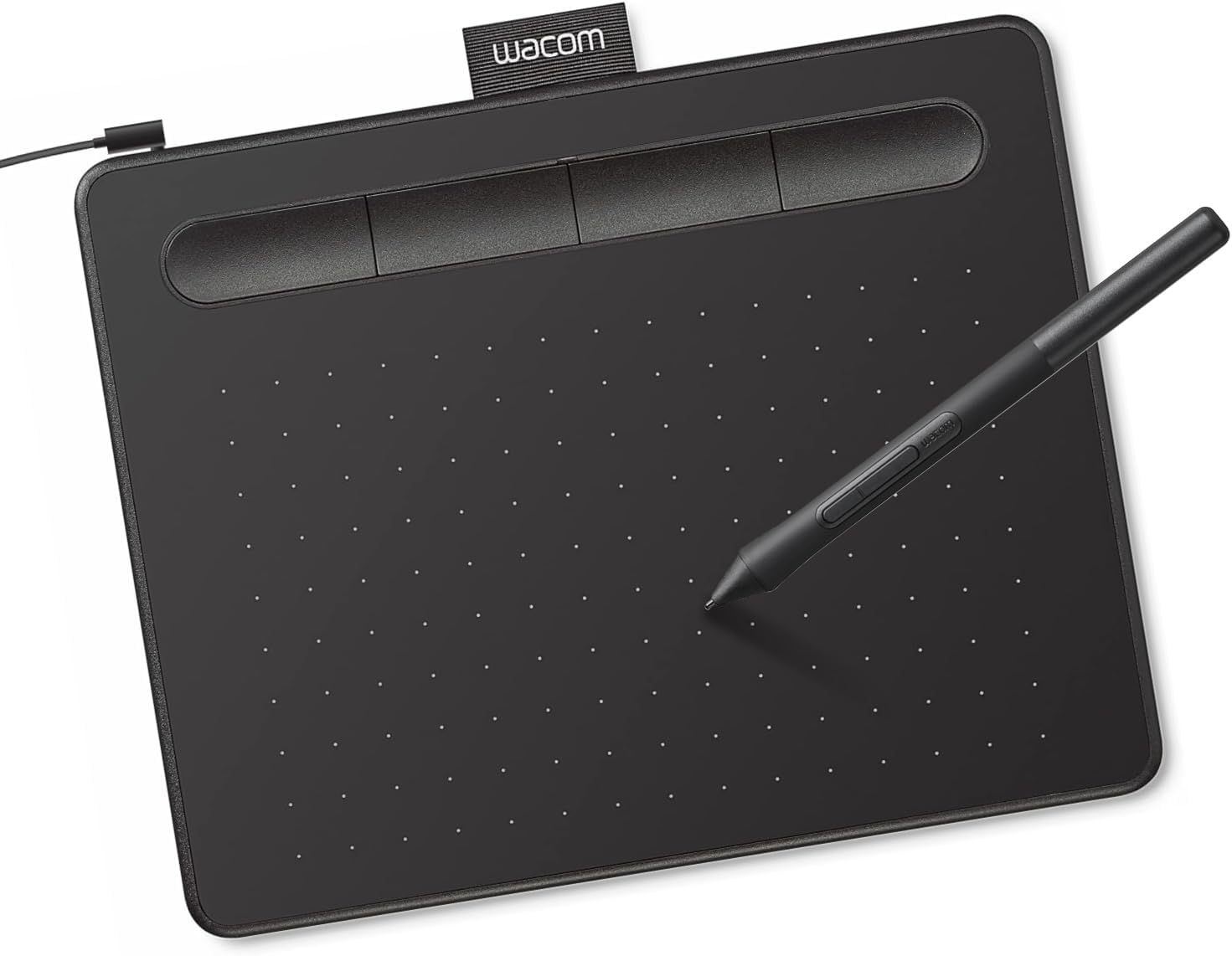
The Intuos Small is Wacom’s entry screenless tablet and the model most art teachers and online courses assume students own. You draw on the black surface on your desk and watch the stroke appear on your monitor. The listing describes Wacom’s EMR, battery-free pen technology, which means the pen draws power from the tablet itself; there is nothing to charge and no battery weight in your hand.
Pressure sensitivity is listed at 4096 levels, which is plenty for a beginner learning to control line weight and brush opacity. Connectivity is a single USB-A cable, and the listing states it works with Windows, macOS and Android, plus plug-and-play support on Chromebook. That last point matters for students on school laptops, where installing drivers is often blocked.
Registration unlocks bundled creative software and Wacom’s online training, per the listing. The exact titles change over time, so check what is offered at the moment you register rather than assuming a specific app.
Best suited for: students, hobbyists trying digital art for the first time, Chromebook users, and photographers who want a pen for retouching rather than a mouse.
Key features:
- Battery-free EMR pen, nothing to charge
- 4096 levels of pressure sensitivity
- Wired USB-A connection
- Works with Windows, macOS, Android; plug-and-play on Chromebook
- Software and online training access after registration
Pros:
- Lowest-risk way into the Wacom ecosystem
- No pen charging and no wireless pairing to troubleshoot
- Compact enough for a laptop setup or small desk
- Works in essentially any drawing or photo app
Cons and limitations:
- Small active area encourages wrist-only drawing; larger strokes feel cramped
- Wired only in this version, so the cable needs a clear path
- Fewer shortcut keys than mid-range tablets
- Screenless design has a hand-eye learning curve
Buying consideration: If you have a laptop with only USB-C ports, budget for a simple USB-C to USB-A adapter. Also decide whether small is right for your monitor size; on a large external display, every tiny pen movement covers a lot of screen.
What the Intuos Small does well for beginners
The biggest advantage is that it removes excuses. There is no pen battery to die mid-session, no pairing step, and very little to configure beyond pressure curve and screen mapping. Beginners who struggle with a new tool often stop because of friction, not because of the art, and the Intuos keeps that friction low.
It also teaches the core skill of a screenless tablet: looking at the monitor while your hand moves on the desk. That skill transfers to every screenless tablet you might buy later, including bigger Wacom models and other brands.
Where it falls short
Active area is the honest limitation. A small tablet maps a modest drawing surface to your whole screen, so long, confident strokes are harder and many people end up drawing from the wrist rather than the elbow. If you already sketch on paper and like big gestures, you may outgrow the Small faster than someone who mostly works on details, lettering or photo cleanup.
2. Xencelabs Pen Tablet Medium Bundle SE — Best for hobbyists ready for a bigger surface

This is not a Wacom tablet, and we include it for a specific reason: many people searching for a Wacom tablet for beginners are really asking “what is a safe, professional-feeling first tablet?” The Xencelabs Medium is the most relevant alternative in the current listings for buyers who are certain they will stick with digital art and want room to grow.
The listing describes 8192 pressure levels, 5080 LPI pen resolution and two battery-free pens with different barrel diameters, plus a pen case. A separate Quick Keys remote gives 5 sets of 8 keys, 40 programmable functions per application, with an OLED display that shows each key assignment. The surface uses an ultra-fine frosted texture intended to feel closer to pen on paper.
Connectivity is listed as wireless or USB, and the driver supports Windows, Windows 11 on ARM, macOS and Linux. The listing names compatibility with Adobe apps, Corel, Autodesk tools, Toon Boom and Foundry software, which hints at its target user: someone who will eventually work in professional pipelines.
Best suited for: committed hobbyists, art students past their first semester, and anyone who knows they want a medium-size drawing surface and programmable shortcuts.
Key features:
- 8192 levels of pressure sensitivity, 5080 LPI
- Two battery-free pens of different diameters with case
- Quick Keys remote: 40 programmable functions per app with OLED labels
- Wireless or USB connection
- Windows, Windows on ARM, macOS and Linux driver support
Pros:
- Medium-size surface allows arm-driven strokes
- Two pen sizes suit different grip preferences
- Quick Keys remote speeds up undo, brush size and zoom
- Linux support is uncommon among tablet makers
Cons and limitations:
- Costs well above an entry-level Intuos
- More settings to learn than a true beginner needs
- Not part of the Wacom ecosystem if brand matters to you
- Takes more desk space than a small tablet
Buying consideration: Buy this if you have already used a borrowed or older tablet and know your preferences. If this is your first ever pen tablet, the Intuos Small is the cheaper way to learn whether digital art sticks.
Wacom Intuos vs Wacom One vs Intuos Pro: Where Beginners Fit
Wacom sells several families, and the naming can confuse first-time buyers. The Intuos line is the entry screenless tablet, sold in small and medium sizes, with wired and Bluetooth versions. The Intuos Pro line is the professional screenless range, with higher-spec pens, more express keys and a higher price. Wacom One and Cintiq are display tablets, where you draw directly on a screen.
For a beginner, the decision is mostly between a cheap screenless Intuos and a more expensive pen display. Screenless tablets cost less, last longer because there is no panel to fail, and encourage a better drawing posture because you look straight ahead at your monitor. Pen displays feel more intuitive on day one because you draw where you look, but they cost more and take up more desk space.
If you are curious how Wacom’s display tablets stack up against a big competitor, our breakdown of Huion Kamvas vs Wacom Cintiq walks through that comparison in detail.
Buying Guide: How to Choose a Wacom Tablet as a Beginner
Screenless or pen display
Start here, because it decides your budget. A screenless tablet like the Intuos is the standard first purchase and works with any computer you already own. Most people adapt to looking at the monitor within a week or two of regular practice. Choose a pen display only if you have tried a screenless tablet and genuinely could not adjust, or if you mostly do detailed linework where drawing on the image matters.
Active area and monitor size
The active area is the part of the tablet that tracks the pen. Small tablets suit laptops and monitors around 13 to 24 inches, and they fit on crowded desks. Medium tablets suit larger monitors, dual-screen setups and artists who draw from the shoulder. A practical rule: the bigger your screen, the more you will appreciate a larger active area, because each pen movement maps to less screen distance.
Pressure levels and pen technology
Pressure levels describe how many steps of force the tablet can distinguish. At 4096 levels, the Intuos already exceeds what most beginners can control consistently. Higher numbers like 8192 matter less than pen consistency, initial activation force and how the pressure curve feels in your app. Battery-free pens such as Wacom’s EMR design are a real convenience: lighter, nothing to charge, and fewer things to troubleshoot.
Wired or Bluetooth
Wired tablets are cheaper and never need charging. Bluetooth versions free up your desk but add pairing and battery management. For a first tablet on a fixed desk, wired is the practical choice. If you move between a laptop on the couch and a desk, the wireless versions are worth the extra cost.
Operating system and software
Check compatibility before buying, especially on Chromebooks, Linux or school-managed laptops. The wired Intuos Small listing confirms Windows, macOS, Android and Chromebook plug-and-play. Bundled software helps if you do not own a drawing app, but excellent free options like Krita exist, so do not overpay for a bundle you will not use.
Shortcut keys
Express keys and remotes save time once you have a workflow: undo, brush size, eyedropper, pan and zoom. Beginners rarely use more than four or five shortcuts, so a few express keys are enough at first. Dozens of programmable keys, like the Xencelabs remote, pay off later.
Upgrade path
A beginner tablet is a learning tool. It is completely normal to move to a medium tablet or a pen display after a year or two. Buying the cheapest reliable option first lets you discover your preferences, such as size, pen grip and whether you miss drawing on screen, before you spend serious money.
Set Up Your First Tablet the Right Way
Many beginners blame the tablet for problems that are really setup issues. Install the latest driver from the manufacturer rather than relying on a disc or generic driver, restart, then set the pen pressure curve in the driver panel so light strokes register without pressing hard. Map the tablet to one monitor only if you use two, and keep the aspect ratio matched so circles do not turn into ovals. Our step-by-step guide to setting up a drawing tablet covers these settings in order.
Once it works, practice simple exercises before painting: straight lines, ellipses, pressure ramps from thin to thick, and hatching. Ten minutes a day of these drills builds hand-eye coordination faster than jumping straight into finished pieces.
Is Wacom Worth It for a Beginner?
Wacom is not the only good option anymore. Huion, XP-Pen and Xencelabs all make capable tablets, and some offer more features for the money. What a Wacom tablet for beginners gives you is predictability: long-standing driver support, wide compatibility, and a pen design that many schools and tutorials are built around. Our deeper look at whether Wacom is a good drawing tablet weighs that reputation against the competition, and our Wacom tablet reviews look at the wider lineup if you want to compare more models.
If you are not ready to buy anything yet, it is possible to start with a mouse, trackpad or touchscreen. Our guide on digital painting without a tablet explains how far that can take you, and why most people eventually want a pen.
Common Mistakes to Avoid
- Buying a pen display first “to skip the learning curve.” You may spend several times more than needed before knowing if digital art sticks.
- Skipping the driver install. Without the proper driver, pressure sensitivity often does not work at all.
- Leaving pressure settings at default. If lines feel too faint or too heavy, adjust the pressure curve before deciding the tablet is bad.
- Mapping one small tablet across two big monitors. Tiny hand movements become huge cursor jumps; map to one screen.
- Pressing too hard. Heavy pressure wears pen nibs faster and tires your hand. Let the pressure curve do the work.
- Ignoring nib wear. Replace nibs when they flatten or become sharp to protect the tablet surface.
- Judging after one day. The screenless learning curve is real but short; give it two weeks of regular practice.
FAQs
Which Wacom tablet is best for beginners?
For most beginners, the Wacom Intuos Small is the best starting point. It is the lowest-cost Wacom model, uses a battery-free pen with 4096 pressure levels, and works with Windows, Mac, Android and Chromebook.
Is the Wacom Intuos Small too small?
It is fine for laptops, standard monitors, sketching and photo editing. If you use a large external monitor or like big, sweeping strokes, a medium-size tablet will feel more comfortable.
Do I need a computer to use a Wacom Intuos?
Yes. The Intuos is a screenless tablet that connects to a computer or compatible Android device. If you want to draw without a computer, look at standalone drawing tablets or an iPad with a stylus instead.
Does the Wacom Intuos pen need charging?
No. The listing describes battery-free EMR technology, so the pen is powered by the tablet and never needs charging.
Is a screenless tablet hard to learn?
There is an adjustment period because you look at the monitor while drawing on the desk. Most people adapt within a week or two of short daily practice sessions.
Should I buy Wacom or a cheaper brand?
Cheaper brands can offer larger surfaces or more keys for the money. Wacom remains a strong choice when you value broad compatibility and long-standing driver support over maximum features.
Final Recommendation
If you are buying your first tablet, get the Wacom Intuos Small. It is inexpensive, simple to set up, compatible with almost anything, and it teaches the screenless workflow you will use on any future tablet. Students on Chromebooks and anyone working on a laptop will appreciate the small footprint.
If you have already practiced on a tablet and want a larger surface with professional-level shortcuts, compare the Xencelabs Pen Tablet Medium; just know you are leaving the Wacom ecosystem. And once your tablet is set up, our walkthrough on painting digital characters for beginners is a good first project.