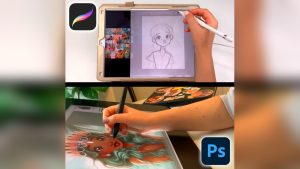
Start with a simple sketch, block values, add color, refine edges, and polish.
If you want to learn how to digitally paint, you are in the right place. I have taught teams and coached new artists for years. I know the tricks, the traps, and the tools that work. This guide shows how to digitally paint with clear steps, real examples, and proven practice plans. Read on to turn blank pixels into art you are proud of.
What Is Digital Painting And Why It Works
Digital painting is making art with a tablet, stylus, and software. You paint with pixels instead of real paint. You still use line, value, color, and form. The skills are the same. The tools just help you go faster, undo mistakes, and test ideas.
If you ask how to digitally paint with confidence, think in layers. Sketch on one layer. Paint values on another. Add color and light on top. This gives you control and speed. It is also easy to learn.
I have tried many tools, from budget tablets to high-end gear. The method does not change. Start simple. Learn values. Then add color and light.
The Tools You Need To Start
You do not need fancy gear to learn how to digitally paint. You need a pen tablet and art software.
Here is what works well:
- A small tablet with pressure. A size like 6 by 4 inches is fine.
- A laptop or desktop that runs your app without lag.
- Software like Photoshop, Procreate, Krita, or Clip Studio Paint.
Good extras help:
- A color accurate monitor. This helps with skin tones and prints.
- A glove to reduce friction and palm touches.
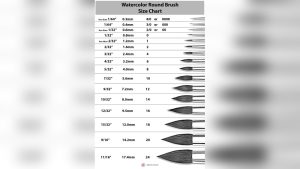
- A simple brush set with hard, soft, and textured brushes.
When I began to learn how to digitally paint, I used a cheap tablet. I still made good art. Focus on the craft, not the price tag.
Set Up Your Canvas And Workspace
A smart setup makes painting smooth. This is key if you are learning how to digitally paint.
Use these settings:
- Canvas size: 3000 to 5000 pixels on the long side.
- Resolution: 300 DPI for print. 144 DPI is fine for web.
- Color space: sRGB for web use.
Keep the workspace clean:
- Put layers, brushes, and navigator in view.
- Use a neutral gray UI to judge color.
- Turn on pen pressure for size and opacity.
I set a warm gray canvas to avoid eye strain. It helps me judge values fast. Try it and see the difference.

Step-By-Step: How To Digitally Paint From Zero To Finish
This is the workflow I teach. It is simple and repeatable. It shows how to digitally paint with less stress.
- Define your idea. Write one line about mood and focus.
- Gather three to five refs. Look for light, shape, and color.
- Make four small thumbnails. Explore composition and value.
- Choose one. Do a clean line sketch on a new layer.
- Block values in grayscale. Think in big shapes first.
- Add a color layer. Use multiply or color blend modes to glaze.
- Establish light. Set a clear key light and a weaker fill.
- Paint edges. Keep focus areas sharp. Soften the rest.
- Add texture. Use a few smart brushes or photo textures with care.
- Polish. Add small highlights, rim light, and shape accents.
- Check values. Flip canvas. Squint. Fix what breaks.
- Export. Save a master PSD. Export a JPEG or PNG for web.
As you practice how to digitally paint, do not skip value studies. Values carry the image. Color is the spice, not the base.
Brushes, Textures, And Edge Control
You do not need many brushes to learn how to digitally paint. You need a few that you know well.
Use a lean set:
- Hard round. For clean shapes and crisp edges.
- Soft round. For smooth tones and sky blends.
- Textured brush. For skin pores, rock, or foliage.
- Smudge or mixer. For subtle blends without mud.
Edge control is huge:
- Use hard edges at the focal point.
- Use soft edges in the background or in shadow planes.
- Lost edges make forms feel real. They keep the eye moving.
I made this mistake early on. I used too many brushes. It slowed me down. Now I paint 80 percent with one or two brushes. My work got faster and cleaner.
Color, Light, And Value Made Simple
Here is how to digitally paint with strong color and light. Think of value first. Then place light on form. Then push color temperature.
Core ideas:
- Values carry the read. Color adds mood.
- Light has a temperature. Warm light gives cool shadows, and the reverse.
- Saturation peaks near lit planes and edges of subsurface areas.
Practical tips:
- Start in grayscale. Then glaze color with a soft brush.
- Use a big soft brush to push warm and cool zones.
- Keep highlights small. The eye reads them fast.
Research on vision shows we read value patterns before hue. This is why value studies boost results. It is also why many pros paint in grayscale first.
Composition And Storytelling
If you want to master how to digitally paint, build a clear path for the eye. Good composition acts like a tour guide.
Simple rules that work:
- Set one clear focal point.
- Use the rule of thirds or a centered design with care.
- Use light and shadow to frame the subject.
- Use big, medium, and small shapes for rhythm.
I often draw arrows over my thumbnails. This shows where the eye goes. If the path is messy, I fix it before I paint. It saves hours later.
A 30-Day Practice Plan That Works
Here is a plan to jumpstart how to digitally paint. Keep it short each day. Focus on one skill at a time.
Week 1: Values
- Ten 10-minute spheres and boxes with one light.
- Five small photo studies in grayscale.
Week 2: Edges and Forms
- Ten edge drills. Hard, soft, and lost edges.
- Five studies of noses, eyes, or leaves.
Week 3: Color and Light
- Five color studies from film stills.
- Five quick sunset or golden hour studies.
Week 4: From Start To Finish
- Two full paintings from sketch to polish.
- One style study of an artist you admire.
Use a timer. Keep your files. You will see gains fast.
Common Mistakes And How To Fix Them
Avoid these traps as you learn how to digitally paint. I have made each one.
- Muddy colors. Fix by checking values first and reducing blend passes.
- Overblending. Fix by painting planes with clear hard edges.
- No clear focal point. Fix by adding value contrast at the subject.
- Flat light. Fix by setting key light and bounce light with clear intent.
- Too many layers. Fix by merging often and painting direct.
A small change in process can fix a big problem. Keep a checklist next to your screen.
Software Workflows: Photoshop, Procreate, Krita, Clip Studio
The app does not define how to digitally paint. But shortcuts can help.
Photoshop
- Use a new layer for values and a color layer set to color mode.
- Use the mixer brush for soft blends and a hard round for edges.
Procreate
- Use the smudge tool with a textured brush.
- Use reference layers for clean fills and quick masks.
Krita
- Use brush engines for texture.
- Use wrap-around mode for tiles and pattern work.
Clip Studio Paint
- Use vector layers for clean ink lines.
- Use tone curves to adjust values late in the process.
Pick one app. Learn it well. Depth beats breadth.
Exporting, File Formats, And Sharing
To show your work, export smart. This step matters in how to digitally paint from idea to final.
Tips that work:
- Keep a layered master file.
- Export web images as JPEG at 80 to 90 percent quality.
- Export PNG when you need clean edges or transparency.
- Use sRGB for web so colors look the same for most viewers.
Sharpen a bit at the end. Add your name small in the corner. Share at a size that is hard to steal but easy to view.
Frequently Asked Questions Of How To Digitally Paint
What is the fastest way to learn how to digitally paint?
Start with value studies and small thumbnails. Limit tools and repeat a simple workflow until it feels natural.
Do I need an expensive tablet to learn how to digitally paint?
No, a budget tablet with pressure is enough. Technique matters more than gear, especially when building core skills.
Should I paint in grayscale first when learning how to digitally paint?
Yes, it helps you control values and form. You can glaze color later while keeping a strong read.
How do I pick brushes for how to digitally paint?
Use a hard round, a soft round, and one textured brush. Learn them well before adding more.
What canvas size is best for how to digitally paint?
A long side of 3000 to 5000 pixels at 300 DPI works for most art. For web only, 144 DPI is fine.
How do I avoid muddy colors when I try how to digitally paint?
Keep layers simple and avoid heavy blending. Set values first and use warm versus cool shifts to add life.
How long does it take to get good at how to digitally paint?
With daily practice, you can see big gains in one to three months. Solid mastery takes longer, but progress compounds fast.
Conclusion
You now have a clear, proven path for how to digitally paint. Start with values. Add light with intent. Use a lean brush set and a repeatable workflow. Keep your practice tight and focused.
Pick one idea today and paint it in three steps: sketch, values, and color. Share it, ask for feedback, and paint the next one. If you found this guide useful, subscribe for more lessons, grab the free brush set I recommend, and leave a comment with your next painting goal.