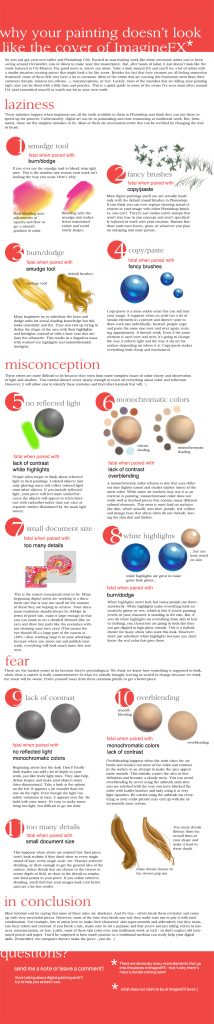
Quick answer: The most common mistakes in digital painting are weak values, muddy or oversaturated color, overusing soft brushes and blur, zooming in too early, too many layers, pure black shadows, ignoring the light source, and leaning on effects like glow and gradients to fake finish. Fix them by checking your painting in grayscale, picking colors from a limited planned palette, painting with harder edges at 25–50% zoom, flipping the canvas often, and merging layers once decisions are made.
Digital painting removes many of the physical problems of traditional media. Nothing dries, nothing spills, and undo is always one tap away. Yet the same software that makes painting easier also makes certain mistakes almost automatic. A soft airbrush is the default brush in many apps. A color wheel offers millions of saturated hues. Infinite zoom invites you to render eyelashes before the face exists.
The good news is that these mistakes are predictable, and each has a concrete fix. This guide lists the common mistakes in digital painting and how to fix them, ordered roughly from the most fundamental to the most technical. If you prefer structured learning, our selection of digital painting books for beginners covers values, color and light in more depth than any single article can.
Mistake 1: Weak or Muddled Values
What it looks like: The painting feels flat or confusing, even though the colors look nice. Forms do not turn, and the subject does not stand out from the background.
Why it happens: Color steals attention. Two colors can look very different in hue while being nearly the same value (lightness), so they blur together when viewed from a distance or in a thumbnail.
How to fix it:
- Add a black-filled layer on top set to the Color or Saturation blend mode, or use your app’s grayscale preview, to view the image without color. Toggle it on and off as you work.
- Squint, or zoom out until the canvas is postage-stamp size. The main shapes should still read.
- Plan values first: block the painting in three to five grays before adding color, or start with a quick value thumbnail.
- Group values: keep the background within a narrow value range and save the strongest contrast for the focal point.
Mistake 2: Pillow Shading and Overblending
What it looks like: Every form glows from the center and darkens evenly toward its outline, like a puffy cushion. Edges are soft everywhere.
Why it happens: A large soft brush makes smooth gradients effortless, and it is tempting to shade around the silhouette rather than from a light source.
How to fix it:
- Decide where the light comes from before shading, and mark it with an arrow on a temporary layer.
- Separate light and shadow with a clear terminator line, the edge where the form turns away from the light, then soften only parts of it.
- Paint with a hard round or textured brush at 70–100% opacity for most of the process. Use soft brushes for specific effects such as atmosphere, glow or subtle bounce light.
- Vary edges deliberately: hard edges where forms overlap or contrast is high, soft edges where forms turn gently or recede.
Mistake 3: Muddy, Gray or Oversaturated Color
What it looks like: Either everything is neon and fights for attention, or colors look dirty and lifeless.
Why it happens: Picking every color fresh from the full color wheel leads to clashing saturation. Muddy color often comes from darkening by dragging toward black without shifting hue, or from smudging many colors together.
How to fix it:
- Limit your palette. Choose a dominant hue family, one accent color, and neutrals. Save the palette as a swatch set.
- Shift hue as you change value. Shadows often move cooler (or toward the complement of the light) and highlights move toward the light color, instead of simply getting darker or lighter.
- Keep most of the image at moderate saturation and reserve high saturation for the focal area or small accents.
- Check color in context. A color picked in isolation looks different surrounded by other colors.
- Use a Color or Hue adjustment layer late in the process to unify a painting with an overall tint.
Mistake 4: Pure Black Shadows and Pure White Highlights
What it looks like: Shadows look like holes, and highlights look pasted on.
Why it happens: #000000 and #FFFFFF are right there in the picker, and they seem like the logical extremes.
How to fix it: Mix shadow colors from deep, slightly saturated hues, such as a dark blue-violet or deep warm brown, depending on the lighting. Keep pure white for the tiniest specular highlights only. In most scenes, the darkest and lightest values are still colored. This also preserves room for a final contrast push.
Mistake 5: Zooming In Too Early
What it looks like: Beautifully rendered eyes on a face with wrong proportions. Detailed foreground leaves in a composition that does not work.
Why it happens: Zoom is unlimited and rendering detail feels productive.
How to fix it:
- Work mostly at 25–50% zoom during the block-in and early rendering stages.
- Open a second window or reference view of the same file at small size, if your app supports it, to watch the overall image while you work.
- Follow a sequence: thumbnail, big shapes, values, color, form, then detail. Do not move to the next stage until the previous one reads.
- Set a timer if needed, and stop to zoom out every few minutes.
Mistake 6: Not Flipping the Canvas
What it looks like: A face leans to one side, a building tilts, or the composition feels lopsided once someone else sees it.
Why it happens: Your eyes adapt to errors after staring at an image for a while.
How to fix it: Flip the canvas horizontally often. Most apps have a shortcut or quick menu option for this, and mapping it to a single key or gesture makes it a habit. Errors in symmetry and proportion jump out immediately in the mirrored view.
Mistake 7: Too Many Layers
What it looks like: Dozens or hundreds of unnamed layers, constant hunting for the right one, and painting on the wrong layer.
Why it happens: Layers feel like safety. Every new stroke goes on a new layer “just in case.”
How to fix it:
- Use a small set of purpose-driven layers: sketch, background, midground, foreground, and maybe effects.
- Merge layers once a decision is made. Painting on a single layer encourages painterly blending and confident marks.
- Name and group layers that you do keep separate.
- Save versions of the file (v1, v2, v3) instead of hoarding layers for safety.
Mistake 8: Ignoring Light Logic
What it looks like: Characters lit from the left stand in a scene lit from the right. Cast shadows go in different directions. Forms look stuck on rather than sitting in the environment.
How to fix it:
- Choose a key light (main source), its direction and color.
- Add a fill light or ambient light, usually cooler and dimmer, often from the sky.
- Consider bounce light from nearby surfaces, which picks up their color.
- Make cast shadows consistent in direction and sharper near their contact point.
- Add occlusion shadows: the darkest small shadows where objects touch or meet.
Night scenes are the hardest test of light logic, since multiple sources and low light change everything. Our guide to painting digital night scenes works through those situations step by step.
Mistake 9: Overusing Effects and Filters
What it looks like: Glows on everything, heavy lens flares, default gradients for skies, or motion blur used to hide unfinished areas.
Why it happens: Effects make an image look finished instantly, at least at first glance.
How to fix it: Treat effects as seasoning. Add them only after the painting works without them, and lower their opacity to keep them subtle. Use Add or Glow blend modes on small, deliberate areas. A painting with clear values, shapes and light will rarely need more than a touch of effects.
Mistake 10: Relying on Line Art for Form
What it looks like: Heavy outlines remain visible in a painting that is meant to look rendered, making it feel like a colored drawing.
How to fix it: Lower the line art layer’s opacity as you paint, then paint over it or hide it once shapes are established. Define form with value and edge changes rather than lines. Our guide on lineless digital painting covers techniques for building images entirely from shapes.
Mistake 11: Not Using References
What it looks like: Hands, folds of fabric, foliage or animals look generic or wrong.
How to fix it: Gather references before painting: photos, your own phone shots, or quick studies from life. Use them to understand structure, not to copy every pixel. Combining several references often works better than relying on one.
Mistake 12: Wrong Canvas Settings
What it looks like: Pixelated prints, or a sluggish app with a file that will not save.
How to fix it: Decide the output early. For screen-only images, a long edge of 2,000–4,000 pixels is usually plenty. For print, plan around 300 pixels per inch at the final size; an 8 x 10 inch print would need roughly 2,400 x 3,000 pixels. Work in RGB for screens and check with your printer whether they want color conversion. Larger canvases reduce available layer counts in many tablet apps, so balance size against workflow.
Mistake 13: Centered, Static Compositions
What it looks like: The subject sits dead center at the same size in every piece, with empty, evenly treated space around it.
Why it happens: The canvas opens with the cursor in the middle, and centering feels safe.
How to fix it:
- Try placing the focal point roughly a third of the way in from an edge, then compare it to a centered version in thumbnails.
- Create depth with overlapping planes: foreground, middle ground and background, each with its own value range.
- Use the crop tool freely. Many digital paintings improve when trimmed tighter after the fact.
- Lead the eye with directional elements such as paths, gazes, light beams or diagonal shapes that point toward the subject.
Quick Diagnostic Checklist
| Symptom | Likely cause | First fix to try |
|---|---|---|
| Image looks flat | Values too close | Grayscale check; strengthen darks and lights near focal point |
| Forms look puffy | Pillow shading, soft brush overuse | Define light direction; harden terminator edges |
| Colors clash | No palette plan | Limit palette; lower saturation outside focal area |
| Colors look dirty | Darkening toward black; overblending | Shift hue in shadows; paint with fewer, cleaner strokes |
| Proportions off | Too much zoom, no flipping | Flip canvas; zoom out; compare to reference |
| Subject looks pasted in | Inconsistent light | Match light direction and color; add contact shadows |
| App is slow | Huge canvas, too many layers | Merge layers; adjust resolution to actual output |
Habits That Prevent Most Mistakes
- Start every piece with thumbnails. Three to six small value sketches, each a minute or two, help you find the strongest composition before committing.
- Do short studies regularly. Thirty-minute studies of light on simple objects, or quick landscape color studies, build fundamentals faster than long pieces. Timed practice is also the core of digital speed painting, which trains you to make big decisions quickly.
- Take breaks and return with fresh eyes. Problems invisible after an hour of painting are obvious after a short walk.
- Get feedback. Another person sees errors you have adapted to.
- Study traditional fundamentals. Digital tools do not replace knowledge of value, color, perspective and anatomy; they just speed up applying it.
FAQs
What is the most common mistake in digital painting?
Weak value structure. Many paintings look flat because colors that differ in hue share similar lightness. A grayscale check reveals the problem quickly.
How do I stop my digital paintings from looking blurry?
Use hard or textured brushes for most of the painting and save soft brushes for specific effects. Keep some edges sharp, especially at the focal point and where forms overlap.
Why do my colors look muddy in digital art?
Often because shadows are made by mixing toward black or gray without changing hue, or because too many colors are smudged together. Shift hue in shadows and use cleaner, more deliberate strokes.
How many layers should I use for digital painting?
There is no fixed number, but many painters work with a handful of layers grouped by depth or purpose, merging as they go. Fewer layers keep the workflow simpler and encourage painterly decisions.
Should I use pure black in digital painting?
Rarely. Deep, colored darks usually look more natural and harmonious. Pure black can work in graphic styles or tiny accents, but it often makes shadows look like holes.
How do I know if my values are correct?
Desaturate the image temporarily and look at it small. If the subject is clear, the focal point has the strongest contrast, and the background reads as one group, your values are working.
Next Step
Pick the two mistakes from this list that show up most in your own work, and fix only those in your next three paintings. Focusing on a few problems at a time is far more effective than trying to correct everything at once.
For a structured path through values, color, light and composition, browse our guide to the best digital painting books for learners and choose one that matches the skills you want to build next.