

PaintingProGuide is reader-supported. When you buy through links on this page we may earn an affiliate commission at no extra cost to you.
Windows has the widest choice of digital painting software of any platform, from free open-source programs to industry-standard subscriptions. The best digital painting app for Windows depends on what you paint and how you want to pay: Krita is the best free painting-focused app, Clip Studio Paint is the strongest all-rounder for illustration, comics and line art with a one-time license option, Adobe Photoshop is the standard when you need photo editing and studio file compatibility, and Corel Painter or Rebelle appeal to painters who want realistic natural-media brushes.
This guide compares the main Windows painting apps by strengths, pricing model and who they suit, explains how to get pen pressure working properly on Windows, and reviews four products on Amazon that complete a Windows painting setup: a perpetual Clip Studio Paint EX license and three pen tablets. Several unrelated results for this search, such as colorimeters and LED signs, were left out.
Quick answer: For most Windows painters, Clip Studio Paint is the best app overall: a strong natural brush engine, excellent line art and coloring tools, comic and animation features, and a perpetual license option such as the Clip Studio Paint EX Version 5 sold on Amazon. If you want to spend nothing, Krita is a free, open-source painting app that rivals paid software for illustration and concept art. Pair either with a pen tablet such as the XPPen Deco mini7W or a pen display such as the GAOMON PD1161.
Windows Digital Painting Apps Compared
| App | Pricing model | Best for | Notes |
|---|---|---|---|
| Clip Studio Paint (Celsys) | Perpetual license or subscription | Illustration, comics, manga, line art, animation | Excellent stabilization and vector line tools; EX adds advanced comic and animation features over PRO |
| Krita | Free, open source | Painting, concept art, illustration | Powerful brush engines, wrap-around mode, animation basics |
| Adobe Photoshop | Subscription | Painting plus photo editing, studio workflows | Industry-standard PSD files; huge brush ecosystem |
| Corel Painter | Paid | Realistic natural-media painting | Detailed oil, watercolor and pastel simulation |
| Rebelle (Escape Motions) | Paid | Watercolor and wet-media realism | Paint flow and drying simulation |
| PaintTool SAI | Paid, lightweight | Line art and anime-style illustration | Windows-only, very responsive on modest hardware |
| MediBang Paint | Free | Comics and beginners | Lightweight, cloud features |
| GIMP | Free, open source | Photo editing with some painting | Better as an editor than a dedicated painting app |
Pricing and features change between versions, so confirm current details on each developer’s website before buying.
A Closer Look at the Leading Windows Apps
Krita
Krita is built by painters for painting. Its brush engines cover everything from soft airbrushing to bristle and smudge simulations, and it includes features such as a wrap-around mode for seamless textures, a pop-up palette for quick brush and color access, and assistant tools for perspective. Because it is free and open source, it is the obvious first app for anyone testing digital painting on Windows. Its weak spots are photo editing and some PSD edge cases.
Clip Studio Paint
Clip Studio Paint is especially strong for line work: stroke stabilization, vector layers you can adjust after drawing, and inking brushes that taper naturally. Coloring tools such as referencing a line layer for fills save hours on illustrations and comics. Its painting brushes are capable too, and a large asset library adds brushes and 3D models. The interface is dense at first, so a beginner guide helps.
Adobe Photoshop
Photoshop is a general image editor that many professional illustrators and concept artists paint in. Its advantages are photo-bashing, adjustment layers, filters, an enormous library of third-party brushes and universal PSD compatibility. The subscription model and heavier hardware demands are the main drawbacks for hobbyists.
Corel Painter and Rebelle
Both target painters who want digital work to look traditional. Painter offers deep control over simulated oil, watercolor, pastel and other media. Rebelle focuses on realistic wet media, with paint that flows, mixes and dries on simulated paper. They are rewarding for traditional painters moving to digital, but less suited to clean line art.
PaintTool SAI and MediBang
SAI is a small, fast Windows program long popular for anime-style line art thanks to its smooth stabilizer. MediBang Paint is free and light, with comic panels and cloud storage. Both run well on older laptops.
How to Choose a Windows Painting App
Start with your subject
Comics, manga and clean line art point strongly to Clip Studio Paint. Concept art and painterly illustration suit Krita or Photoshop. Traditional-looking oil and watercolor suit Painter or Rebelle.
Decide how you want to pay
If you dislike subscriptions, Clip Studio Paint’s perpetual license, Krita (free), PaintTool SAI and Rebelle avoid them. Photoshop is subscription-based.
Consider hardware
Krita and Photoshop benefit from more RAM for large canvases. SAI and MediBang are lighter and run well on modest laptops.
File compatibility
If you collaborate with studios or clients, PSD support matters. Clip Studio Paint and Krita can open and save PSD files, but complex Photoshop features may not carry over exactly.
Try before buying
Most paid apps offer trials or free tiers. Paint the same small study in two apps and keep the one that feels natural.
Which App for Which Artist?
- Total beginner, zero budget: Krita, with a basic pen tablet.
- Anime and manga style: Clip Studio Paint, or PaintTool SAI for lightweight line art.
- Webcomics: Clip Studio Paint EX for multi-page projects; MediBang as a free start.
- Concept art and photo-bashing: Photoshop or Krita.
- Traditional painters going digital: Rebelle or Corel Painter.
- Old or low-spec laptop: SAI or MediBang.
Getting Pen Pressure Working on Windows
- Install the tablet driver first, from the manufacturer’s website, before opening your painting app.
- Choose the right tablet API in your app’s settings. Windows supports Windows Ink and the older Wintab; if pressure does not work in one, switch to the other.
- Disable conflicting Windows Ink features such as press-and-hold right-click if strokes start late or show a ring cursor.
- Adjust the pressure curve in both the driver and the app so light strokes register.
- Restart the app after changes. Many apps only read tablet settings at launch.
Our Top Picks at a Glance
- Clip Studio Paint EX Version 5 (Perpetual License) — Best paid painting app for Windows
- GAOMON PD1161 Pen Display (11.6 in) — Best budget screen to draw on
- XPPen Deco mini7W V2 Wireless Tablet — Best compact wireless tablet
- DIGIDRAW T610 Drawing Tablet — Best paper-feel budget tablet
| Product | Best For | Key Spec | Key Strength | Price Tier |
|---|---|---|---|---|
| Clip Studio Paint EX 5 | Illustration, comics, animation | Perpetual license; Windows and macOS | Full feature set without subscription | $$$ |
| GAOMON PD1161 | Drawing on screen | 11.6 in FHD IPS; 8,192 levels; tilt | 100% sRGB per listing | $$$ |
| XPPen Deco mini7W V2 | Small desks, laptops | 7 x 4.37 in; Bluetooth; 16,384 levels | Wireless, 13-hour battery | $$$ |
| DIGIDRAW T610 | Budget paper feel | 10 x 6 in; 16,384 levels; USB-C | Textured surface, palm rest | $$$ |
How We Chose
App comparisons reflect widely known features and pricing models at the time of writing. Products were selected from Amazon listing details and specifications checked in October 2026, based on how well each completes a Windows painting setup, and on how widely each is reviewed by Amazon buyers. We have not used these specific products. Non-art results such as colorimeters and LED signs were excluded.
- Windows compatibility stated in the listing.
- Pressure and tilt support for tablets.
- Licensing clarity for software.
- Value for beginners and hobbyists.
Products for Your Windows Painting Setup Reviewed
1. Clip Studio Paint EX Version 5 (Perpetual License) — Best for a full-featured Windows painting app

This listing offers Clip Studio Paint EX Version 5 as a perpetual license for Windows and macOS. The listing highlights character art with a natural brush engine, comics, manga and webtoons (paneling, speech bubbles, perspective), frame-by-frame animation, concept art with 3D models, vector-based design with CMYK support, and rulers for symmetry, perspective and curves.
EX is the top tier of Clip Studio Paint and adds advanced multi-page comic and animation capabilities beyond the PRO edition, which matters if you produce comics or longer animations. If you only paint single illustrations, PRO may be enough, so compare editions on Celsys’ site.
A perpetual license means you pay once for this version rather than subscribing, though future major versions may be separate purchases.
Best suited for: Illustrators, comic artists and animators on Windows who prefer a one-time purchase.
Key features:
- Clip Studio Paint EX, Version 5
- Perpetual license; Windows and macOS
- Comics, illustration, animation and 3D model tools
- Vector line art and CMYK support
Pros:
- Industry-respected line and brush tools
- No subscription for this version
- Comprehensive feature set
Cons and limitations:
- Highest tier here
- EX may be more than single-illustration painters need
- Learning curve for advanced features
Buying consideration: Confirm the license is from an authorized seller and that you receive a valid serial number for activation.
2. GAOMON PD1161 Pen Display (11.6 in) — Best for drawing directly on screen
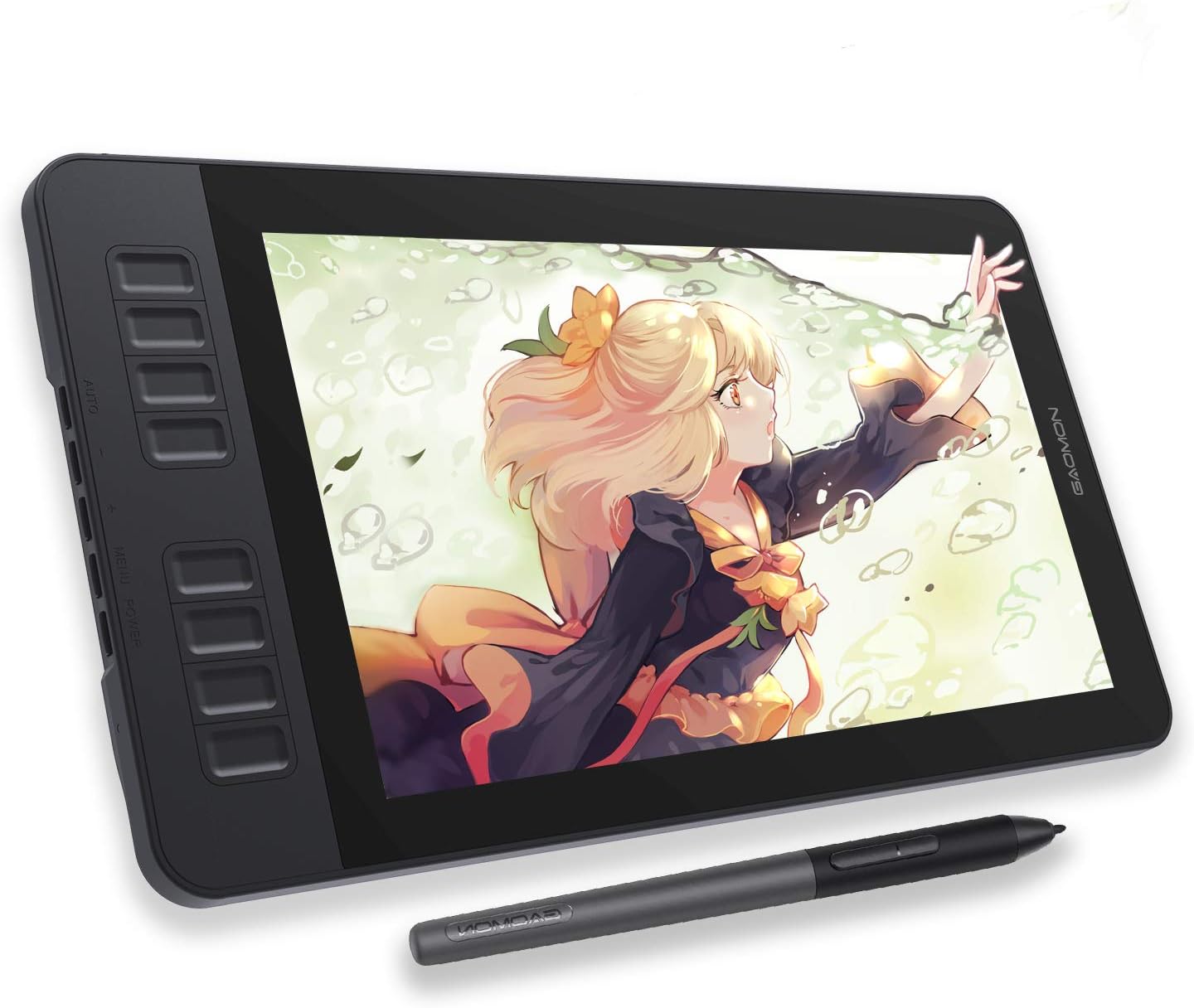
The GAOMON PD1161 is an 11.6-inch full HD IPS pen display that connects to a computer (it is not standalone). The listing states 72% NTSC (100% sRGB) color, a pre-installed matte film for a paper-like feel, a battery-free AP50 pen with 8,192 pressure levels and tilt, and 8 programmable keys plus 2 pen buttons.
It supports Windows 7 or later and macOS 10.12 or later, connecting via HDMI and USB.
For Windows users who want to draw on the screen without the cost of larger displays, it is an accessible entry point.
Best suited for: Windows painters who want a pen display on a budget.
Key features:
- 11.6 in FHD IPS; 100% sRGB per listing
- Battery-free pen, 8,192 levels, tilt
- 8 shortcut keys + 2 pen buttons
- HDMI and USB connection
Pros:
- Draw directly on screen
- Matte film for friction
- Good color claim for the tier
Cons and limitations:
- Requires a computer
- Small screen for big compositions
- Extra cables on the desk
Buying consideration: Set the display to duplicate or extend in Windows display settings, then map the pen to the GAOMON screen in its driver.
3. XPPen Deco mini7W V2 Wireless Drawing Tablet — Best for compact wireless setups

XPPen’s Deco mini7W V2 is a 7 x 4.37 inch wireless tablet with Bluetooth 5.0 and up to 13 hours of battery life. The P05D battery-free stylus offers 16,384 pressure levels and 60° tilt per the listing (the details field lists 8,192, so check the product page), and there are 8 shortcut keys.
It supports Windows 7 and later, macOS, Android, ChromeOS and Linux, and a companion app helps adjust the active area for mobile use. The L-shaped USB-C port reduces cable strain.
Small tablets suit laptops and small desks; on large monitors, small hand movements cover a lot of screen.
Best suited for: Laptop painters and anyone wanting a cable-free tablet.
Key features:
- 7 x 4.37 in active area
- Bluetooth 5.0; up to 13 hours
- Battery-free stylus with tilt
- Windows, macOS, Android, ChromeOS, Linux
Pros:
- Wireless
- Portable
- Low-to-mid tier
Cons and limitations:
- Small area for large monitors
- Pressure spec differs between listing fields
- Battery needs charging
Buying consideration: Map the tablet to a portion of a large screen if strokes feel too sensitive.
4. DIGIDRAW T610 Drawing Tablet (10 x 6 in) — Best for a paper-feel budget tablet

DIGIDRAW’s T610 offers a 10 x 6 inch drawing area with a textured, paper-like surface, an ultra-slim body and a curved palm rest. The battery-free stylus has 16,384 pressure levels, and a USB-C connection delivers a 300 PPS report rate according to the listing.
It is compatible with Windows, macOS, ChromeOS and Android.
A larger area than the XPPen mini suits full-size monitors.
Best suited for: Beginners on Windows who want a larger tablet with a textured surface.
Key features:
- 10 x 6 in textured surface
- 16,384 pressure levels; battery-free
- USB-C; 300 PPS
- Curved palm rest
Pros:
- Paper-like friction
- Larger area
- Low-to-mid tier
Cons and limitations:
- Screenless
- Newer brand
- Textured surfaces wear nibs faster
Buying consideration: Keep spare nibs; paper-texture surfaces wear them down more quickly than smooth ones.
Buying Guide: Building a Windows Painting Setup
Pick the app first
Your app decides some hardware needs. Photoshop and Krita benefit from more RAM; SAI runs on almost anything.
Add pressure input
Any tablet with Windows drivers works; pen displays cost more but feel more natural.
Plan for RAM and storage
16 GB RAM is a practical minimum for painting; 32 GB is comfortable for large files.
Consider screen color
For print or client work, an sRGB-accurate monitor helps.
Mind licensing
Perpetual licenses avoid ongoing costs; subscriptions include updates.
Keep your brushes portable
Most Windows painting apps let you import and export brush sets, and many accept Photoshop ABR brushes to some degree. If you switch apps later, exporting your custom brushes and palettes first saves rebuilding your toolkit from scratch.
Back up
Save layered files to cloud or external storage regularly.
Start Painting on Windows
Practice with our tutorials on digital waves and ocean painting and digital night scenes. No tablet yet? See how to do digital painting without a tablet.
Common Mistakes to Avoid
- Installing the app before tablet drivers. Pressure may not work.
- Leaving Windows Ink and Wintab mismatched. Try the other API if strokes fail.
- Buying the top edition by default. Compare PRO and EX or free alternatives.
- Ignoring RAM. Lag ruins brush feel.
- Using GIMP as a painting-first app. Krita is more suited to painting.
- Not saving versions. Use incremental saves.
FAQs
What is the best free digital painting app for Windows?
Krita is the most popular free, painting-focused app for Windows, with strong brush engines and illustration tools. MediBang Paint is a lighter free option for comics.
Is Clip Studio Paint better than Photoshop for painting?
For illustration, comics and line art, many artists prefer Clip Studio Paint. Photoshop is stronger for photo editing and studio file workflows. Both are capable painting apps.
Does Procreate work on Windows?
No. Procreate is iPad-only. Windows users often choose Clip Studio Paint, Krita or Photoshop instead.
Why is my pen pressure not working on Windows?
Usually a driver or API issue. Install the latest tablet driver, then switch between Windows Ink and Wintab in your app settings and restart the app.
What is the difference between Clip Studio Paint PRO and EX?
EX adds advanced features for multi-page comics and longer animations. PRO covers single illustrations well. Compare editions on the developer’s site.
Do I need a pen display to paint on Windows?
No. A screenless pen tablet works with every app listed here and costs less. Pen displays let you draw directly on the screen.
Final Recommendation
For a paid app, choose Clip Studio Paint, with the EX Version 5 perpetual license if you make comics or animation. For free painting, choose Krita. Complete your Windows setup with the GAOMON PD1161 to draw on screen, the wireless XPPen Deco mini7W for compact desks, or the DIGIDRAW T610 for a larger paper-feel tablet.


One Comment