PaintingProGuide is reader-supported. When you buy through links on this page we may earn an affiliate commission at no extra cost to you.
A good pen tablet is the single upgrade that turns a computer into a painting surface. The best pen tablets for digital painting do three jobs well: they read pressure smoothly enough for soft glazes, they track the nib without wobble, and they stay out of your way through a long session. Everything else, from shortcut keys to bundled software, is secondary.
This guide covers screenless graphics tablets, which you draw on while watching your monitor, and one pen display, which puts the image directly under the nib. The right choice depends less on brand loyalty and more on your desk, your monitor size and how much hand-eye adjustment you are willing to learn.
Quick answer: For most painters starting out or upgrading from a mouse, the Wacom Intuos Small is the safest screenless pen tablet, thanks to its battery-free EMR pen and broad software support. If you want a bigger active area and tilt on a similar budget, choose the VEIKK VK850. If you would rather paint directly on the image, the XPPen Artist 13.3 Pro V2 pen display is the pick.
Our Top Picks at a Glance
- Wacom Intuos Small — Best for reliable everyday painting on a small desk
- VEIKK VK850 — Best for a larger active area and tilt at a low price tier
- XPPen Artist 13.3 Pro V2 — Best for painting directly on screen
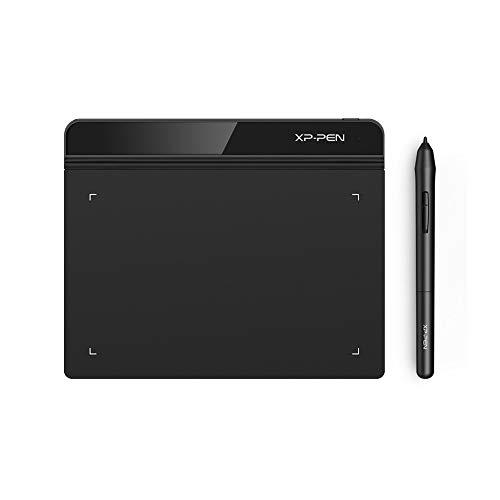
- XP-Pen PA2 Battery-Free Stylus — Best spare pen for XP-Pen Artist Pro owners
| Product | Best For | Key Spec | Key Strength | Price Tier |
|---|---|---|---|---|
| Wacom Intuos Small | Everyday painting, small desks | 4,096 pressure levels, EMR battery-free pen | Mature drivers, works with Windows, macOS, Android, Chromebook | $$ |
| VEIKK VK850 | More drawing room for less | 8 x 5 in active area, 16,384 levels, ±60° tilt | 10 shortcut keys plus a dial | $$ |
| XPPen Artist 13.3 Pro V2 | Drawing directly on the image | 13.3 in fully laminated FHD display, 16K pen | Tilt, red dial, wide color gamut | $$ |
| XP-Pen PA2 Stylus | Backup pen for Artist Pro displays | 8,192 levels, 60° tilt | No battery or charging | $$ |
How We Chose
We did not test these tablets ourselves. The picks are based on Amazon listing details and specifications checked in October 2026, how well each product’s format and features fit the job of digital painting, and how widely each product is reviewed by Amazon buyers. A heavily reviewed listing gives a broader picture of long-term reliability than a new one with a handful of opinions.
We weighed these criteria:
- Pen technology: battery-free pens are lighter and never die mid-stroke.
- Active area relative to monitor size: too small and your strokes get cramped; too large and you swing your whole arm for every mark.
- Pressure and tilt: how the listing describes pressure levels and tilt support, since tilt matters for brushes that respond to pen angle.
- Operating system and software compatibility as stated on the listing.
- Workflow extras such as shortcut keys and dials that reduce trips to the keyboard.
Several products in the search results were left out because they are not pen tablets at all: a capacitive brush stylus, a generic iPad stylus and a smart note-taking pen with a writing board. They have uses, but not as painting tablets.
Best Pen Tablets for Digital Painting Reviewed
1. Wacom Intuos Small — Best for Reliable Everyday Painting
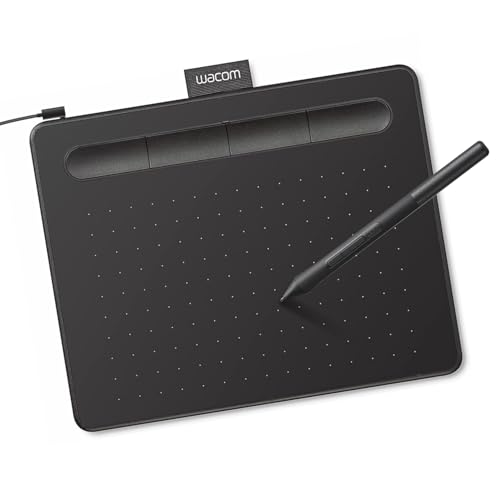
The Intuos Small is the tablet many painters start with and many keep as a travel or backup unit. Wacom’s listing describes its EMR battery-free pen technology, 4,096 pressure levels and plug-and-play support across Windows, macOS, Android and Chromebook. It connects over USB-A, so there is nothing to charge and no pairing to troubleshoot.
The small active area is both its strength and its limit. It fits beside a keyboard on a cramped desk and suits laptop screens well, but painters working on a large monitor may find strokes feel compressed. Wacom also bundles creative software and training with registration, which is useful if you do not yet own a painting program.
Best suited for: beginners, students, laptop painters and anyone who values driver stability over extra buttons.
Key features
- EMR battery-free pen
- 4,096 pressure levels
- USB-A wired connection
- Works with Windows, macOS, Android and Chromebook per the listing
- Bundled software and online training after registration
Pros
- Long-established drivers and wide app support
- Light, compact and easy to pack
- Pen never needs charging
Cons
- Small active area feels tight on big monitors
- Fewer pressure levels on paper than newer budget rivals (rarely a visible difference in practice)
- Wired only
Buying consideration: If your monitor is 27 inches or larger, map the tablet to a portion of the screen in the driver settings, or consider a larger tablet so your arm movements stay natural.
2. VEIKK VK850 — Best for More Room and Tilt on a Budget

The VK850 gives you noticeably more space to work than a small tablet. The listing quotes an 8 x 5 inch active area, 16,384 pressure levels, ±60° tilt and a 290 PPS report rate. Ten customizable keys and a quick dial sit along one edge, and the layout is described as usable by left- and right-handed artists.
It connects with a Type-C port at the tablet end, which is a sturdier connector than micro-USB for daily plugging. The body is listed at about 2mm thin, so it slides into a laptop sleeve. As with any budget brand, expect to spend a few minutes in the driver panel setting pressure curves and key assignments before it feels tuned to your hand.
Best suited for: painters on mid-size monitors who want tilt-aware brushes and on-tablet shortcuts without moving to a premium price.
Key features
- 8 x 5 in active area
- 16,384 pressure levels and ±60° tilt
- P05 battery-free pen with 2 side buttons
- 10 shortcut keys and 1 dial
- Type-C connection; Windows, macOS and more listed
Pros
- Generous drawing area for the tier
- Tilt support for angle-sensitive brushes
- Dial handy for brush size or zoom
Cons
- Driver polish typically lags Wacom
- No wireless option
- Wider body takes more desk space
Buying consideration: Spec sheets quoting 16K pressure are not the whole story; what you feel is the pressure curve and initial activation force. Plan to adjust the curve in the driver so light strokes register.
3. XPPen Artist 13.3 Pro V2 — Best for Painting Directly on Screen
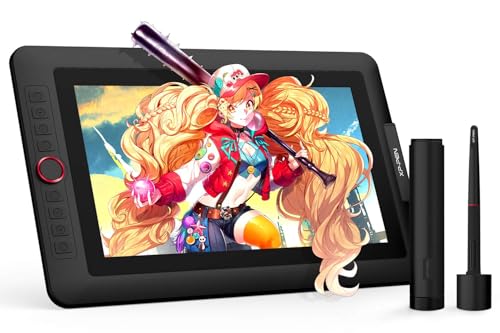
Strictly speaking this is a pen display rather than a screenless tablet, but many shoppers searching for pen tablets want exactly this: to see the brush appear under the nib. The listing describes a 13.3 inch fully laminated FHD screen with a quoted 88% NTSC gamut, 60° tilt, a red dial for zoom, brush size and canvas rotation, and a battery-free stylus with eight spare nibs and a pen case that doubles as a stand.
It must be connected to a computer; it is not a standalone device. The included 3-in-1 cable handles power and video, and the listing names Windows, macOS, Chrome OS and Linux support. Full lamination means the glass and display are bonded, which reduces the gap between nib tip and cursor that makes some displays feel vague.
Best suited for: painters who struggle with hand-eye coordination on screenless tablets, and illustrators who do a lot of line work.
Key features
- 13.3 in fully laminated FHD display
- 16K pressure pen with tilt
- Red dial plus pen-side buttons
- Pen case doubles as a stand; 8 replacement nibs
- Requires a computer connection
Pros
- Direct drawing feels closer to traditional painting
- Lamination reduces parallax
- Dial placement suits natural drawing posture
Cons
- Cable setup is bulkier than a screenless tablet
- Your hand covers part of the image as you paint
- Color accuracy still depends on calibrating the display
Buying consideration: A pen display adds a second screen to your system. Check your computer has a suitable video output for the cable, and budget for a stand if you plan to paint at an angle for hours.
4. XP-Pen PA2 Battery-Free Stylus — Best Spare Pen for Artist Pro Owners

This one is not a tablet. It is a replacement pen, and we include it because a lost or damaged pen stops a painting session cold. The listing is unusually clear: the PA2 works only with the Artist 12 Pro, 13.3 Pro, 15.6 Pro, 22R Pro and 24 Pro, and not with any other model or brand.
It offers 8,192 pressure levels and 60° tilt with no battery. The box contains one pen only, with no nibs or stand, so order spare nibs separately if you need them.
Best suited for: owners of a compatible XP-Pen Artist Pro display who want a backup pen in the drawer.
Key features
- 8,192 pressure levels
- 60° tilt
- Battery-free
- Compatibility limited to listed Artist Pro models
Pros
- Keeps you working if the main pen fails
- No charging
Cons
- Narrow compatibility
- No nibs or stand included
Buying consideration: Check your model name on the back of your display before ordering; the listing explicitly warns it will not work with other XP-Pen models.
Buying Guide: How to Choose Pen Tablets for Digital Painting
Most frustration with drawing tablets comes from a mismatch between the tablet and the setup around it, not from the tablet being “bad.” These are the factors that matter most for painting specifically.
Screenless tablet or pen display
A screenless tablet is cheaper, lighter and lets you keep your eyes on a large, well-calibrated monitor, which is a real advantage for color work. The learning curve is a week or two of drawing without looking at your hand. A pen display removes that adjustment and feels closer to a canvas, but costs more, needs more cables and puts your hand over part of the painting. Many professional painters use screenless tablets by choice, so neither option is a step down.
Active area versus monitor size
Think in ratios. A small tablet mapped to a 32 inch monitor means a 1 cm pen movement throws the cursor a long way, which makes careful edges harder. As a rough guide, small tablets suit laptops and monitors up to about 24 inches, while 8 x 5 or 10 x 6 inch active areas suit larger single monitors. You can also map a tablet to part of the screen to tighten control.
Pressure levels and the pressure curve
Beyond roughly 2,048 levels, painters rarely notice differences in the number itself. What matters is how lightly the pen begins to register and how smoothly opacity or size ramps up. Every driver lets you adjust the curve; a softer curve helps if you paint with a light hand and want delicate glazes.
Tilt support
Tilt lets angle-aware brushes behave like a pencil laid on its side or a flat brush turned. It matters most in programs and brush sets designed for it. If your painting style is mostly hard round brushes, tilt is nice to have rather than essential.
Pen type: battery-free versus rechargeable
All three tablets here use battery-free pens, which keeps them light and removes charging from your routine. Rechargeable pens can work well too, but a lighter pen is easier on the wrist over a multi-hour session.
Shortcut keys and dials
Painting involves constant switching between brush, eraser, color picker, undo and brush size. Express keys and dials save many small trips to the keyboard. If you already work with one hand on the keyboard, they matter less.
Driver and system compatibility
Check the listing for your exact operating system and, for Chromebook or Android, whether the tablet supports that platform’s pen input. Install drivers from the manufacturer before plugging in, and remove old drivers from other brands first; conflicting drivers are a common cause of lag and lost pressure.
Learn the Techniques Next
Once your tablet is set up, practice with subjects that reward pressure control. Our tutorial on painting digital waves and ocean scenes is a good workout for soft-to-hard edge transitions, and the guide to digital night scene painting shows how to build glow and value with light strokes. If you are still deciding whether you need a tablet at all, read how to do digital painting without a tablet first.
Common Mistakes to Avoid
- Buying the largest tablet by default. Large active areas need big arm movements and desk space. Match the size to your monitor.
- Skipping the driver install. Plug-and-play gets you a cursor, but full pressure and button mapping usually need the manufacturer’s driver.
- Leaving old drivers installed. Switching brands without uninstalling the previous driver can break pressure.
- Judging by pressure numbers alone. Initial activation force and curve tuning matter more than 8K versus 16K.
- Ignoring nib wear. Nibs wear flat over time, especially on textured surfaces. Rotate in a fresh nib before it scratches the surface.
- Painting with the tablet at an awkward angle. Line the tablet’s orientation up with your monitor so up on the tablet is up on the screen.
FAQs
Is a pen tablet or a pen display better for digital painting?
Neither is better in every case. A screenless pen tablet is cheaper, lighter and lets you judge color on your main monitor; a pen display feels more like painting on a canvas. Beginners often adapt to screenless tablets within a couple of weeks.
How many pressure levels do I need for digital painting?
Anything from 2,048 levels up is plenty. All the tablets here list 4,096 or more. Tuning the pressure curve in the driver has a bigger effect on how strokes feel than the headline number.
What size pen tablet is best for painting?
Small tablets suit laptops and monitors up to around 24 inches. For larger monitors, an active area around 8 x 5 or 10 x 6 inches keeps your strokes from feeling cramped.
Do pen tablets work with Photoshop, Krita and Clip Studio Paint?
Yes. The Wacom and VEIKK listings both state compatibility with major creative software, and pressure works in any program that supports standard tablet input once the driver is installed.
Can I use a pen tablet with a Chromebook?
Some models support it. The Wacom Intuos Small listing specifically mentions plug-and-play with Chromebook, and the XPPen Artist 13.3 Pro V2 lists Chrome OS 88 or later. Check app support on Chrome OS before buying.
Is the Wacom Intuos Small too small for painting?
Not for a laptop or a small monitor. On large monitors, many painters map it to part of the screen or move up to a larger tablet.
Final Recommendation
If you want a dependable first tablet that will keep working for years, the Wacom Intuos Small is the conservative choice, especially for laptop painters. If your monitor is larger or you want tilt and a dial for brush size, the VEIKK VK850 gives more working room in the same price tier. If you know you want to paint directly on the image, the XPPen Artist 13.3 Pro V2 is the clear pick here, and owners of compatible Artist Pro displays should keep a PA2 stylus as a spare.
Whichever you choose, spend the first evening tuning the pressure curve and assigning undo, brush size and the color picker to buttons. That setup time pays back faster than any spec upgrade.