Quick answer: Digital comic style painting combines confident line art, flat base colors, and simplified shading in clear, hard-edged shapes. The usual workflow is thumbnail, rough sketch, clean inks on their own layer, flat colors on a separate layer below the inks, then cel or soft shading on clipped Multiply layers, highlights, and final effects like color holds or halftones. Strong values and readable silhouettes matter more than detail.
Comic art has to communicate fast. A reader glances at a panel for a second or two, so every image needs a clear silhouette, a readable expression and a color scheme that guides the eye. Learning how to do digital comic style painting is less about fancy brushes and more about a disciplined layer workflow and a handful of visual rules borrowed from decades of print comics.
This step-by-step guide works in any major painting app, including Procreate, Clip Studio Paint, Krita and Photoshop. For deeper study, many of the fundamentals here are covered at length in the titles we compare in our guide to the best digital painting books.
What Defines Comic Style Painting?
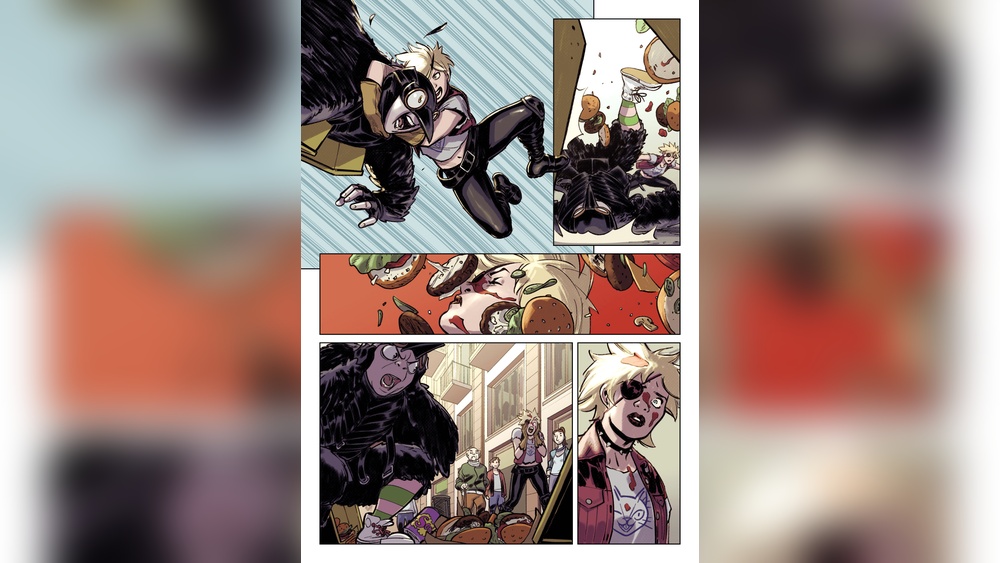
“Comic style” covers a lot of ground, from classic American superhero art to European bande dessinée and webtoons. Most share a few traits:
- Line art carries the drawing. Contours and interior lines define form, with line weight doing much of the work that shading does in realistic painting.
- Color is simplified. Flat base colors, with shading in a limited number of steps.
- Shadows are graphic. Hard-edged shadow shapes, often with solid black areas (“spotting blacks”).
- Clarity over realism. Exaggerated poses, strong silhouettes, and focused lighting.
Within that, there are sub-styles worth recognizing because they change your shading choices.
| Style | Line art | Shading | Typical feel |
|---|---|---|---|
| Classic American | Bold, varied weight, heavy blacks | Cel shading, 1–2 tones | Dramatic, high contrast |
| Modern painted comic | Thinner lines or lines partly absorbed by color | Soft rendering, gradients | Cinematic, rich color |
| Manga-influenced | Clean, fine lines | Screentones or cel shading | Expressive, graphic |
| Webtoon | Clean lines | Cel shading with soft gradients and glow effects | Bright, polished, screen-first |
| Franco-Belgian (ligne claire) | Even-weight lines | Flat colors, few shadows | Clean, readable, calm |
Recommended Canvas and Layer Setup
Set up properly before drawing and the rest becomes much easier.
- Resolution: 300 DPI is a common standard if there is any chance of printing; many artists work at 600 DPI for black-and-white line art. For web-only comics, a large pixel width (around 1,600 to 2,000 pixels per panel width or more) leaves room to crop.
- Color mode: RGB for screens. If printing professionally, check with the printer about CMYK conversion.
- Layer stack (top to bottom): Effects, Highlights, Shadows (clipped), Flats, Background, with Inks either on top or just above Flats, and Sketch hidden or at low opacity.
How to Do Digital Comic Style Painting: Step by Step
Step 1: Thumbnail the composition
Draw tiny, rough sketches, about the size of a postage stamp, focused on big shapes and value. Try three to six versions. Ask: where does the eye go first? Is the silhouette readable? Thumbnails are the cheapest place to fix problems.
Step 2: Rough sketch
Enlarge the best thumbnail to full size and sketch loosely in a light color, such as light blue or red, on its own layer. Work out anatomy, perspective and expressions. Do not worry about clean lines yet.
Step 3: Ink the line art
Lower the sketch layer’s opacity to around 20 to 30 percent and create a new layer for inks. Choose a pressure-sensitive inking brush. Most apps include solid inking pens and brushes.
- Use stabilization or streamline settings to smooth wobbles. A moderate value helps; too high makes lines lag.
- Draw in confident, single strokes. Undo and redraw rather than scratching over a line.
- Rotate the canvas so your hand moves in its most natural arc.
- Apply line weight rules: thicker outer contours, thinner interior details; thicker lines on the shadow side and for overlapping forms; thinner lines for distant objects.
- Spot blacks: fill large shadow areas with solid black on the ink layer for graphic punch, especially in classic styles.
Step 4: Lay in flat colors (“flatting”)
Create a Flats layer under the inks. Fill each region with a single base color, no shading. Precision matters: gaps and overlaps make later selection painful.
- Use the fill/bucket tool with “reference other layers” pointing at the ink layer, so fills stop at your lines.
- Expand the fill by 1 to 2 pixels (an option in most apps) to avoid white gaps along antialiased edges.
- Put separate elements (skin, hair, clothing) on separate layers or keep them in distinct colors so you can select them quickly with the magic wand.
Choose flat colors at a mid value, then adjust as a set. Squint or use a grayscale view to check that characters separate from the background.
Step 5: Shade with clipped layers
Add a new layer above the flats, clip it, and set it to Multiply. Choose one shadow color for the whole image, such as a soft lavender or blue-gray. Using one shadow color unifies the lighting.
- Decide on your light direction and keep it consistent.
- Draw hard-edged shadow shapes with a solid brush or the lasso fill tool. Think in planes: under the chin, under the brow, the side of the nose away from the light, folds in fabric.
- For a second, darker level, add another Multiply layer for occlusion shadows (where forms meet, like the inside of a collar).
- If you want a softer, painted look, gently blend some shadow edges, especially on round forms like cheeks, and keep hard edges on cast shadows.
Step 6: Add highlights and rim light
Create a layer set to Add, Screen or Overlay. Add small, crisp highlights on shiny surfaces: eyes, hair, metal, lips. A rim light, a thin line of light along the edge facing a second light source, is a common comic trick that separates characters from dark backgrounds.
Step 7: Color the line art (optional)
Many modern comics change line color in some areas, called “color holds.” For example, lines inside a fire effect turn orange, or lines on skin become dark brown instead of black. Lock the ink layer’s transparency (alpha lock) and paint over the lines in the new color.
Step 8: Backgrounds and effects
Keep backgrounds simpler and lower in contrast than characters. Add effects last: speed lines, glow, halftone patterns, impact bursts and lettering space. Halftone dots can be created with filters in most apps or with dedicated tone brushes.
Step 9: Final adjustments
Merge a copy and use levels, curves or a gradient map at low opacity to unify the color mood. Check the image at thumbnail size: if it still reads clearly small, it will read well in a panel.
Cel Shading vs. Soft Shading
| Cel shading | Soft shading | |
|---|---|---|
| Edge quality | Hard, crisp shadow edges | Blended gradients |
| Speed | Faster, very consistent across pages | Slower, more painterly |
| Look | Graphic, animation-like | Dimensional, cinematic |
| Best for | Long-running series, webtoons, high page counts | Covers, splash pages, illustration |
A common compromise is cel shading for most panels and a softer rendering for covers and key moments. If you are drawn to the painted look without line art, our guide to lineless digital painting explains how to define form with color alone.
Color Choices That Work in Comics
- Limit the palette per scene. A dominant hue family per scene helps readers track time and place.
- Use temperature to separate planes. Warm characters against cool backgrounds pop forward.
- Reserve saturation. If everything is saturated, nothing stands out. Save the most intense color for the focal point.
- Keep skin tones consistent. Save character palettes so colors match page to page.
- Check value contrast. Grayscale your page; if characters blend into backgrounds, adjust values before hue.
Exporting Comic Pages for Print and Web
A finished page still needs the right output. Keep a layered master file and export copies for each destination.
- Web and webtoon platforms: Export as PNG or high-quality JPEG in RGB. Check each platform’s maximum width and file size; vertical-scroll formats often have specific width requirements.
- Print: Export at full resolution with bleed (artwork extending past the trim line, commonly about 0.125 inch) and keep important elements inside the safe area. Ask your printer whether they want CMYK files, and expect saturated RGB colors like bright blues and greens to shift slightly after conversion.
- Black-and-white pages: Pure black line art at 600 DPI tends to print crisper than antialiased gray lines at low resolution.
Lighting a Whole Scene, Not Just a Character
Comic panels rarely show one figure on a blank background. When several characters share a scene, establish the lighting once and apply it to everyone. A useful method is to block in the shadow side of every figure and major object on a single Multiply layer for the whole panel before refining any individual character. This keeps shadows pointing the same way and reveals composition problems early, such as two figures merging into one dark mass.
Across a sequence of panels, keep the light source in a consistent position relative to the environment, even as the camera angle changes. If a window is behind the characters in panel one, it should still logically light them from that side in panel three.
Common Mistakes
- Inking too slowly. Hesitant lines look shaky. Draw faster, rely on stabilization and redo strokes.
- Uniform line weight everywhere. Flat-looking art, unless you are deliberately working in ligne claire.
- Gaps in flats. Tiny white specks show up badly in print. Expand fills and zoom in to check.
- Using gray or black for shadows on Multiply. It dulls colors. Use a tinted shadow color.
- Over-rendering backgrounds. Busy backgrounds compete with characters and slow production.
- Inconsistent light direction across panels in the same scene.
Speed Tips for Comic Production
Comics demand volume. A few habits save hours:
- Create templates with your panel borders and layer stack ready.
- Build reusable character color palettes.
- Use actions, macros or quick-menu shortcuts for frequent steps like “new clipped Multiply layer.”
- Flat whole pages at once, then shade page by page.
- Keep background libraries or 3D references for recurring locations.
For more on painting quickly without losing quality, see our tips on digital speed painting techniques.
Practice Plan for Beginners
- Week 1: Ink practice. Trace and then freehand simple objects focusing on line weight.
- Week 2: Flatting and selection. Color several finished line drawings with only flats.
- Week 3: Cel shading. Add one-tone shadows to the same drawings with a consistent light source.
- Week 4: A four-panel strip using the full workflow, from thumbnails to lettering.
FAQs
What app is best for digital comic style painting?
Clip Studio Paint is widely used for comics because of its panel, ruler and inking tools, but Procreate, Krita and Photoshop can all produce professional comic art using the same layer workflow.
What is flatting in comics?
Flatting is filling each region of the line art with a single base color on a separate layer. It makes later selections, shading and color changes fast and accurate.
How do I make my comic line art look professional?
Use confident single strokes, moderate stabilization, varied line weight, and spotted black areas for contrast. Inking at a larger canvas size and reducing for output also tightens lines.
Should comic shadows be hard or soft?
Both work. Hard cel shadows are faster and more graphic; soft shading feels more cinematic. Many artists mix them, using hard cast shadows and softer form shadows.
What resolution should I use for digital comics?
300 DPI at the intended print size is a common baseline, and some artists ink at 600 DPI. For web-only comics, work larger than the final display size so you can crop and resize.
Can I do comic style painting on a phone?
Yes, with a stylus and a capable app, though smaller screens make inking harder. Turn on stabilization, zoom in for inking, and keep layer counts modest, since phone apps often cap layers based on canvas size and memory.
Final Thoughts
Digital comic style painting rewards a clean process: thumbnail, sketch, ink, flat, shade, highlight, and polish. Master each layer step and your art will read clearly at any size. To go deeper on anatomy, lighting and color for comics, browse our curated list of digital painting books worth studying and pick one that matches the style you want to develop.