

PaintingProGuide is reader-supported. When you buy through links on this page we may earn an affiliate commission at no extra cost to you.
The best affordable drawing tablet for most people is still a screenless pen tablet that plugs into a computer you already own. That category gives you pressure-sensitive drawing, real digital painting software and a pen that never needs charging, at a fraction of what a pen display costs. Spend more only when you have a specific reason: drawing directly on the screen, or working with no computer at all.
This guide compares six budget-friendly tablets across all three categories so you can see exactly what each extra tier of money buys, and what you give up at the cheapest end.
Quick answer: The Wacom Intuos Small is the best affordable drawing tablet for beginners who want a proven brand, bundled software and a battery-free pen. If you want a bigger drawing area and more shortcut controls for the money, the GAOMON M10K is the stronger value. If drawing on the screen matters, the GAOMON PD1161 is the budget pen display to look at, and the PicassoTab A10 is the pick for a standalone tablet that needs no computer.
Our Top Picks at a Glance
- Wacom Intuos Small — Best overall for beginners
- GAOMON M10K — Best large-area budget pen tablet
- UGEE M708 V3 — Best for high pressure levels and broad OS support
- GAOMON PD1161 — Best affordable screen tablet
- PicassoTab A10 — Best standalone tablet for learners
- Frunsi T8 — Best compact standalone for travel
| Product | Best For | Key Spec | Key Strength | Price Tier |
|---|---|---|---|---|
| Wacom Intuos Small | Beginners | 4096 pressure levels, battery-free EMR pen | Bundled software and training | $$ |
| GAOMON M10K | Value and workspace | 10 x 6.25 in area, 8192 levels | 10 keys plus touch ring | $$$ |
| UGEE M708 V3 | Cross-platform use | 10 x 6 in area, 16384 levels | Windows, Mac, Android, ChromeOS, Linux | $$$ |
| GAOMON PD1161 | Drawing on screen | 11.6 in FHD IPS, tilt pen | Matte film, 8 shortcut keys | $$$ |
| PicassoTab A10 | No-computer learning | 10 in laminated screen, Android 14 | Tutorial and drawing app upgrades | $$$ |
| Frunsi T8 | Portable sketching | 8 in, Android 13, 4GB RAM | Up to 20 hours battery stated | $$$ |
How We Chose
These picks are based on the Amazon listing specifications checked in October 2026: active area or screen size, pressure levels, pen type, shortcut controls, operating system support and what comes in the box. We also looked at how widely each tablet is reviewed by Amazon buyers, which helps separate established models from untested ones. We did not draw on these tablets, so we avoid claims about feel or latency beyond what the listings state.
- Value: what you get per tier of spending
- Pen technology: battery-free pens avoid charging
- Drawing area: bigger areas feel less cramped for painting strokes
- Compatibility: Windows, macOS, Android, ChromeOS, Linux
- Workflow controls: express keys, touch rings, pen buttons
- Software: bundled apps or included upgrades
Best Affordable Drawing Tablets Reviewed
1. Wacom Intuos Small — Best Overall Affordable Drawing Tablet for Beginners
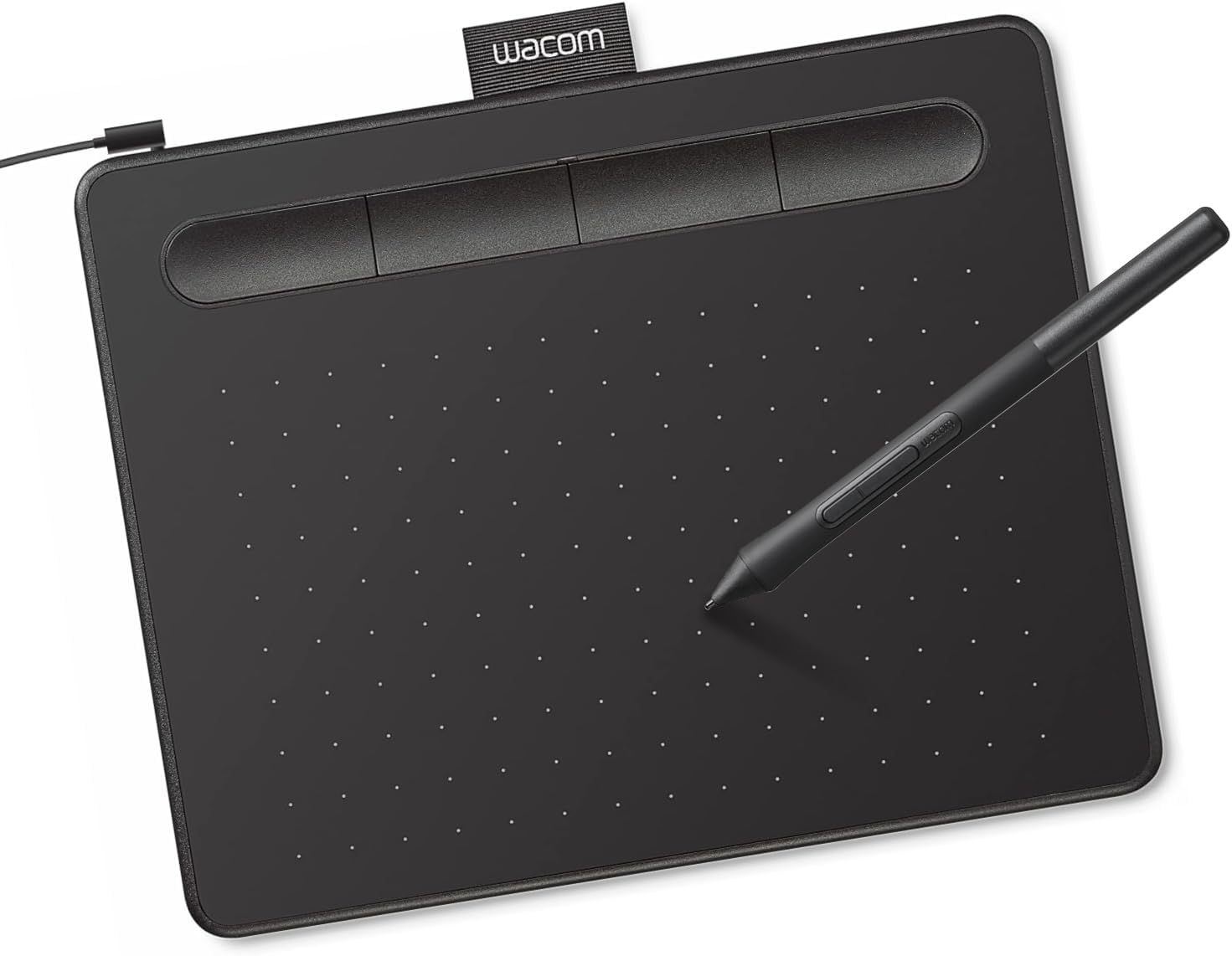
The Intuos Small is the default recommendation for a reason: it is the entry model from the brand most professional illustrators and retouchers have used for years, and it is widely supported by drawing software. The listing describes Wacom’s EMR battery-free pen, 4096 pressure levels, USB-A connection, and compatibility with Windows, macOS and Android.
Wacom also bundles software and online training with registration. For a beginner, that matters: a tablet is only useful with a program, and having a starting point removes one decision. The trade-off is size. The small active area suits sketching, photo editing and small illustrations, but broad painterly strokes can feel tight.
Best suited for: Students and first-time digital painters who want a dependable, well-supported starter tablet.
Key features:
- Battery-free EMR pen
- 4096 pressure levels
- Works with Windows, macOS and Android
- Creative software and training on registration
Pros:
- Strong driver and software support
- No pen charging
- Huge user base, so tutorials are easy to find
Cons/limitations:
- Smaller drawing area than the 10 x 6 inch rivals
- Lower listed pressure levels than budget competitors
Buying consideration: Pressure level numbers above 4096 make little practical difference for most beginners; brand support and drivers matter more.
2. GAOMON M10K — Best Large-Area Budget Pen Tablet

GAOMON’s M10K gives you a 10 by 6.25 inch drawing area with a paper-texture surface, a battery-free AP31 stylus with 8192 pressure levels, ten customizable press keys and a programmable touch ring for zoom, brush size or scrolling. For digital painters, that ring is a real time-saver.
The listing states compatibility with Windows 7 or later, macOS 10.12 or later, and certain Android 11 to 14 devices. It also notes the tablet works for left-handed users.
Best suited for: Hobby painters and illustrators who want more room and more controls without leaving the budget tier.
Key features:
- 10 x 6.25 inch active area
- 8192-level battery-free pen with two side buttons
- Ten express keys and a touch ring
- Left-hand support
Pros:
- Large area for broad strokes
- Excellent shortcut set for the money
- Widely reviewed model
Cons/limitations:
- No bundled software like Wacom’s
- Android support is limited to certain devices
Buying consideration: Download the latest driver from GAOMON before first use to avoid pressure issues in your art app.
3. UGEE M708 V3 — Best for High Pressure Levels and Wide OS Support
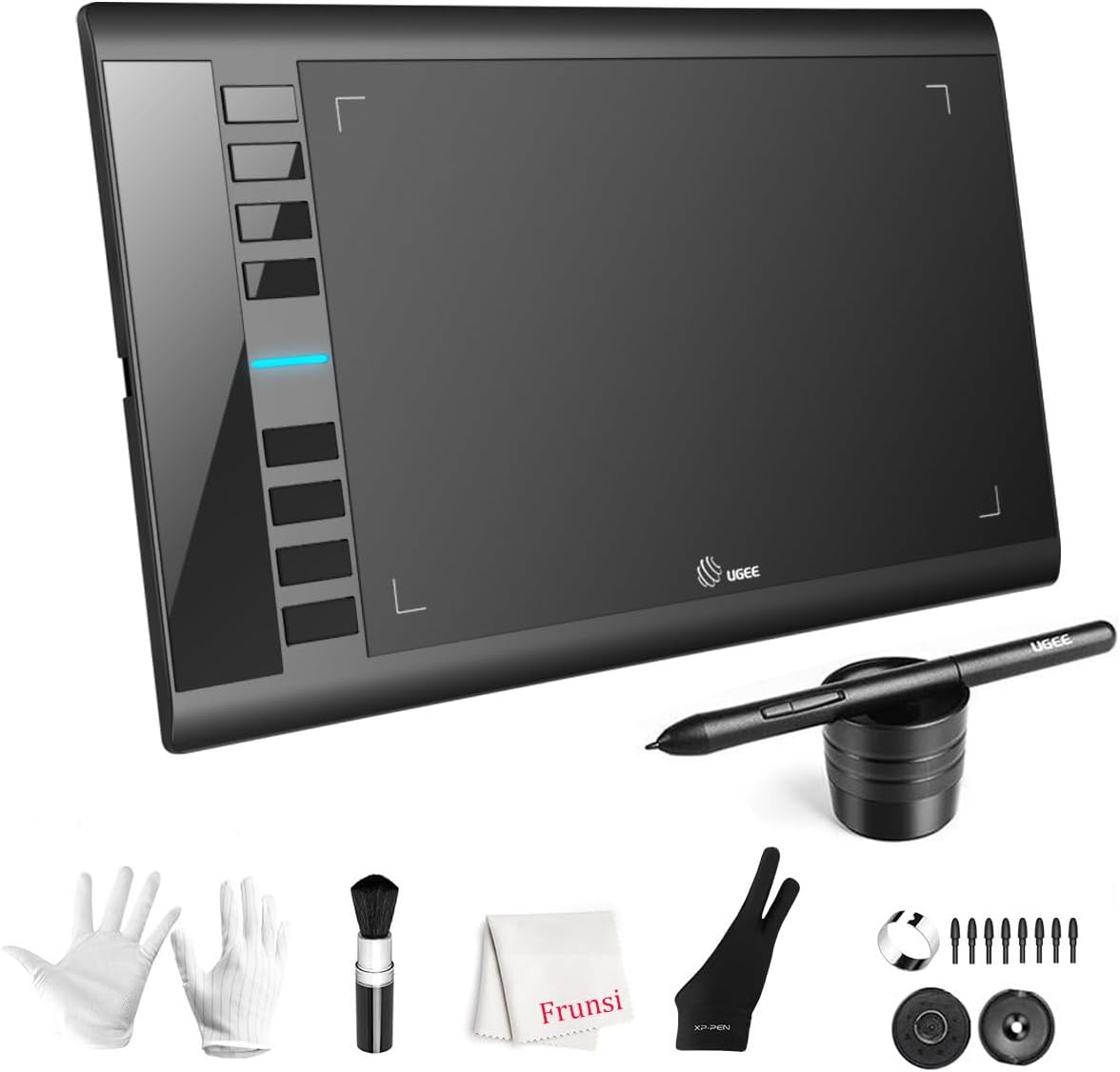
The UGEE M708 V3 pairs a 10 by 6 inch papery surface with a passive stylus rated at 16384 pressure levels and eight customizable express keys. Its compatibility list is the broadest here: Windows 7 through 11, macOS, Android 10 or later, ChromeOS 88 or later and Linux, via the latest driver.
The listing also highlights USB to USB-C connectivity with adapters, which helps if you want to plug into a Chromebook or Android tablet. If your family shares devices across platforms, this flexibility is useful.
Best suited for: Users on Chromebooks, Linux or Android who need a tablet that works across devices.
Key features:
- 16384-level battery-free stylus
- 10 x 6 inch active area
- Eight express keys
- USB-C adapters included
Pros:
- Broadest operating system support
- Large area at a low tier
- Simple setup for beginners
Cons/limitations:
- No touch ring
- Very high pressure counts are mostly a spec-sheet advantage
Buying consideration: Check that your drawing app supports pressure on your specific OS; Chromebook and Android apps vary.
4. GAOMON PD1161 — Best Affordable Screen Drawing Tablet
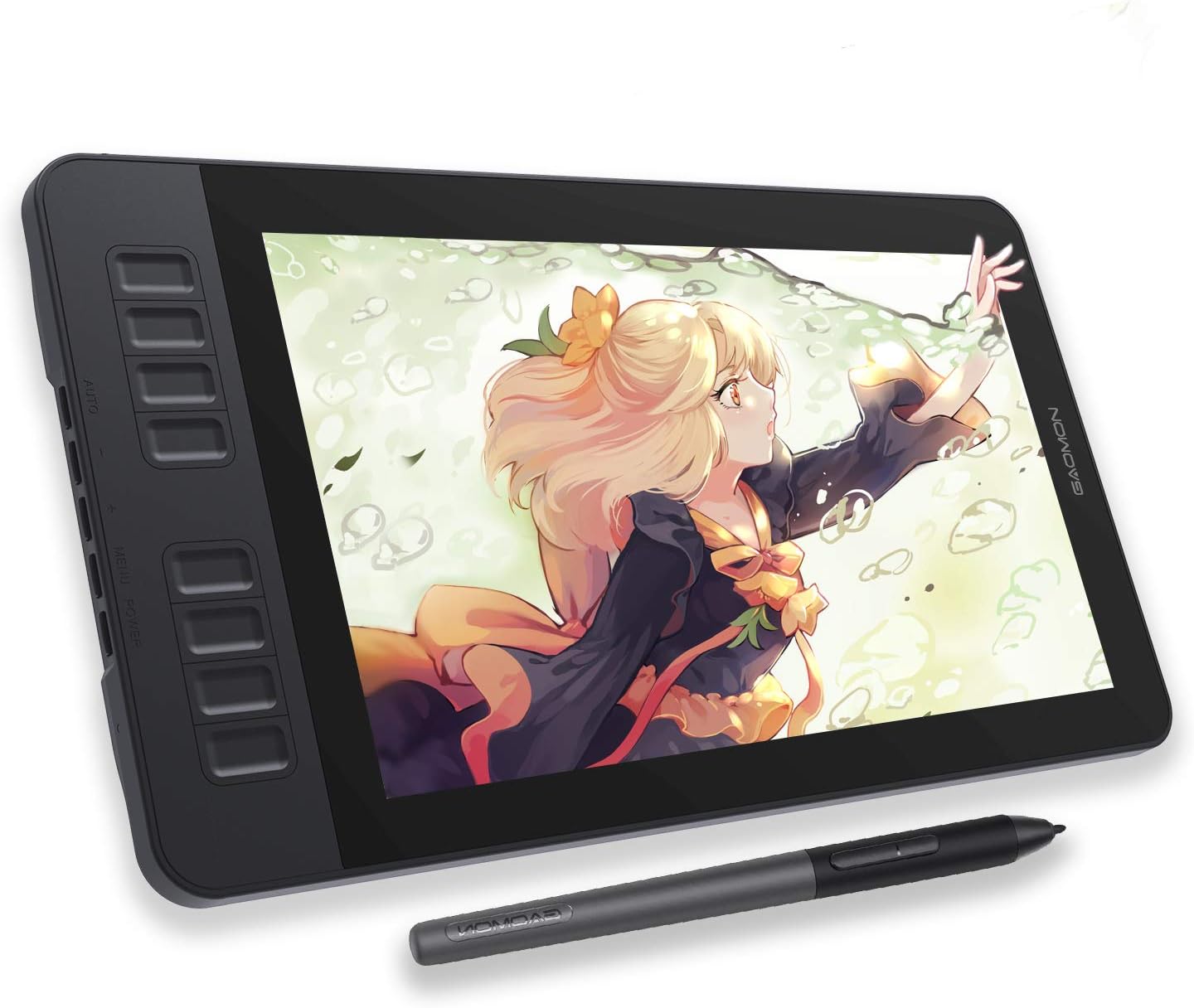
Some people never adapt to drawing on a pad while looking at a monitor. A pen display solves that by putting the screen under your pen. The PD1161 is an 11.6 inch full HD IPS display with a pre-installed matte film, a battery-free AP50 pen with 8192 levels and tilt support, and eight side keys.
The listing is clear that this is not standalone: it must connect to a computer by HDMI and USB. It also lists a 72% NTSC (100% sRGB) color gamut.
Best suited for: Artists who find screenless tablets awkward and want direct on-screen drawing at a modest cost.
Key features:
- 11.6 inch FHD IPS screen with matte film
- 8192-level tilt pen, battery-free
- Eight programmable keys
- Windows and macOS support
Pros:
- Draw directly on the image
- Tilt support for shading brushes
- Matte film reduces glare
Cons/limitations:
- Requires a computer and extra cables
- Small screen by pen-display standards
Buying consideration: Confirm your computer has an HDMI output or buy the right adapter before ordering.
5. PicassoTab A10 — Best Standalone Drawing Tablet for Learners

The PicassoTab A10 runs Android 14 and needs no computer. It ships with five preloaded creative apps, a lifetime PRO upgrade for the Concepts drawing app, a lifetime VIP upgrade for the Artixo tutorial app, a case, a drawing glove, a power adapter and a pre-installed screen protector. Its 10 inch laminated display is paired with a 4096-level active pen.
Inside, the listing names an octa-core processor, 6GB RAM and 64GB storage, expandable to 1TB. That is enough for mainstream Android drawing apps and schoolwork.
Best suited for: Teens and beginners who want everything in one box, including lessons, with no computer required.
Key features:
- Standalone Android 14 tablet
- 10 inch laminated screen, 4096-level pen
- App upgrades and accessories included
- 6GB RAM, 64GB expandable storage
Pros:
- Complete kit for beginners
- Tutorial access built in
- Portable
Cons/limitations:
- Higher price tier than pen tablets
- Android apps are less powerful than desktop painting software
Buying consideration: If a computer is already available, a pen tablet plus free desktop software gives more painting power for less.
6. Frunsi T8 — Best Compact Standalone for Travel
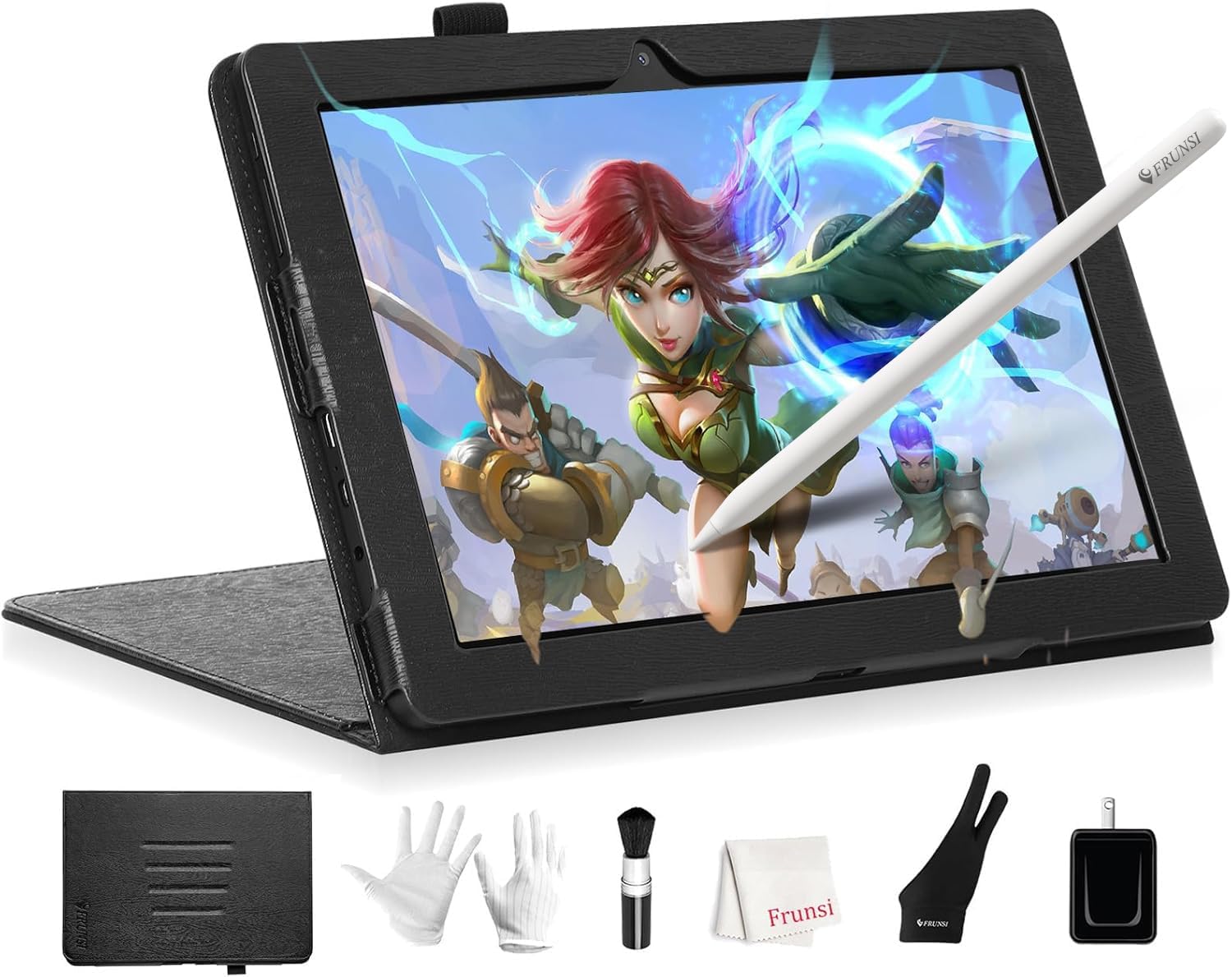
The Frunsi T8 is a smaller standalone option running Android 13, with a 1200 by 800 display, quad-core MTK processor, 4GB RAM and 64GB storage expandable to 256GB. The listing claims a 4000mAh battery for up to 20 hours of drawing, and supports installing apps like SketchBook, ArtFlow and ibis Paint X.
The pen is listed at 2048 pressure levels, the lowest here. For travel sketching and casual drawing that is workable, but detailed painting will feel more limited than on the pen tablets above.
Best suited for: Travel sketchers and casual doodlers who value portability over power.
Key features:
- 8 inch screen, Android 13
- 4GB RAM, 64GB storage expandable to 256GB
- Battery rated up to 20 hours
Pros:
- Very portable
- No computer needed
Cons/limitations:
- Lowest pressure levels in this guide
- Modest screen resolution
Buying consideration: Treat this as a digital sketchbook, not your main painting tool.
What You Give Up at Each Price Tier
Understanding the trade-offs is the fastest way to stop overspending. Affordable drawing tablets cluster into three tiers, and each step up buys something specific rather than simply “better quality.”
The entry tier: screenless pen tablets
The Wacom Intuos Small, GAOMON M10K and UGEE M708 V3 all sit at the lowest price tier for a reason: they are essentially a sensor surface and a pen. You draw on the pad and watch the cursor on your monitor. What you give up is direct visual feedback under the pen tip, which takes most people a few days to a couple of weeks of practice to get used to. What you keep is the core of digital painting: pressure-sensitive strokes, brush size control and every feature of your desktop art software.
For a learner, this tier also has a hidden advantage. Because the tablet sits flat on the desk and your eyes stay on the monitor, your posture tends to be more upright than when hunching over a screen. Many experienced digital painters keep a pen tablet even after buying a display for that reason.
The middle tier: pen displays
The GAOMON PD1161 represents what extra spending buys first: a screen. Seeing the line appear under the nib makes hand-lettering, inking and precise line work feel more natural. The trade-offs are cables, desk space, a dependence on your computer’s video output and, at this size, a smaller canvas than many monitors. You also need to manage a second display in your operating system settings.
The standalone tier: Android drawing tablets
The PicassoTab A10 and Frunsi T8 cost more than pen tablets because they include an entire computer: processor, memory, storage, battery and screen. You gain freedom from a desk and a PC, which is ideal for kids, travel and classrooms without computers. You give up desktop-class software such as full Photoshop or desktop Krita, and the pens on these devices list lower pressure levels than the cheapest pen tablets.
Recommended Setups by Use Case
Digital painting on a laptop: GAOMON M10K or UGEE M708 V3 with a free program such as Krita. The large area makes painterly strokes comfortable.
Photo editing and light sketching: Wacom Intuos Small. Compact size fits beside a laptop and the bundled software adds value.
Comics, inking and lettering: GAOMON PD1161 for direct on-screen control and tilt support.
A child or teen without a computer: PicassoTab A10, thanks to its tutorial app upgrade and included accessories.
Sketching on the go: Frunsi T8, kept as a portable digital sketchbook.
Buying Guide: How to Choose an Affordable Drawing Tablet
Pen tablet, pen display or standalone?
A pen tablet has no screen and is the cheapest way to get pressure-sensitive drawing. A pen display lets you draw on the image but needs a computer. A standalone tablet is a self-contained Android device. On a tight budget, a pen tablet usually offers the best drawing performance per tier of spending.
Active area size
Small tablets suit sketching and editing on a laptop. Ten-inch-wide areas suit painters who use their whole arm. Bigger is not always better if your desk is cramped.
Pressure levels and tilt
Anything from 2048 levels upward can produce expressive strokes; beyond 4096 the difference is subtle for most users. Tilt support matters more for shading brushes and pencil-style tools.
Pen power
Battery-free pens, found on the Wacom, GAOMON and UGEE models, never need charging. Active pens in standalone tablets may need charging or batteries.
Compatibility
Check your operating system. Wacom lists Windows, Mac and Android; UGEE adds ChromeOS and Linux; GAOMON PD1161 lists Windows and macOS only.
Shortcut controls
Express keys and touch rings speed up undo, brush size and zoom. If you plan to paint seriously, more controls pay off quickly.
Software
Some tablets include software; others do not. Free programs like Krita work well with most pen tablets, so lack of bundled software is not a deal-breaker.
Before You Buy: Software and Setup
A common surprise is that many tablets ship without a painting program. Our guide on whether drawing tablets come with drawing software explains which brands bundle apps and which free tools to use instead. Once the tablet arrives, follow our step-by-step drawing tablet setup guide to install drivers and map pressure correctly.
Common Mistakes to Avoid
- Buying on pressure-level numbers alone instead of size, controls and support.
- Choosing a pen display without checking your computer’s ports.
- Skipping the official driver and then blaming the tablet for missing pressure.
- Buying a standalone tablet expecting full desktop painting software.
- Getting a tablet too small for your drawing style.
- Forgetting a replacement nib supply; nibs wear down on textured surfaces.
FAQs
What is the best cheap drawing tablet for beginners?
The Wacom Intuos Small is a dependable starter because of its battery-free pen, driver support and bundled software. The GAOMON M10K offers more drawing area and shortcuts at a similar tier.
Do I need a screen on my drawing tablet?
No. Most professionals learned on screenless tablets. There is a short adjustment period while hand-eye coordination adapts, but it is far cheaper than a pen display.
Can I use a drawing tablet with a Chromebook?
Some tablets support ChromeOS. The UGEE M708 V3 lists ChromeOS 88 or later. Always check the listing and your app’s pressure support.
How many pressure levels do I need?
For most painting and drawing, 2048 to 4096 levels are plenty. Higher numbers are not a major practical upgrade.
Is a standalone drawing tablet worth it?
It is worth it if you have no computer or want portability. If you already own a computer, a pen tablet gives more performance for less.
Can I use these tablets for digital painting, not just sketching?
Yes. Any pressure-sensitive tablet works with painting apps like Krita, Photoshop or Clip Studio Paint. Larger active areas make broad painterly strokes easier.
Final Recommendation
Start with the Wacom Intuos Small if you want the safest affordable drawing tablet with software included. Choose the GAOMON M10K for more room and controls, or the UGEE M708 V3 if you use ChromeOS, Android or Linux. Move up to the GAOMON PD1161 only if on-screen drawing matters, and pick the PicassoTab A10 or Frunsi T8 when a computer simply is not part of the picture.



One Comment